Add a custom field only when someone will filter, report or act on it. Good candidates are what qualifies a lead (budget, timeline, property or policy type), what decides the next step (renewal date, contract end) and what you report on (product interest). Use a dropdown wherever the answers are a known list, make only the few fields you can't work without required, and leave the rest of the story to notes.
Every CRM ships with names, numbers and emails. Custom fields hold what's specific to how you sell, and they're where most CRMs either earn their keep or turn into clutter. This post is part of our guide to the CRM with a built-in phone system.
The test for a new field
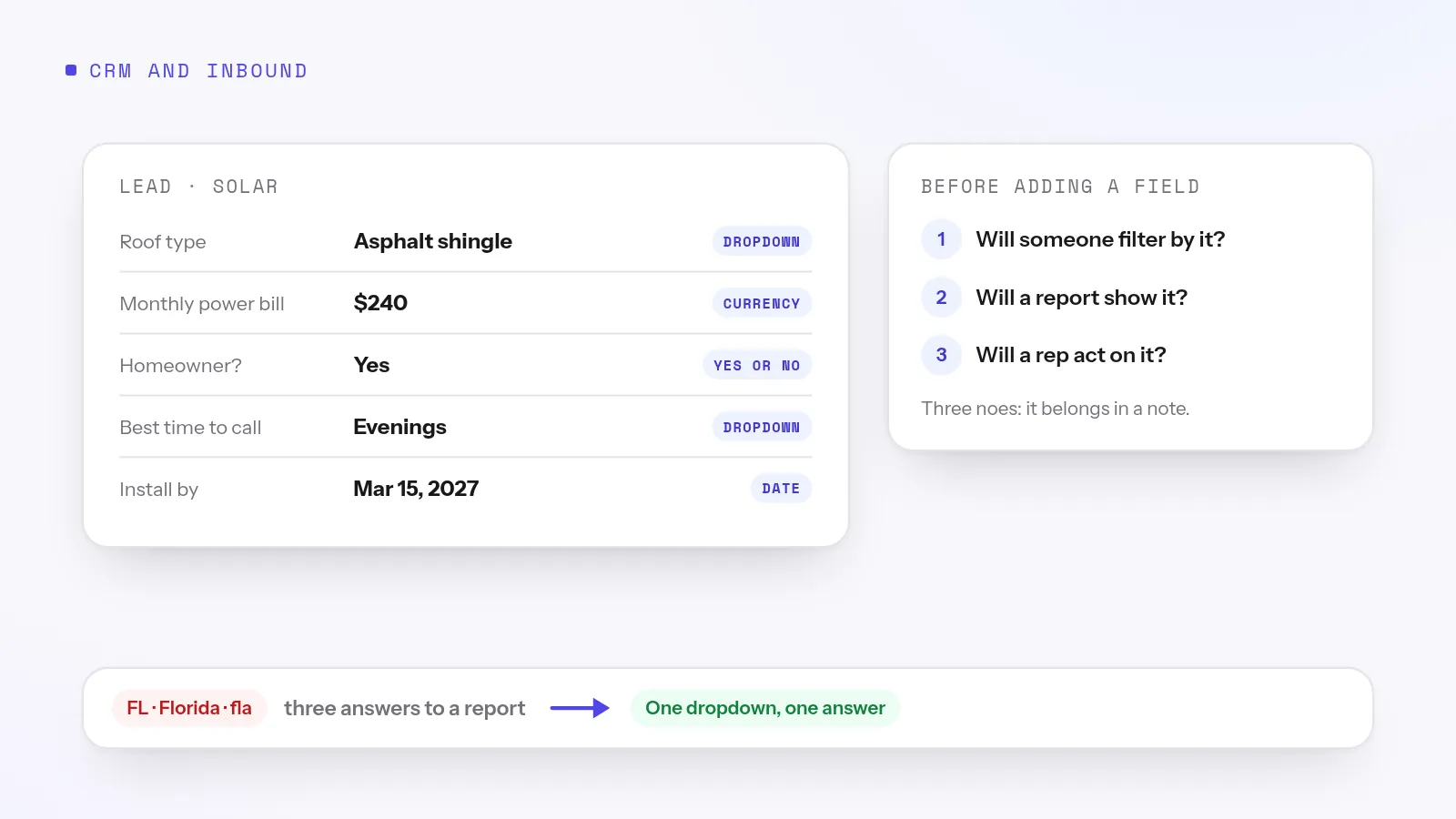
Before adding a field, ask three questions. Will someone filter a list by it? Will it appear in a report? Will a rep do something differently because of it? If the answer to all three is no, it belongs in a note. Fields nobody uses still cost something: longer forms, slower calls and half-empty columns that make reports unreliable.
Fields worth tracking, by business
Business
Field
Type
Insurance
Policy type, renewal date, current carrier
Dropdown, date, dropdown
Solar and home services
Roof type, monthly power bill, homeowner?
Dropdown, currency, yes or no
Real estate
Price range, area, move-in date
Currency, multi-select, date
B2B sales
Seats, current tool, contract end
Number, dropdown, date
Any team
Best time to call, how they found you
Dropdown, dropdown
Pick the right type
Dropdowns over free text. "FL", "Florida" and "fla" are three answers to a report. A list of options is one.
Dates as dates. A renewal date typed as text can't be filtered for "next 30 days".
Money as currency, counts as numbers, so you can sort and set limits.
Yes or no for flags, such as "homeowner" or "decision maker".
Try it on your own numbers. Add the fields your business runs on, in eleven types, checked as each record is saved.
Making a field required means it must be filled in when someone adds a lead by hand, and it can't be emptied later. Use it for the two or three fields every next step depends on. Make ten fields required and reps start typing anything to get past the form, which is worse than an empty field. Leads arriving from an import or an integration may still lack them, so check those sources map every required column; our guide to importing leads into a CRM covers column mapping.
Keep fields tidy as you grow
Group related fields into sections so a record reads in order. Review your fields every quarter and retire the ones nobody fills in. Don't add a field that repeats your pipeline: where a lead stands belongs in lead stages, not in a "status" field beside them. And decide who sees sensitive fields, such as income, before you collect them, as covered in our post on CRM roles and permissions.
Custom fields in Adoptiv
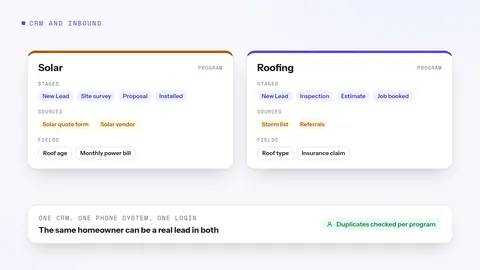
Adoptiv's custom fields come in eleven types: text, number, date, yes or no, dropdown, multi-select, URL, email, phone, currency and file. Leads and deals each keep their own set, and there's no cap on how many you add. You write a label and the internal name is made from it; a name that clashes with an existing field is turned away. A field can have options, a default, a minimum, a maximum and a maximum length, and each value is checked against its type as the record is saved. A required field must be filled in when someone adds a lead by hand, and can't be emptied later; an import can still leave it empty, and the record then shows it as not filled in yet.
Field groups put fields into sections, and each permission profile can view, edit or not see a section at all, so withheld values stay off the record and out of the list. You can filter lists on custom fields with advanced filtering and map spreadsheet columns to them in a bulk import.
Common questions
How many custom fields should a CRM have?+
As few as your team will actually fill in and use. Most small teams need fewer than twenty on a lead.
Should I use a dropdown or a text field?+
A dropdown whenever the answers are a known list. Text fields are for answers you can't predict, and they're hard to report on.
When should a field be required?+
Only when the next step can't happen without it. Too many required fields lead to made-up answers.
Can custom fields be hidden from some users?+
In many CRMs, yes. In Adoptiv you put them in a field group and choose, for each permission profile, whether it can view, edit or not see that section.
Adoptiv is the dialer, the CRM and the AI on one platform, where the busywork logs itself and your reps just talk. Try it free for 14 days, with no credit card.
Questions? Call +1 (844) 955-7733. SIYA answers and puts you through to a person.