CRM roles and permissions: how to set them up for a sales team
Adoptiv Team··Updated ·3 min read
Short answer
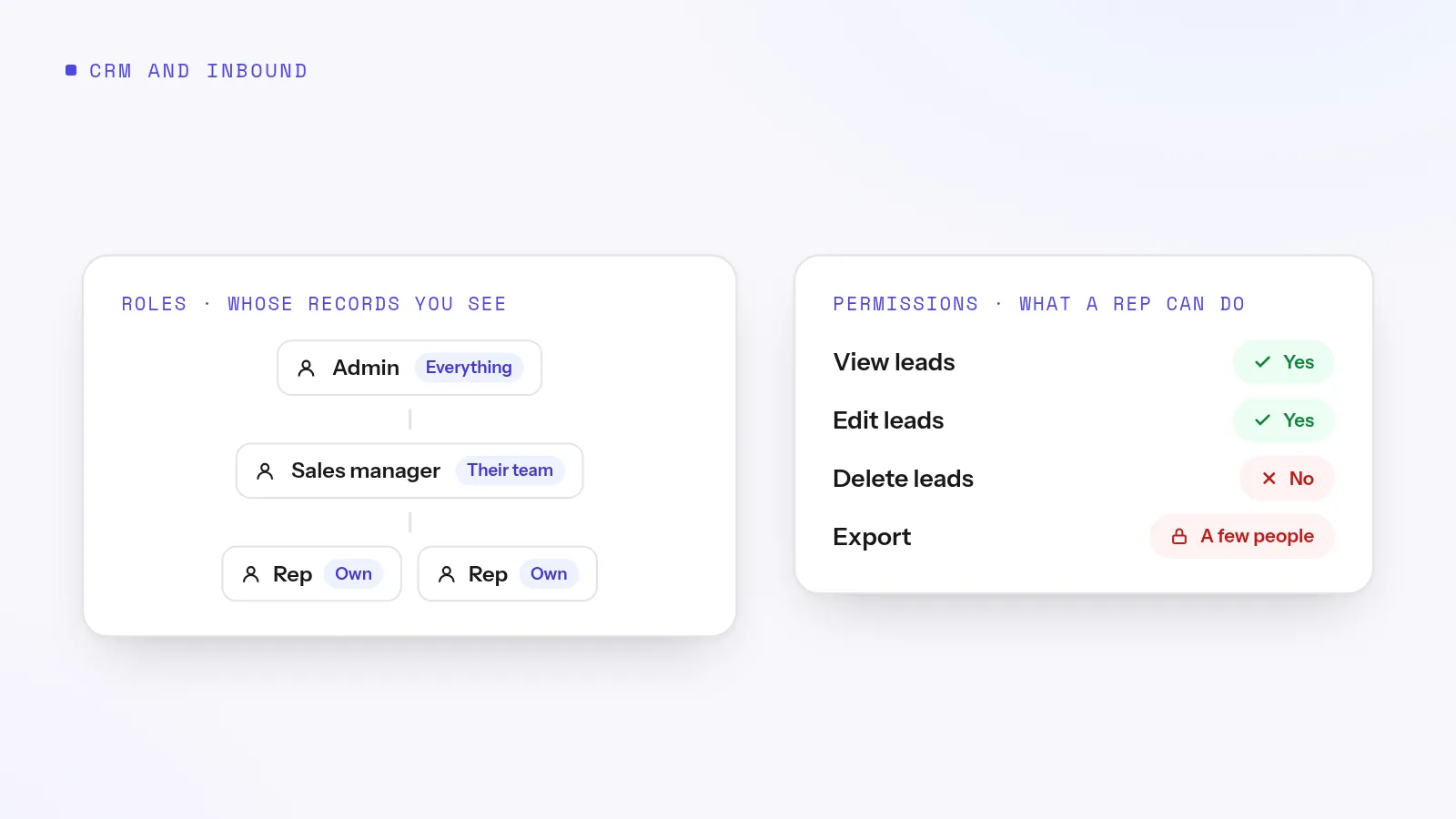
Set up CRM access in two layers. Roles decide whose records each person can see: reps see their own, managers see their team's, admins see everything. Permissions decide what they can do with them, such as edit, delete or export. Start strict, keep export to a few people, and open access only where two teams genuinely work together.
Most small sales teams start with everyone seeing everything. It's fine at three reps. At twelve, it means a rep who leaves can download the whole lead list on their way out, two reps call the same prospect, and nobody can say who changed a deal. Setting up roles and permissions takes an afternoon, and it's far easier before the team grows than after.
Export. The single biggest risk. A rep rarely needs to download a list.
Delete. Reps can disqualify a lead; they shouldn't erase it.
Import. Imports can overwrite data in bulk. Keep them with whoever owns data quality.
Reassigning leads. Decide who may hand a lead to whom, or the best leads drift to whoever moves fastest. Merging copies is a delete too, so see our guide to duplicate leads before you hand that out.
Sensitive fields, such as commission or internal notes, can be hidden by section rather than by whole record.
Mistakes that leak your book
Granting by name instead of role. A list of names is out of date the day someone changes jobs.
"Created by me" as ownership. When a lead is handed on, the person who created it should usually lose sight of it.
One admin account shared by managers. Nobody can tell who did what.
Opening everything to fix one problem. If closers need setters' leads, share those records, not the whole workspace.
Never reviewing. Check roles every quarter, and on the day someone leaves.
How Adoptiv does it
In Adoptiv, roles and permissions are kept apart. You draw a role tree that says who reports to whom. Each role uses a permission set, and the permission set says how far its people see, separately for leads, deals and tasks: their own records, their own plus everyone beneath them in the tree, or everything. Own means assigned to you now, not created by you, so a handed-on lead follows its new owner.
Several roles can share one permission set. That's how three regional managers get the same powers over different books. A permission set controls create, view, edit, delete and export for leads, deals and tasks, plus import for deals, with lead import and other workspace-wide powers, such as billing and settings, as separate switches. Sharing rules open one role's records to one other role for read, write or delete, and they don't cascade down either branch. Each role also has an assignment rule: hand work to yourself alone, to your peers and everyone beneath, to those beneath only, or to anybody, and it can be widened to named roles or a team. Field access is set by section through field groups, and these rules also decide what bulk actions can reach.
Common questions
What is the difference between a CRM role and a permission?+
A role decides whose records you can see, based on where you sit in the team. A permission decides what you can do with them.
Should sales reps see each other's leads?+
Usually not. Reps working their own book should see their own leads, with managers seeing the team's.
How do I stop reps exporting the lead list?+
Turn off export on the permission set reps use. In Adoptiv, export is set separately for leads, deals and tasks.
Can a manager see their team's leads?+
Yes, with subordinate visibility: their own records plus everyone beneath them in the role tree.
Adoptiv is the dialer, the CRM and the AI on one platform, where the busywork logs itself and your reps just talk. Try it free for 14 days, with no credit card.
Questions? Call +1 (844) 955-7733. SIYA answers and puts you through to a person.