How to import leads into a CRM: a 10-step pre-import checklist
Adoptiv Team··Updated ·3 min read
Short answer
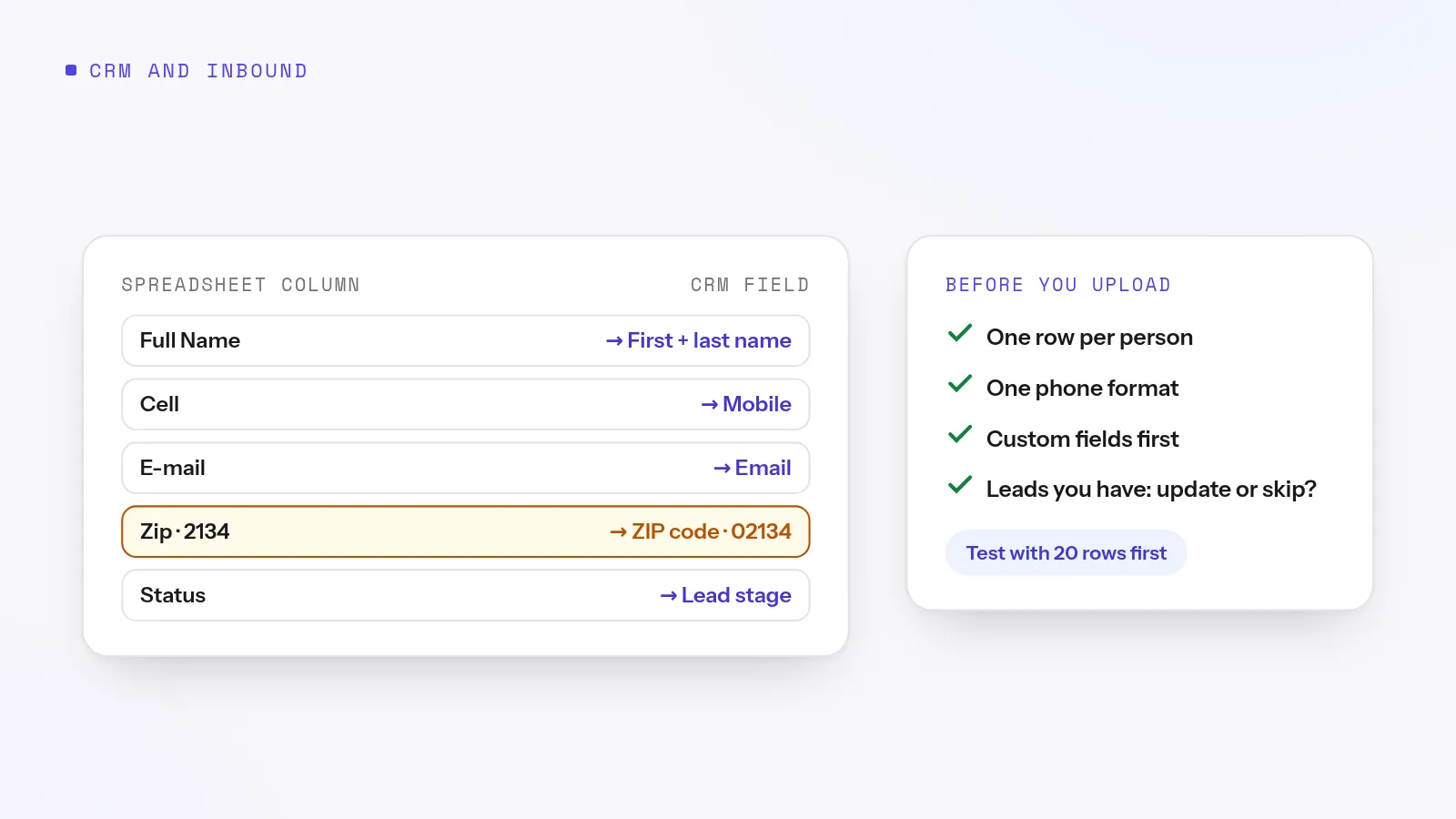
To import leads into a CRM, clean the spreadsheet first: one row per person, one column per field, phone numbers and dates in a single format, and every required field filled. Create any custom fields before you upload. Then map each column to a field, choose what happens to leads you already have, and test with a small file before the full list.
A bad import is one of the most expensive mistakes a sales team can make in an afternoon. Phone numbers land in the wrong field, half the list arrives as duplicates, a vendor file overwrites good data, and reps spend the next week dialing the same people twice. Nearly every one of those problems can be fixed in the spreadsheet before you upload it.
Decide this before every import, because the right answer changes with the file.
Skip matches for a fresh vendor list. Leads already in your CRM keep their history and their owner.
Update matches when the file is a refresh of data you trust, such as new addresses from a data provider.
Add a second record only when a match genuinely means a different person, which is rare.
Check which option your CRM starts on before you click import, because defaults differ between tools. More on stopping duplicates after the import is in our guide to preventing duplicate leads.
After the import
Read the error report and fix the rejected rows; don't just delete them.
Spot-check ten records against the spreadsheet.
Screen numbers before anyone dials a purchased or aged list.
Assign the leads and tell reps where to find them, for example with a saved view.
How Adoptiv does it
Adoptiv's bulk import takes CSV files and Excel workbooks. Headers are matched to the standard fields and your own custom fields by name, label or alias, and you set any column left over before a row is written. The import runs in the background, 500 rows at a time, so you can keep working, and a stopped CSV import picks up where it stopped. Rows that can't be imported come back in a report with the reason, in a file that keeps your original columns.
Every batch is checked for duplicates by email, then phone, and you choose to skip a match, update the existing lead, or add a second record. An update writes the cells that have a value, never blanks a value because a cell is empty, and doesn't change the lead's owner. You choose who the new leads are assigned to and the tags for the run. When an import finishes, its numbers are queued for screening against the federal Do Not Call registry and the known-litigator list, billed per lookup, and the answer is saved on each lead. This is general information, not legal advice, so check with your own counsel.
Common questions
What file format should I use to import leads?+
CSV is the safest. Excel works in most CRMs too, including Adoptiv. Save one sheet per import.
How do I avoid duplicates when importing leads?+
Remove duplicates inside the file first, then let the CRM match against existing leads by email and phone, and choose to skip matches.
Will importing overwrite my existing data?+
Only if you choose to update matches. In Adoptiv, an update writes filled cells but never blanks a value, and never changes the owner.
Why were some rows rejected?+
Usually a missing required field or a value in the wrong format. Check the error report, fix the rows and import them again.
Adoptiv is the dialer, the CRM and the AI on one platform, where the busywork logs itself and your reps just talk. Try it free for 14 days, with no credit card.
Questions? Call +1 (844) 955-7733. SIYA answers and puts you through to a person.