
Team and permissions, in 12 short videos
Invite people, decide what each role can see and do, and work together. Watch it through in two minutes, or read each step.
6 articles12 videos · 2:2512 min read
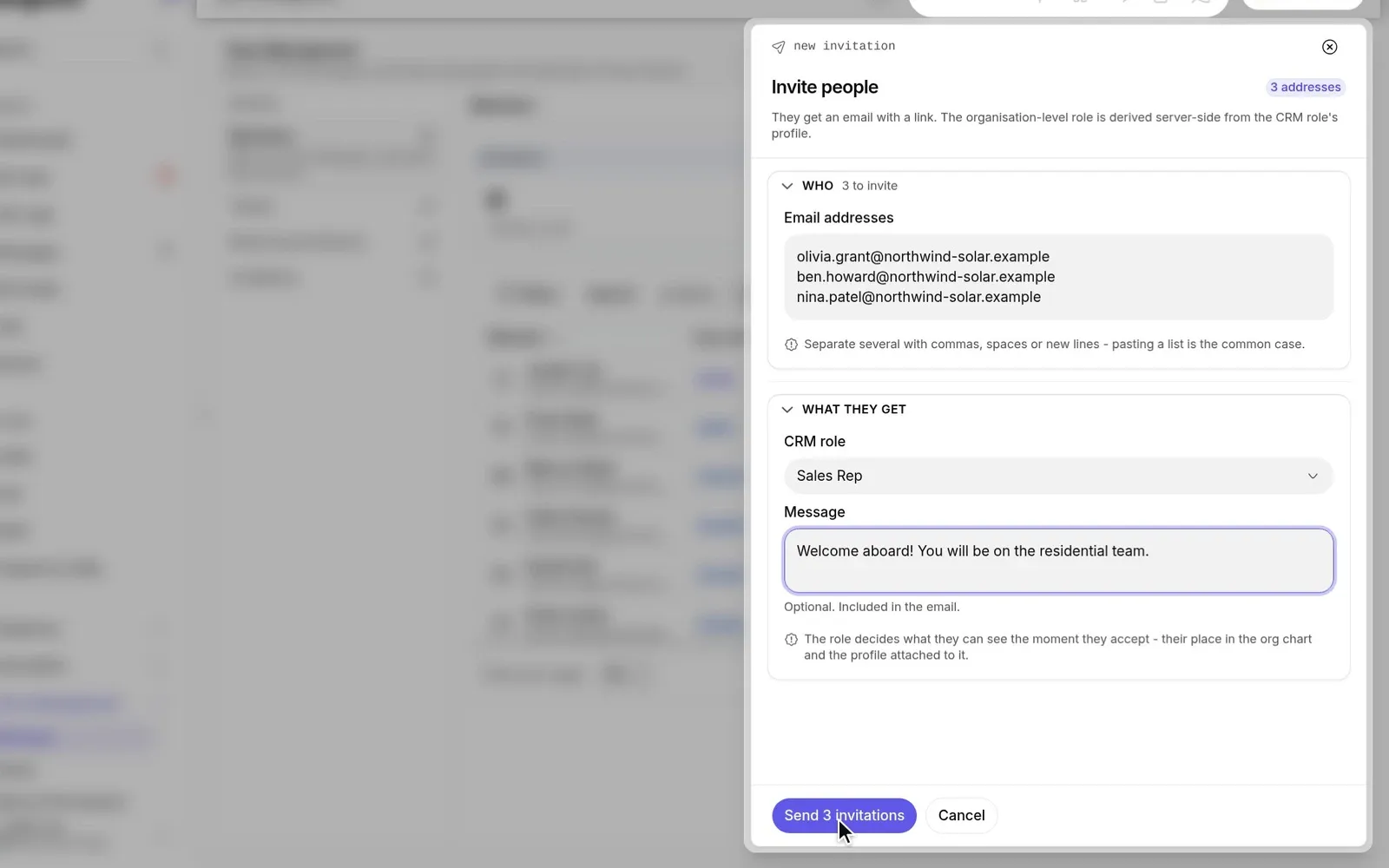 0:13Step 1 · Send invitations
Video 1 of 12
Invite your team
On Team Management Members, pressing Invite someone opens Invite people; three email addresses are pasted, Sales Rep is chosen as the CRM role, a message is typed, and the pointer rests on Send 3 invitations.
Read this part of the articlePrefer to read?
The six articles, in order
- 1
Invite your team
Send email invitations from Team Management, choose the CRM role each person gets, and resend or revoke invitations that haven't been accepted.
2 min read · 2 videosAll 4 sections: Invite your team - 2
Roles and permissions
How roles, permission profiles and sharing rules decide what each person can see and do, and how to create a role and change its permissions.
3 min read · 3 videosAll 6 sections: Roles and permissions - 3
Organize people into teams
Create a team with a team lead, add and remove members, and see where teams are used: call routing, assignment, chat and the deals board.
2 min read · 2 videosAll 5 sections: Organize people into teams - 4
Limit who sees which programs
Restrict a permission set to some programs so its people only see and work leads and deals from those lines of business.
2 min read · 1 videoRead it: Limit who sees which programs - 5
Chat with your team
Use Chat for channels and direct messages: create a channel, reply in threads, mention colleagues or leads, attach files and control notifications.
2 min read · 3 videosAll 7 sections: Chat with your team - 6
Suspend or remove a team member
Suspend someone who's away, sign them out of every device, or remove them from the workspace and hand their records to someone else.
1 min read · 1 videoAll 4 sections: Suspend or remove a team member
Other topics
Still need help?
Chat with our team, or email us and we will get back to you.