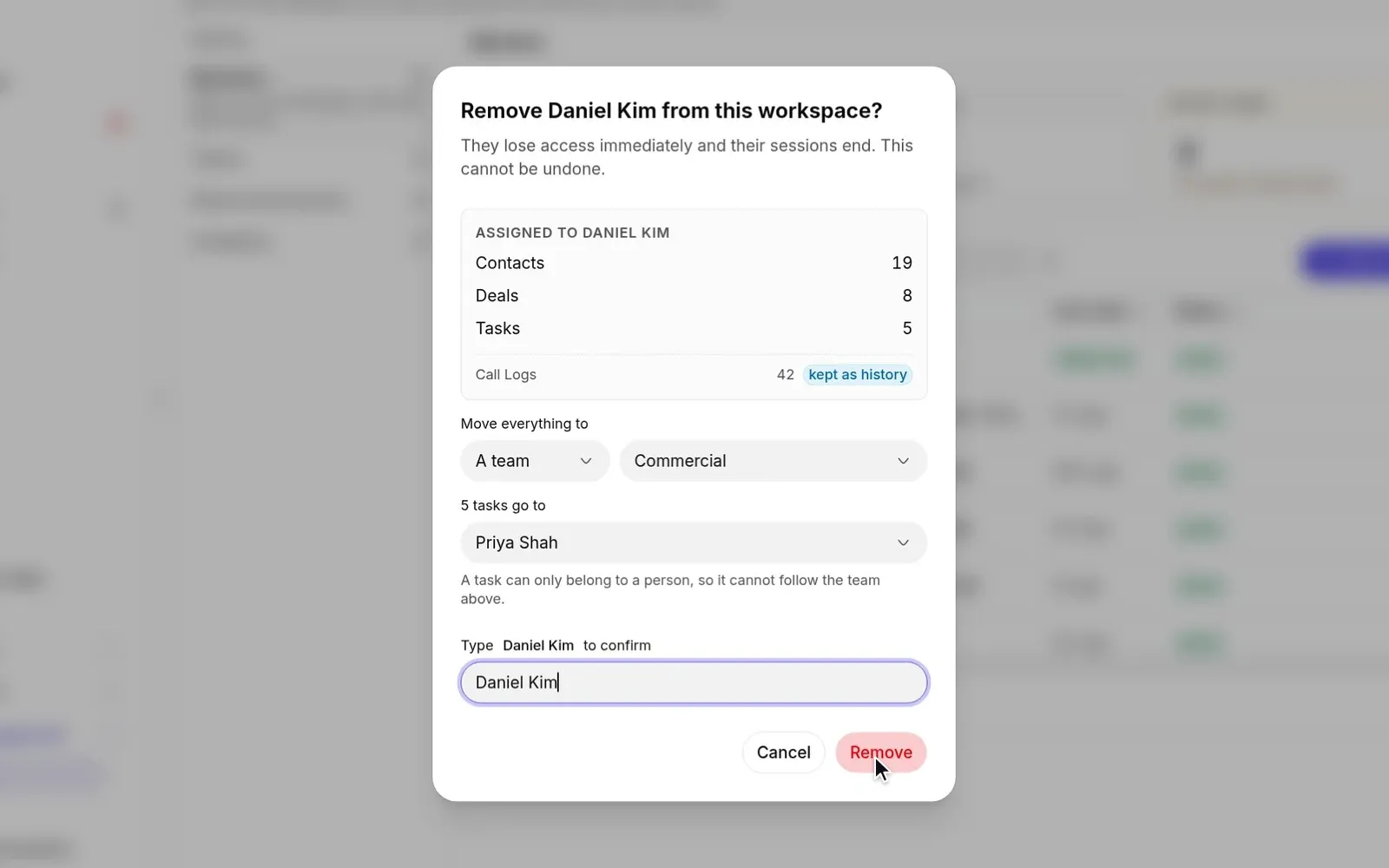
Open Team Management → Members, open the ⋯ menu on the person's row and choose Suspend, Sign out everywhere or Remove from workspace.
Before you start
- You need to be a workspace admin or have the Manage Team permission.
- You can't remove yourself or the workspace owner. Only owners and admins can sign out an admin.
Choose the right action
| Action | What happens |
|---|---|
| Suspend | They stay in the workspace and keep their assignments, but can't sign in until you reactivate them. |
| Sign out everywhere | Every session on every device ends. They keep their access and can sign in again. |
| Remove from workspace | They lose access immediately and their sessions end. This can't be undone. |
Suspend or reactivate someone
- Open Team Management → Members.
- Open the ⋯ menu on their row and choose Suspend.
- Press Suspend to confirm.
To let them back in, choose Reactivate from the same menu. They return with the role and assignments they had.
Remove someone
- Open the ⋯ menu on their row and choose Remove from workspace.
- If records are assigned to them, Adoptiv lists them. Under Move everything to, choose A person, A role or A team, then pick one.
- If they have tasks and you picked a role or team, choose a person for the tasks too. A task can only belong to a person.
- Type their name to confirm, and press Remove.
Removing someone also ends their Zapier connections in this workspace and takes them out of chat channels. Their direct messages stay for the other person.