
Teams group people so calls can ring a team and managers can follow their team's work. Open Team Management → Teams and press New team, then click the team and press Add member.
Before you start
- You need to be a workspace admin or have the Manage Team permission.
- Teams are optional. A person's role works whether or not they're on a team.
What teams are used for
- A call flow's Route to Team step rings the team's members. See Build a call flow.
- You can assign leads to a team.
- A public chat channel can be limited to certain teams. See Chat with your team.
- On the deals board, My team shows deals assigned to you, the people who report to you and your teammates.
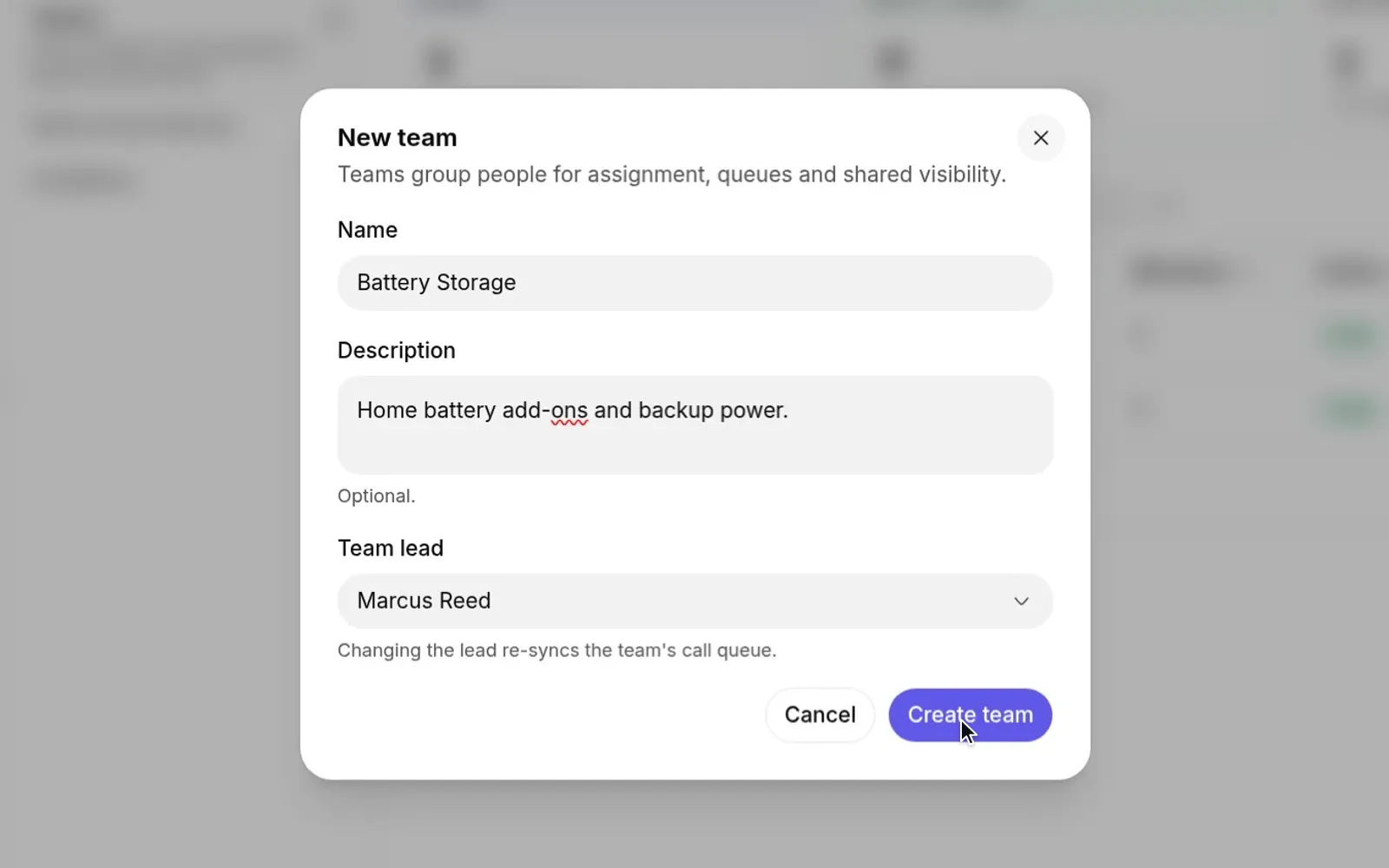
Create a team
- Open Team Management → Teams.
- Press New team.
- Enter a Name and, if you like, a Description.
- Choose a Team lead. Every team needs one.
- Press Create team.
Add and remove members
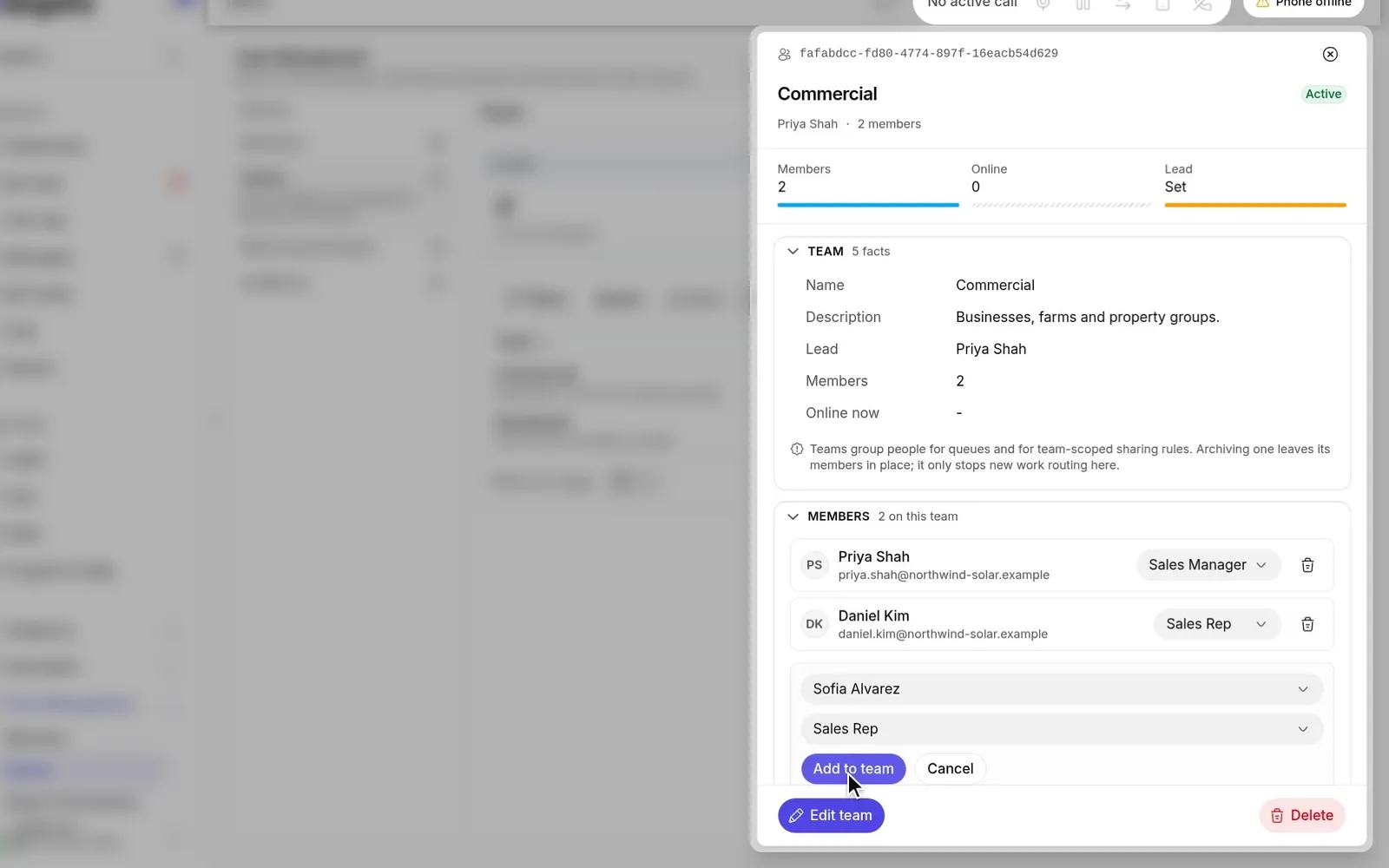
- Click the team in the list.
- Under Members, press Add member.
- Choose a person and, if you like, their Role on this team.
- Press Add to team.
To change someone's role on the team, use the role menu on their row. To take someone off the team, press the bin icon on their row. They stay in the workspace but lose the team's queue and shared visibility.
An empty team rings nobody, so calls sent to it move on to whatever comes next in the call flow. The Members page shows how many people are On no team.
Edit or delete a team
- Open the ⋯ menu on the team's row.
- Choose Edit team to change its name, description or lead, then press Save changes.
- Or choose Delete team. If records are assigned to the team, choose where they go under Move everything to: A person, A role or A team. Tasks can only go to a person.
- Type the team's name to confirm, and press Delete team.
People on a deleted team stay in the workspace.