
A call flow decides what happens when someone calls one of your numbers. Open Automation → Call flows, press New call flow, add and connect the steps, press Publish, then point a number at the flow.
Before you start
- To open call flows, your role needs the Telephony & AI permission. To create or change them, it also needs Manage Workflows. Owners and admins can do both.
- You need a phone number. See Buy a phone number.
- Your numbers take calls only once your workspace is approved for calling.
Create a flow
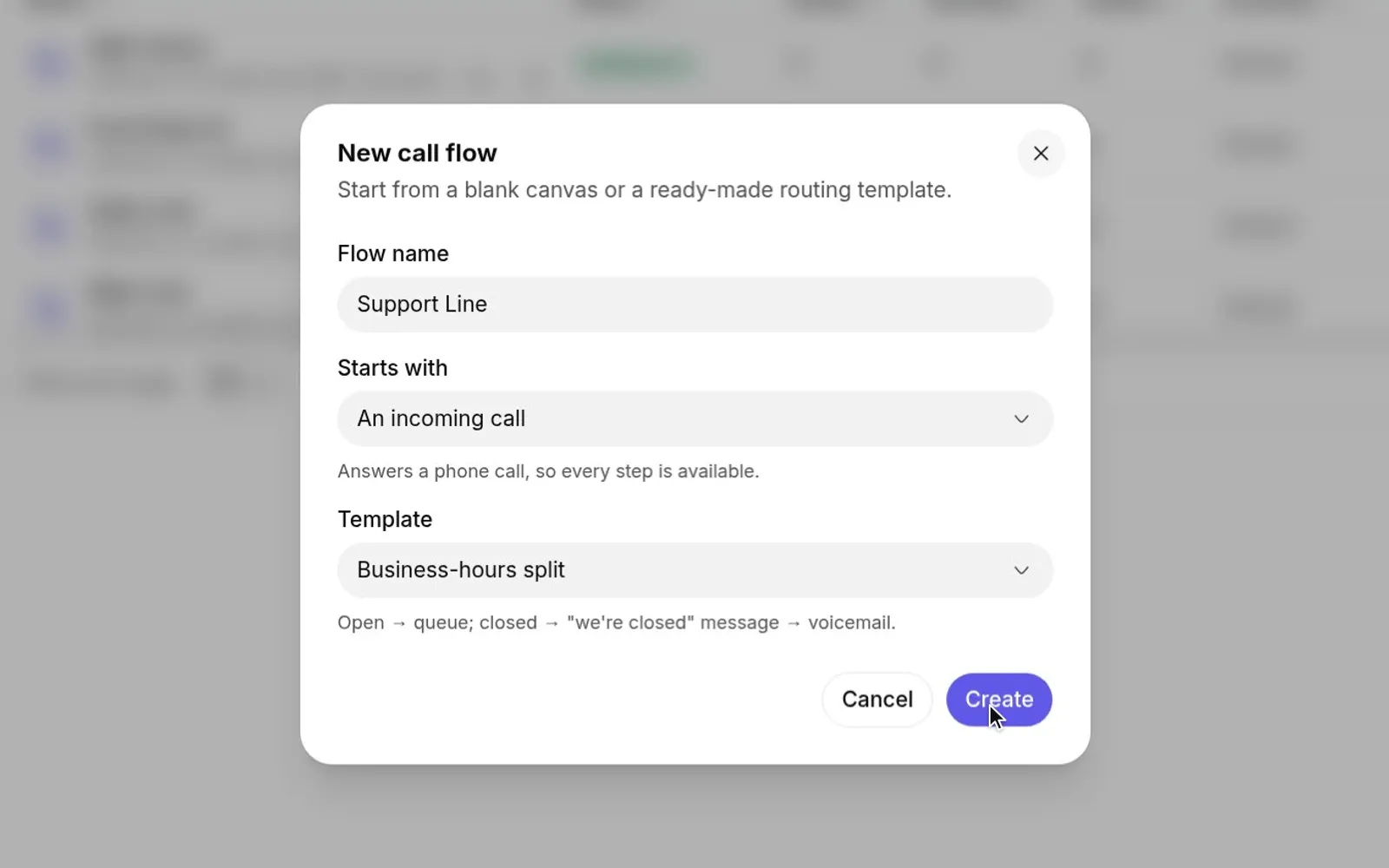
- Open Automation → Call flows and press New call flow.
- Type a Flow name, for example Main Line.
- Under Starts with, leave An incoming call for calls to your numbers.
- Under Template, pick Blank canvas or a ready-made flow, such as Business-hours split, Route to Team or Voicemail only. Each template says what it does.
- Press Create. The editor opens.
Add and connect steps
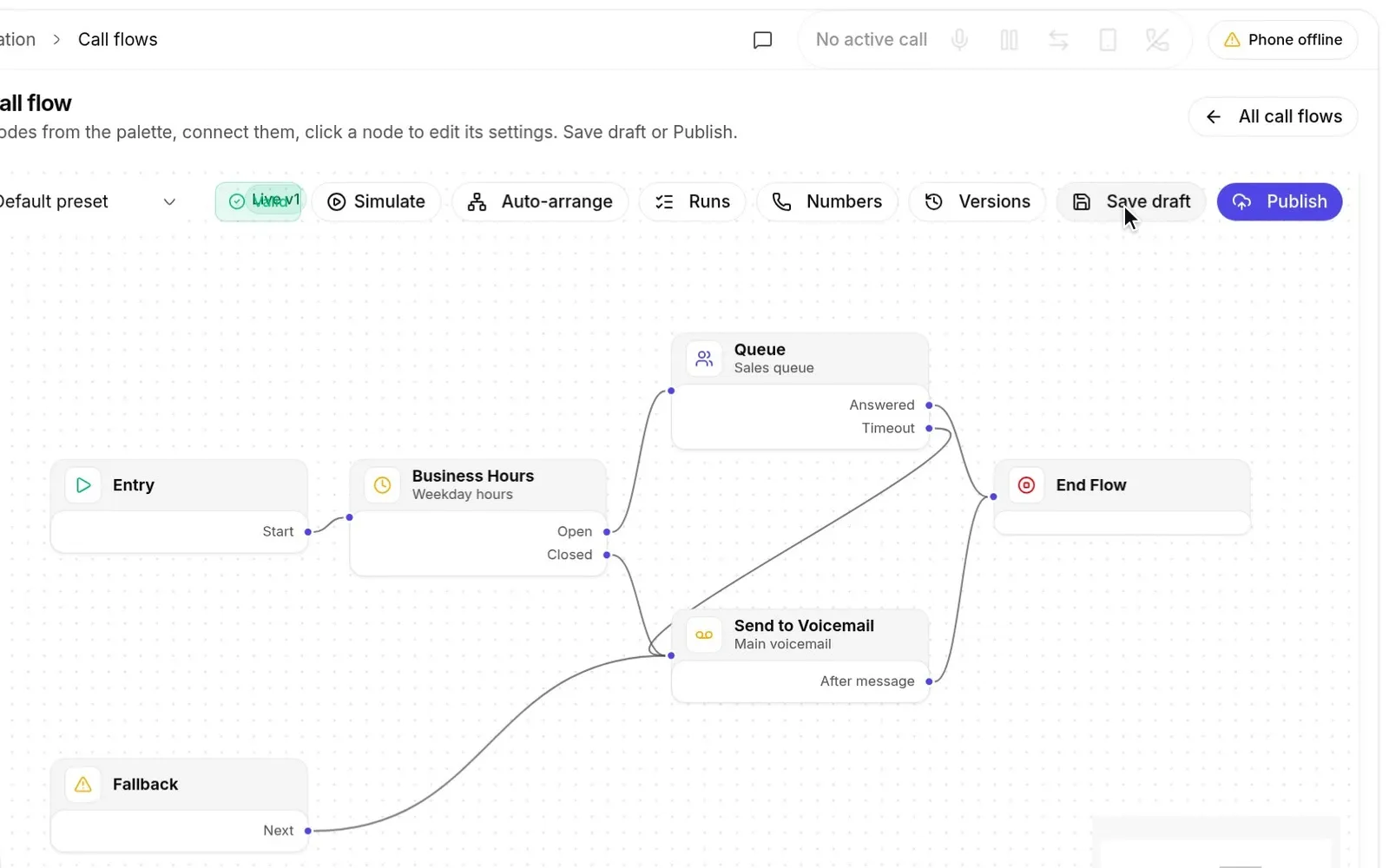
Every flow begins at Entry. The steps you can add are in the sidebar, in groups such as Schedule & Times, Routing & Playback and CRM Actions.
- Drag a step from the sidebar onto the canvas, or click it.
- Drag from one of a step's outputs, such as Open or Closed, to the step that should come next. Each output leads to one step.
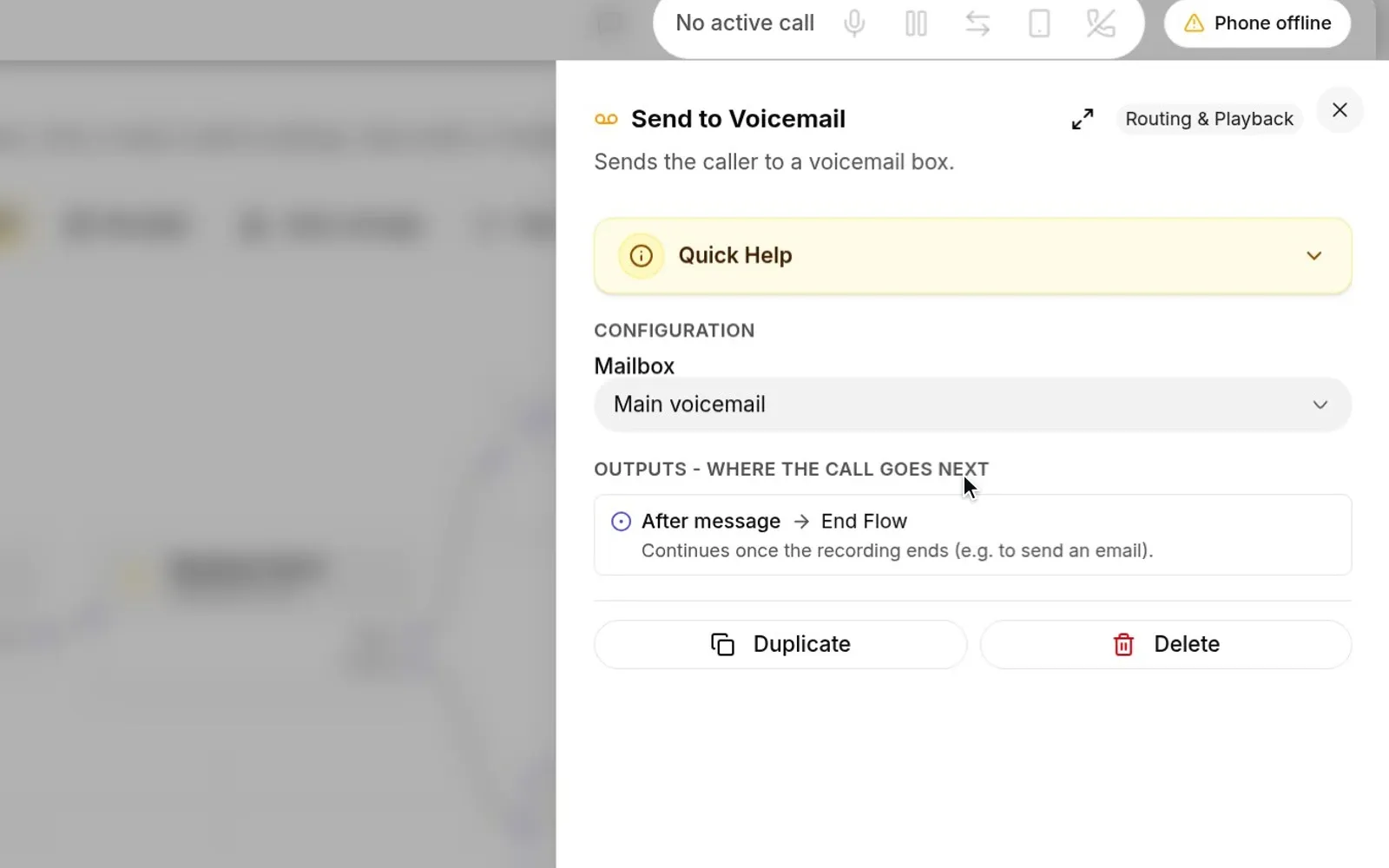
- Click a step to set it up in the side panel. Quick Help explains it, and Outputs - where the call goes next shows where each output leads.
Steps most flows use:
| Step | What it does |
|---|---|
| Business Hours | Checks a schedule. Outputs Open and Closed. |
| Holidays | Checks your holiday calendars. Outputs Holiday and Normal. |
| Playback Audio | Plays a greeting or message. |
| Route to IVR | Asks the caller to press a key and branches on their choice. |
| Route to User | Rings one person. Outputs Answered, No answer, Busy and Unavailable. |
| Route to Team | Rings everyone on a team. The first to answer gets the call. |
| Queue | Places the caller in a call queue. Outputs Answered and Timeout. |
| Send to Voicemail | Sends the caller to a voicemail box. |
| SIYA Agent | Hands the caller to your AI agent. See Set up SIYA, the AI receptionist. |
| End Flow | Ends the flow and hangs up. |
Test it
- Press Simulate.
- Tick the conditions you want to try, such as Within business hours or Public holiday, and type a Caller number.
- Press Start call and step through, using buttons like Agent answers or No answer. Nothing is dialed and no run is recorded.
Save and publish
Your changes save as a draft automatically, and you can press Save draft at any time. Callers don't hear any change until you publish.
- Check the badge at the top: Valid, or the number of issues. Click it to see them.
- Press Publish. If something needs attention, Review before publishing lists it. Fix any errors. Warnings can go live with Publish anyway.
The flow then shows Live v1. Later edits show Live v1 · unpublished edits until you publish again. Versions lists recent published versions, and Restore copies one back into your draft.
Point a number at the flow
- In the editor, press Numbers.
- Open Add numbers and tick the numbers that should use this flow.
- Press Point … to this flow. The button shows how many numbers you ticked. Numbers that went somewhere else are moved to this flow.
You can also do this from Telephony → Numbers. See Choose where calls to a number go.
See what happened on a call
Press Runs to see recent runs of the flow, newest first, with how each ended. Open one to see each step it took and Open the call this run belongs to.