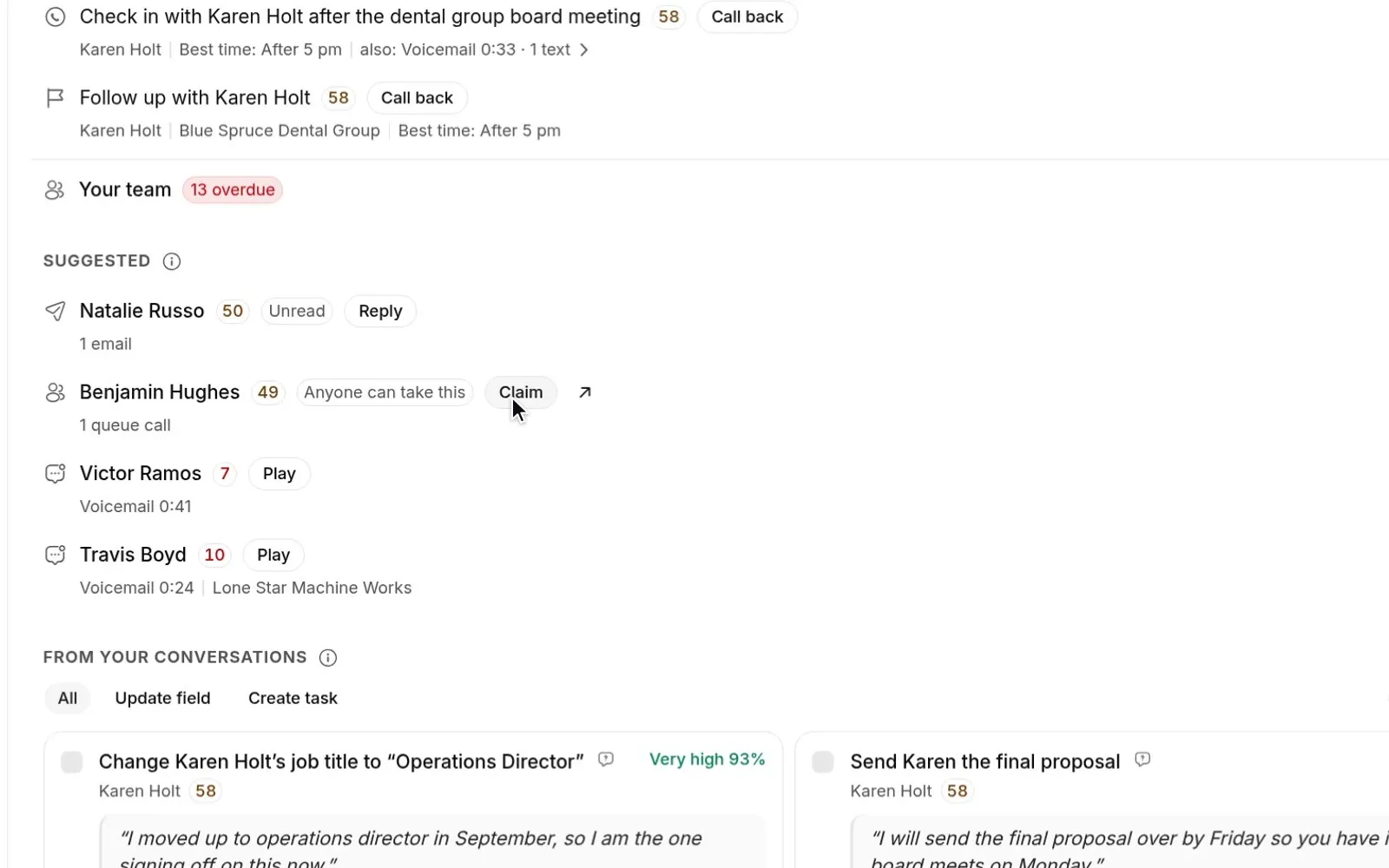
Voicemails and missed calls are in Call Logs. Choose Sent to voicemail to open your voicemail inbox, or Missed calls to see calls nobody answered. My Feed also lists them until someone gets back to the caller.
Listen to voicemail
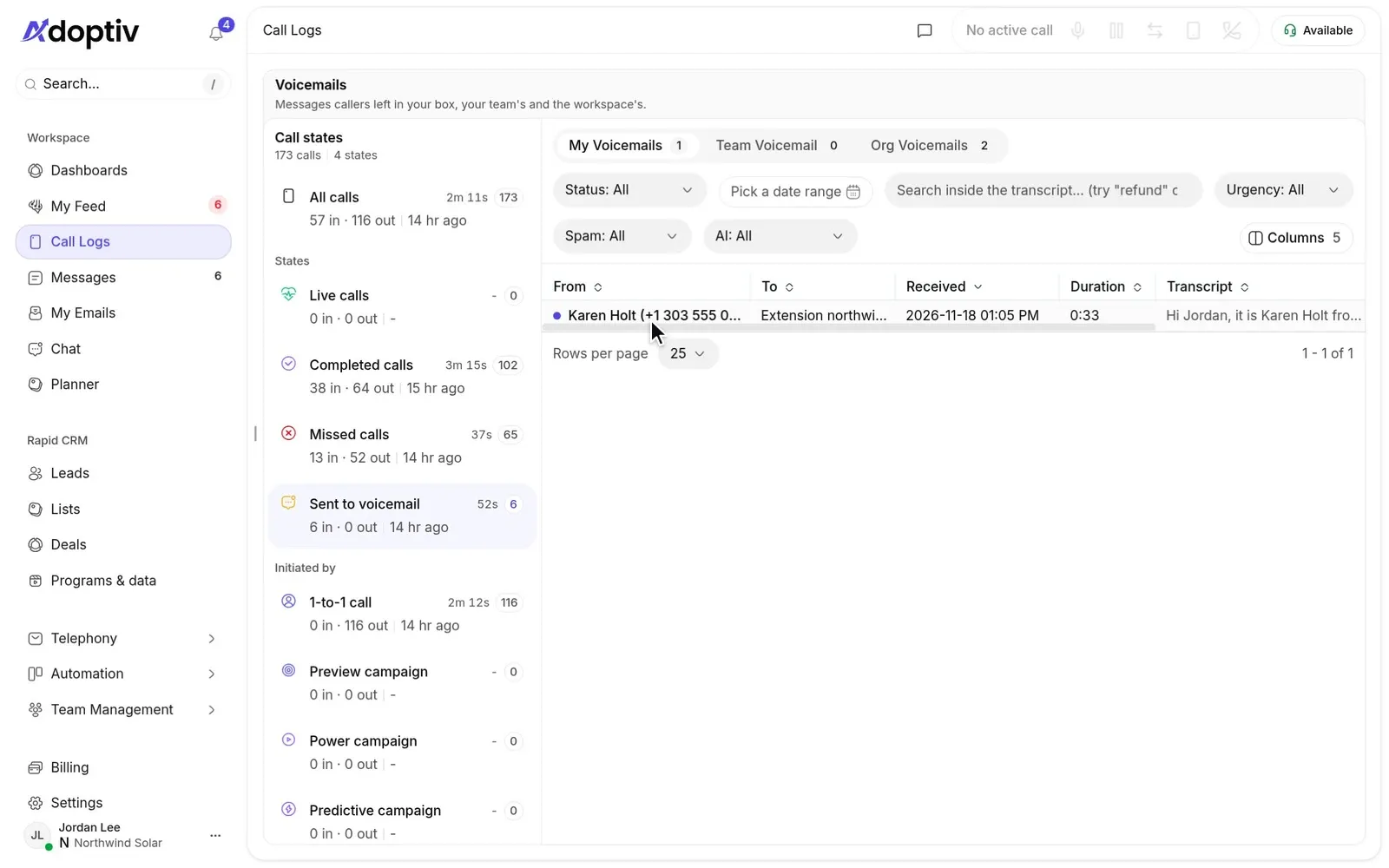
- Open Call Logs and choose Sent to voicemail in the side rail. The Voicemails inbox opens.
- Pick a tab: My Voicemails for your own, Org Voicemails for shared boxes you can open, or Team Voicemail if you manage a team.
- Press play on a message. Playing it marks it read. Unread messages have a dot.
- Click the eye icon (View details) to see the recording and transcript. You can Mark Unread there.
Filter by Status (New, Read), by date, or use Search transcripts to find a word someone said. A transcript shows Pending until it's ready.
Your own voicemail
Calls to you that aren't answered go to your own voicemail, unless you forward them. Calls also go straight to voicemail while your status is Do not disturb or Offline. To record your greeting, open Profile → Voicemail Settings. See Hold music and greetings.
Set up a shared voicemail box
A shared box, such as a main office mailbox, is where a call flow sends callers when nobody answers. Who can do this: anyone with the Telephony & AI permission. Only owners and admins can change who can listen.
- Open Telephony → Routing and choose Voicemail boxes.
- Press Add a mailbox.
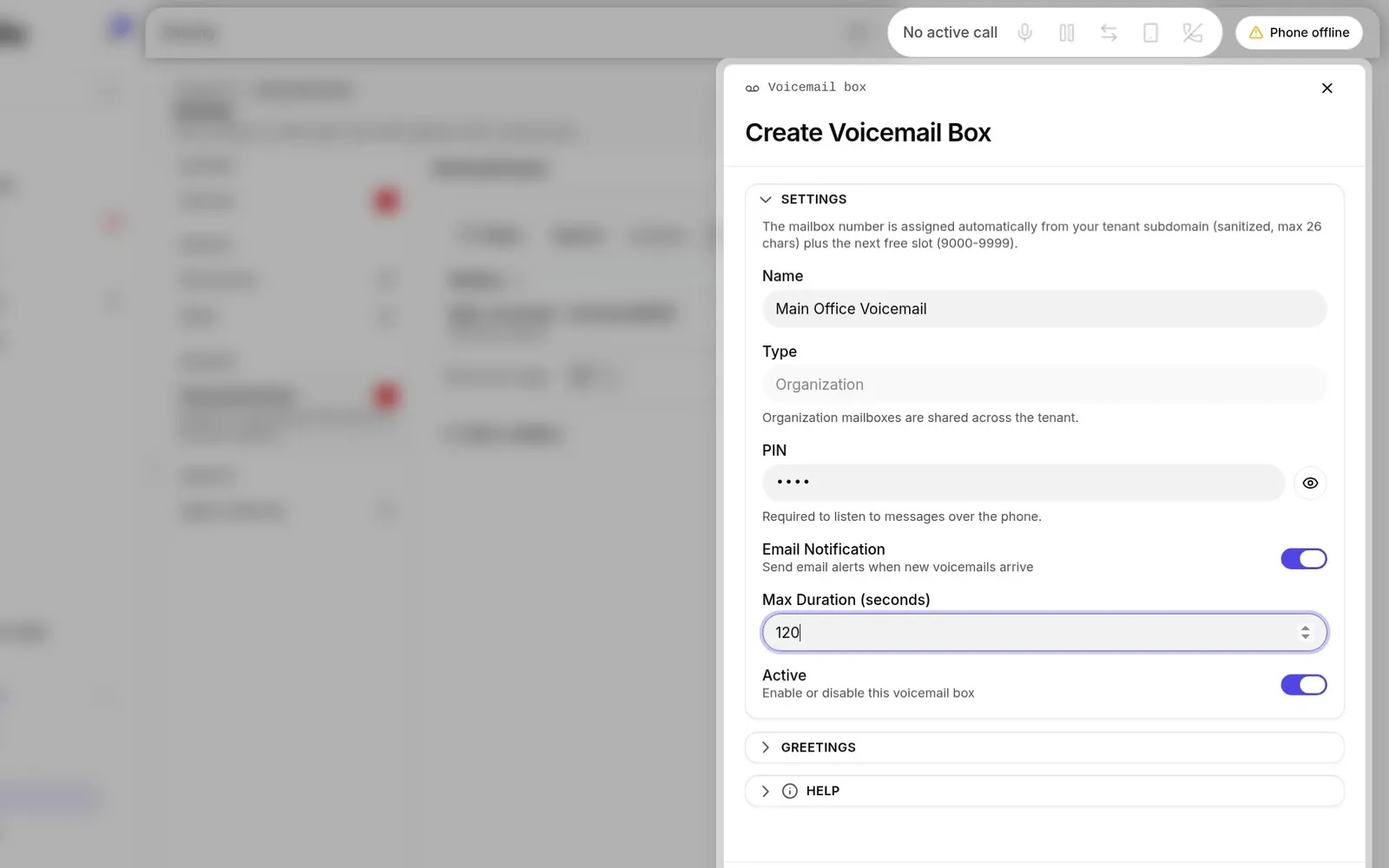
- On Settings, type a Name, for example Main Office Voicemail. The mailbox number is assigned automatically.
- Optionally set a PIN. It's needed to listen to messages over the phone.
- Turn on Email Notification to email people when a new voicemail arrives.
- Set Max Duration (seconds), the longest message a caller can leave. The default is 120.
- On Greetings, add a Greeting Audio, and a Busy Audio and Unavailable Audio if you like.
- Press Create.
Choose who can listen
- Open the box again and go to the Access tab.
- Press Manage access.
- Turn on Everyone in tenant, or pick roles, teams and people.
A new box starts with owners and admins only. Everyone with access sees its messages under Org Voicemails, and gets the email if Email Notification is on.
Send calls to the box
In a call flow, add a Send to Voicemail step and pick the box. You can also pick Voicemail as where calls go when you're closed. See Set your business hours and holidays.
Missed calls
- In Call Logs, choose Missed calls. Click a number to call back, or open the call and press Call back.
- In My Feed, missed calls from the last 7 days show as Missed call with Call back. Calls that came in after hours are marked After hours.
- A missed queue call shows as Queue call, Anyone can take this. Press Claim to take it. A claim covers that caller's earlier missed calls too.
A missed call leaves My Feed once anyone reaches the caller: a call back that connects, the caller getting through on a later call, or a text a person sends. Automatic texts from sequences or call flows don't count. A voicemail leaves My Feed once someone with access has played it, or the caller has been reached.