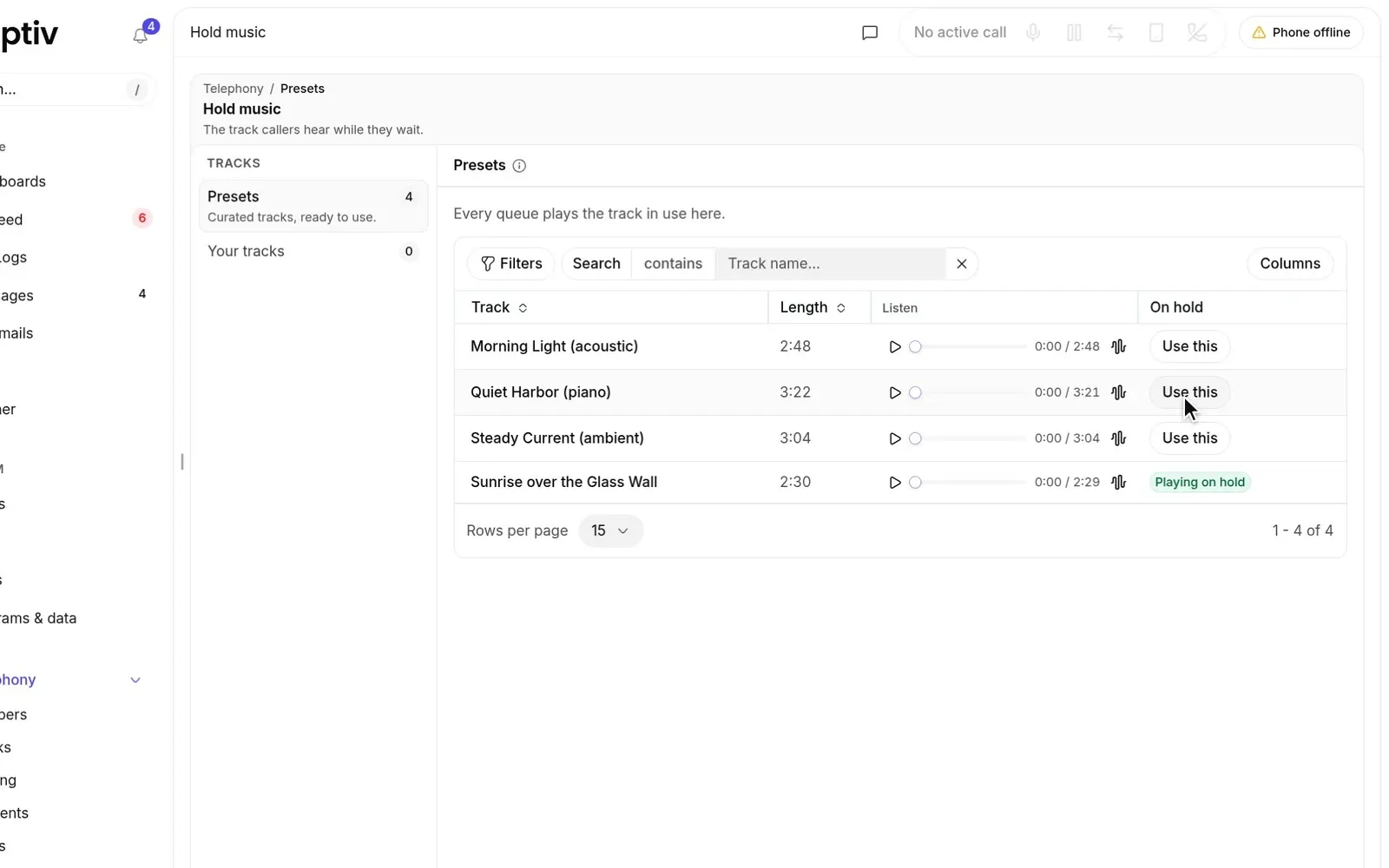
To change what callers hear on hold, open Telephony → Hold music and press Use this on a track. Greetings and other messages are clips in Telephony → Audio, which you then play in a call flow, a queue or a voicemail box.
Before you start
- Your role needs the Telephony & AI permission to open these pages.
- Choosing or adding hold music needs an owner or admin, or a role with Manage Settings. Everyone else can listen only.
Choose your hold music
- Open Telephony → Hold music.
- Look through Presets (ready-made tracks) or Your tracks, and play any track to hear it.
- Press Use this on the track you want. It now shows Playing on hold.
This track plays whenever someone on your team puts a call on hold, and in every queue that doesn't have its own.
Add your own track
- Open Your tracks and press Add a track.
- Record, upload or generate the track (see below).
- Press Use this on the new track to play it on hold.
Add a greeting or message
All your clips live in Telephony → Audio, on the Library tab. Plays in shows where each clip is used.
- Press Record, Upload or Generate. The Add a clip dialog opens on that tab.
- Make the clip:
- Record: press Start recording, speak, then Stop. Play it back and press Use.
- Upload: drop an audio file, such as MP3, WAV or OGG, or press Browse files.
- AI audio: pick a Voice (Brand Voice Kit), type the Text to speak (up to 5,000 characters) and press Generate & listen. Press Regenerate for another take.
- Give the clip a name and save it.
To choose which AI voices you can use, open the Voices tab, tick up to 10 voices and press Save kit.
Where greetings play
- Call flows: add a Playback Audio step for a welcome, a "please hold" message or an after-hours notice. See Build a call flow.
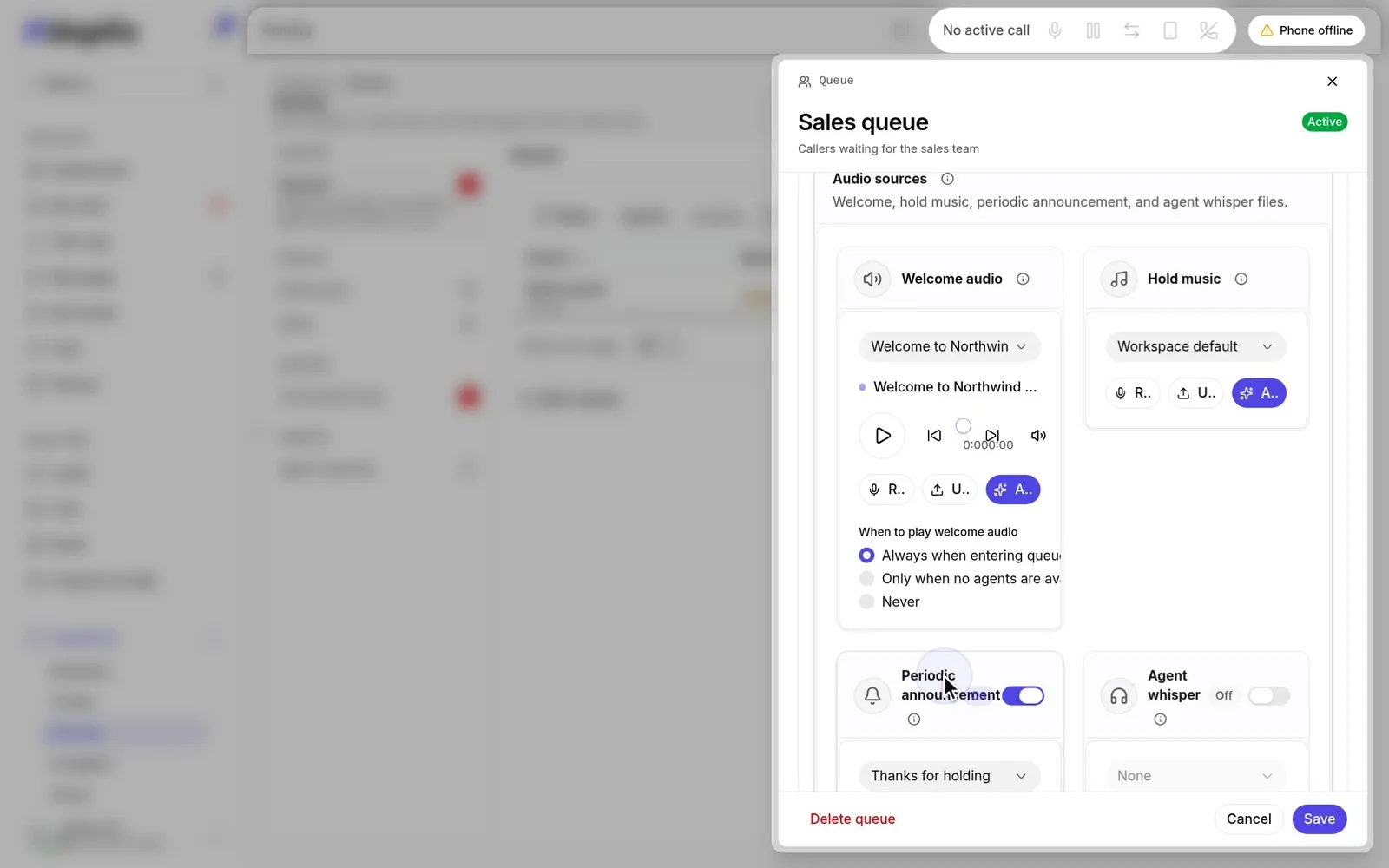
- Queues: open Telephony → Routing, open a queue and go to its Audios tab. Set the Welcome audio and When to play welcome audio, a Periodic announcement, and the queue's Hold music - leave it on Workspace default or pick a track for this queue only.
- Voicemail boxes: on a box's Greetings tab, set the Greeting Audio, Busy Audio and Unavailable Audio.
- Your own voicemail: open Profile → Voicemail Settings and set the Greeting, Unavailable and Busy messages.
Each of these has Record, Upload and AI audio buttons, so you can make a clip right where you need it.