
Leads, in 19 short videos
Add, import, find, assign and tidy up the people you sell to. Watch it through in four minutes, or read each step.
9 articles19 videos · 3:4621 min read
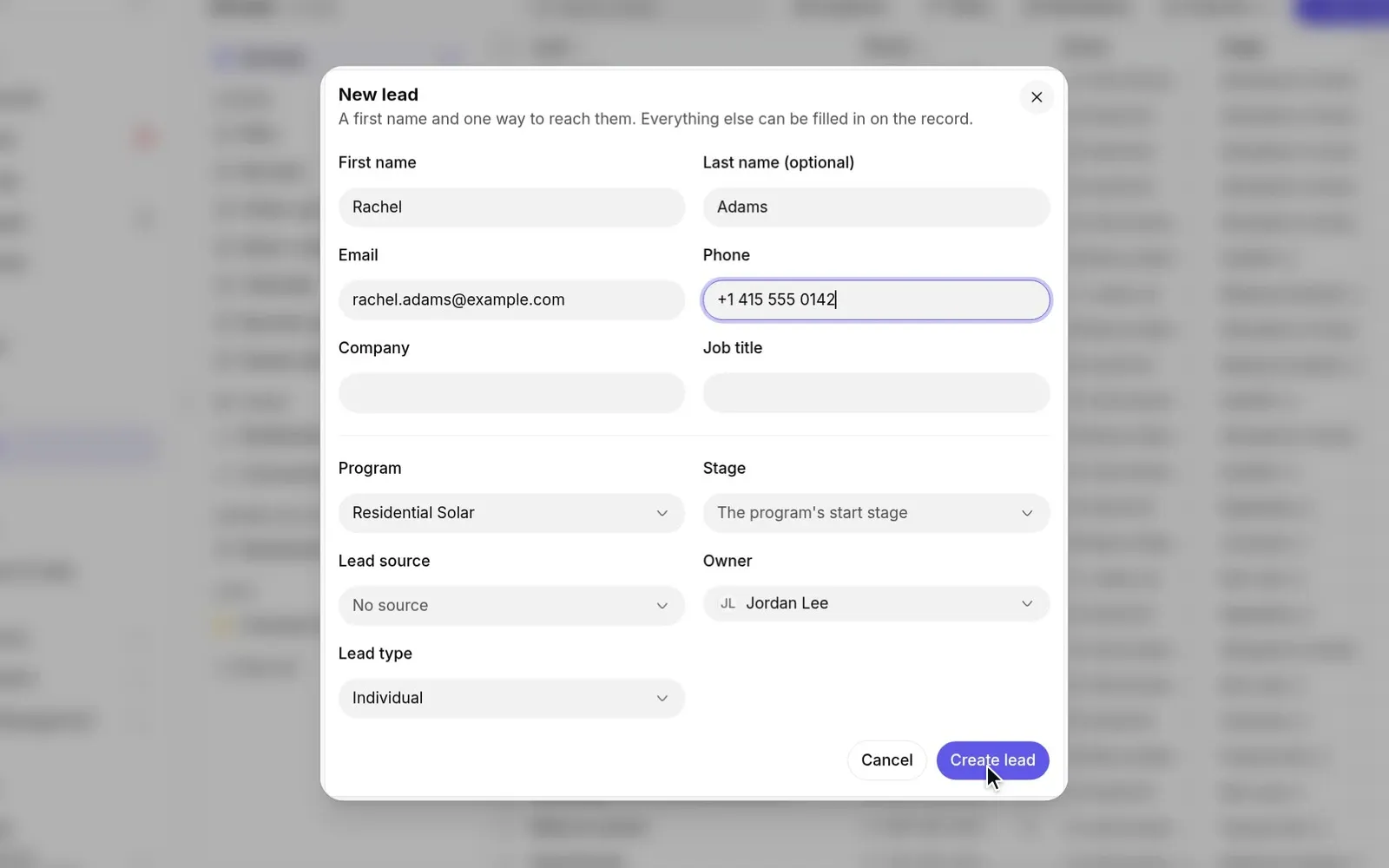 0:15Step 1 · Enter who the lead is
Video 1 of 19
Add a lead
Pressing New lead, typing a first name, last name, email and phone, then pressing Create lead; the new record opens.
Read this part of the articlePrefer to read?
The nine articles, in order
- 1
Add a lead
Create a single lead by hand from the Leads page. You need a first name and an email or phone number; everything else can be filled in on the record.
2 min read · 2 videosAll 4 sections: Add a lead - 2
Import leads from a CSV file
Bring many leads in at once from a CSV or Excel file: choose the program, match the columns, decide what happens to duplicates and who gets the new leads.
4 min read · 3 videosAll 7 sections: Import leads from a CSV file - 3
Work with the leads grid: columns, filters and views
Switch between scopes, lists and saved views, search and filter, choose your columns and row size, and save a view to reuse or share.
3 min read · 3 videosAll 4 sections: Work with the leads grid: columns, filters and views - 4
What's on a lead record
A tour of the lead record: the header and facts strip, the Overview, Lead Details, Business and Compliance tabs, and the activity modules.
2 min read · 2 videosAll 4 sections: What's on a lead record - 5
Assign, claim and reassign leads
Give a lead to a person, a role or a team, reassign many at once from the grid, and claim leads waiting in your role's or team's queue.
2 min read · 3 videosAll 5 sections: Assign, claim and reassign leads - 6
Update many leads at once
Select leads in the grid, or every lead that matches your filters, and change their stage, owner, tags, follow-up, list or sequence in one go.
2 min read · 2 videosRead it: Update many leads at once - 7
Find and merge duplicate leads
How Adoptiv spots leads that share an email or phone number in the same program, and how to merge two records into one.
2 min read · 1 videoAll 5 sections: Find and merge duplicate leads - 8
Delete and restore leads
Delete one lead or many, and how a workspace admin restores them from the recycle bin within 30 days or deletes them for good.
2 min read · 1 videoAll 6 sections: Delete and restore leads - 9
Export leads
Download leads as a CSV file: everything the grid shows, a selection, or a list. Large exports are built in the background.
2 min read · 2 videosAll 6 sections: Export leads
Other topics
Still need help?
Chat with our team, or email us and we will get back to you.