
Every lead is assigned to a person, a role or a team. To change it, open the lead and pick someone under Assigned. To reassign many at once, tick them in the grid and press Assign. A lead assigned to a role or a team waits in that queue until someone presses Claim.
Before you start
- To assign or claim leads, your role needs Edit or Full access on the Leads row of its permission set.
- You can only give a lead to someone who can see its program. The pickers list only those people, roles and teams.
Assign one lead
- Open the lead from the Leads grid.
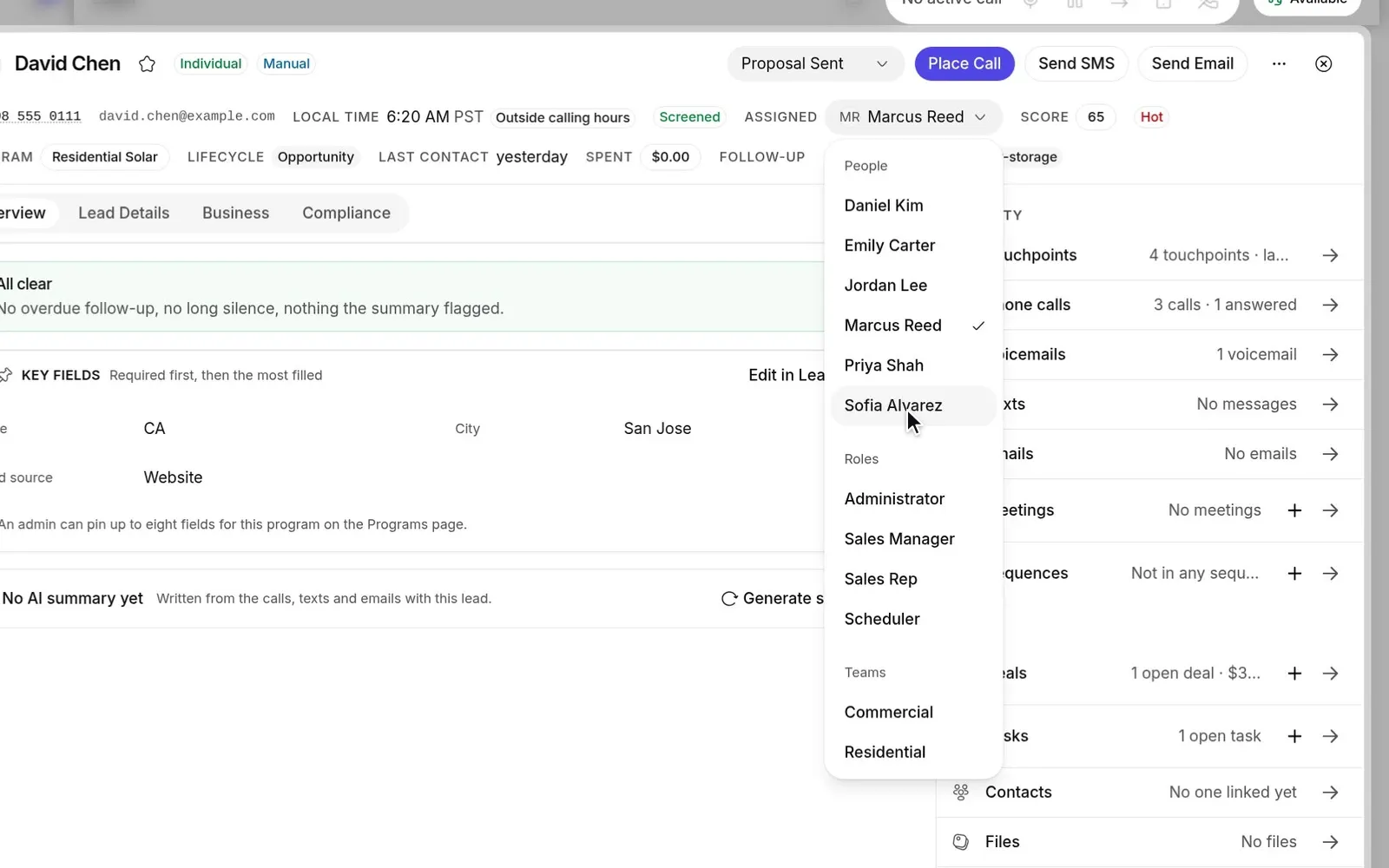
- In the facts strip, open Assigned.
- Pick a name under People, Roles or Teams.
You can also change the owner in the grid's Owner column, or under Lead Details.
When you give a lead to a person and it has open deals you can edit, Adoptiv asks whether to Also give them those deals. It's ticked to start with. Press Reassign to confirm. A deal only goes to someone who can see its program; the rest stay with their owner.
Reassign many leads
- Tick the leads in the grid. To pick every lead that matches your search and filters, tick the box in the header, then press Select all [number] matching.
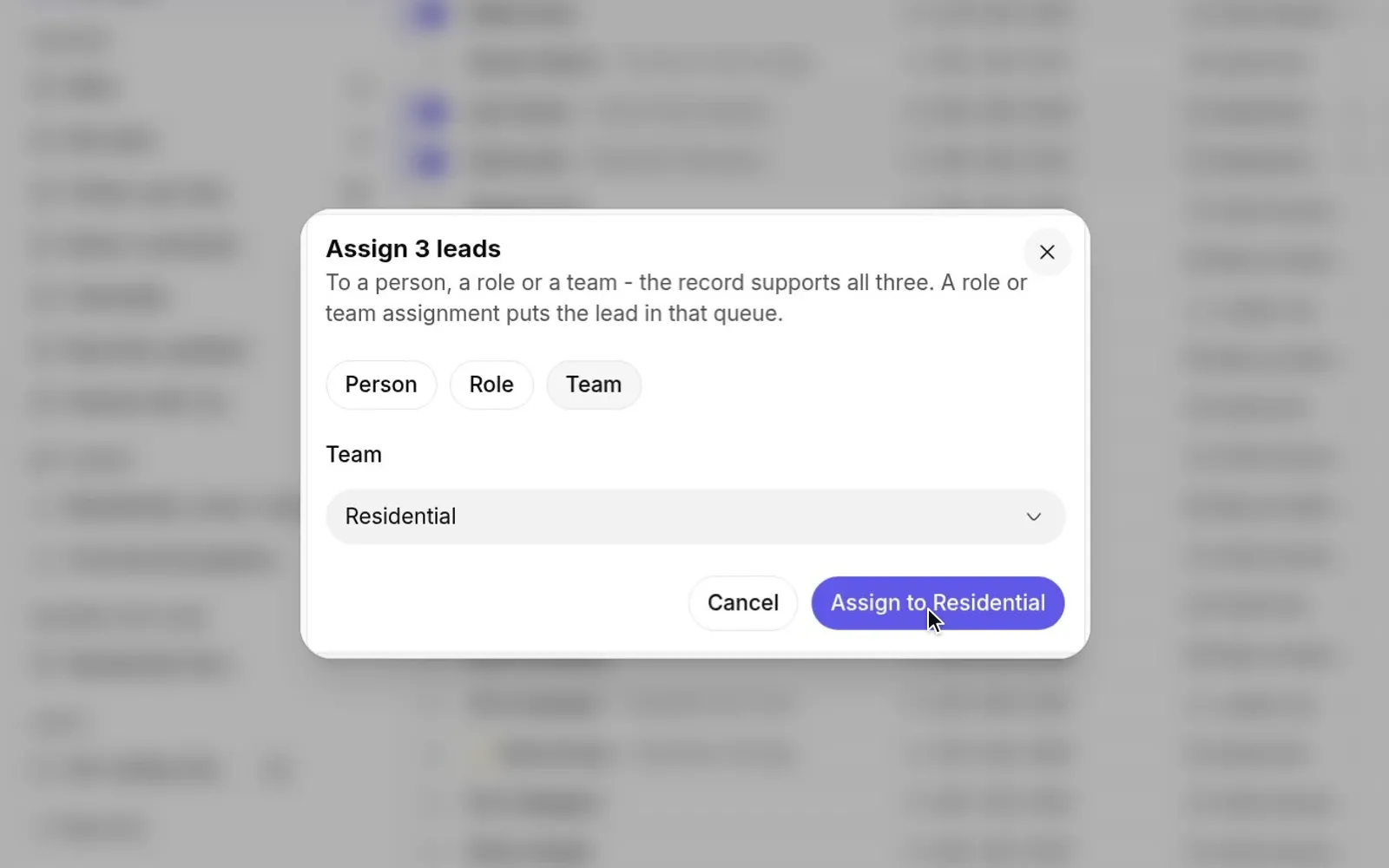
- Press Assign in the bar above the grid.
- Choose Person, Role or Team, then pick who.
- Press Assign to and the name.
A message then says how many leads were assigned and how many were kept, for example because the new owner can't see their program. With more than 5,000 leads, the change runs in the background and you're told when it's done.
Claim a lead from a queue
Leads assigned to your role appear under Claimable in the panel on the left of the Leads page. Leads assigned to one of your teams appear under My team.
- Open the lead.
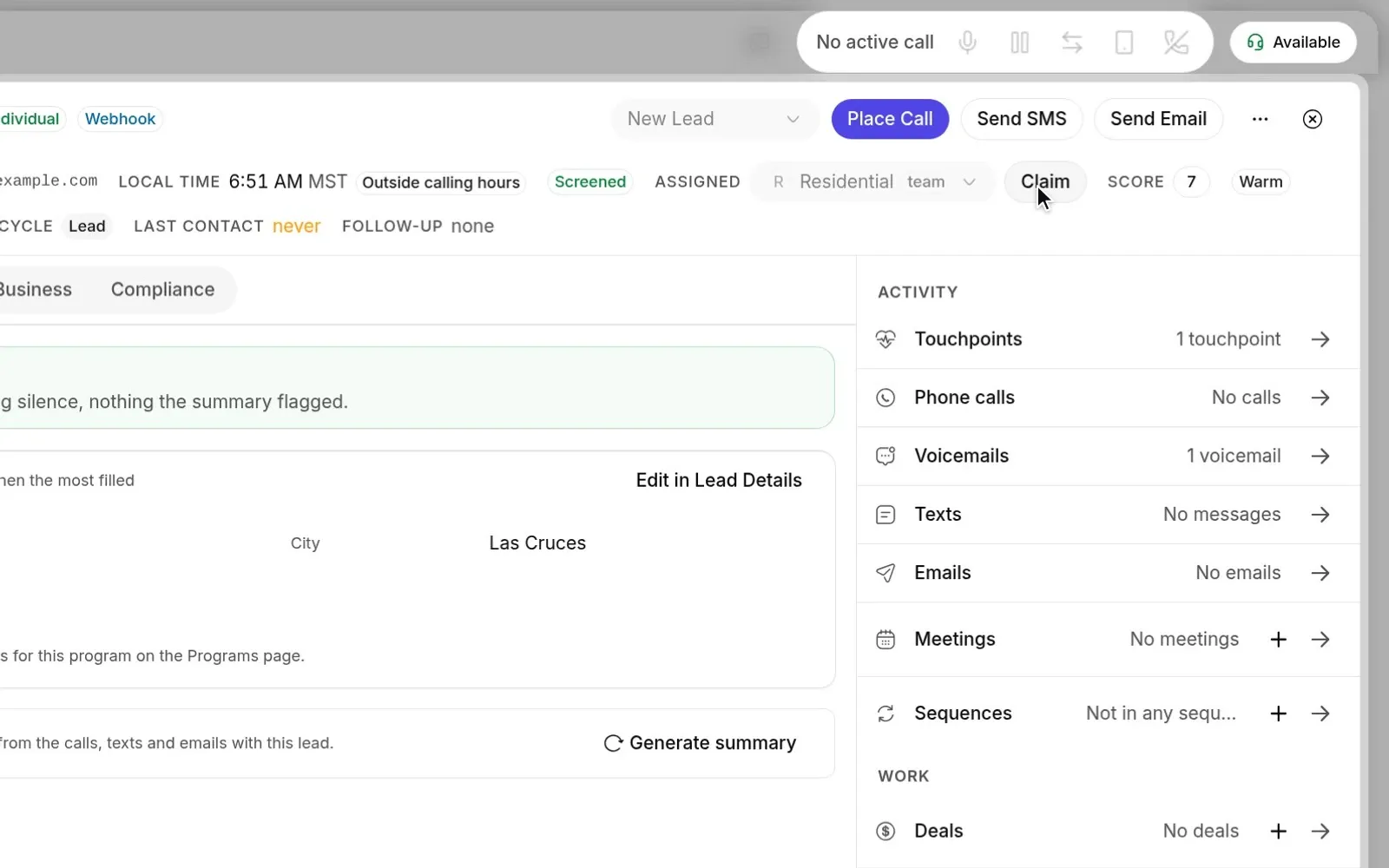
- Press Claim next to Assigned. Picking yourself under Assigned does the same.
The lead is yours and now shows under Mine. If someone else claimed it first, you're told, and the record shows who has it.
Who new leads go to
- A lead you add by hand starts with you as the owner. You can change the Owner on the New lead form.
- An import lets you give its new leads to Me, One person, Round-robin, A role queue or A team queue. See Import leads from a CSV file.