
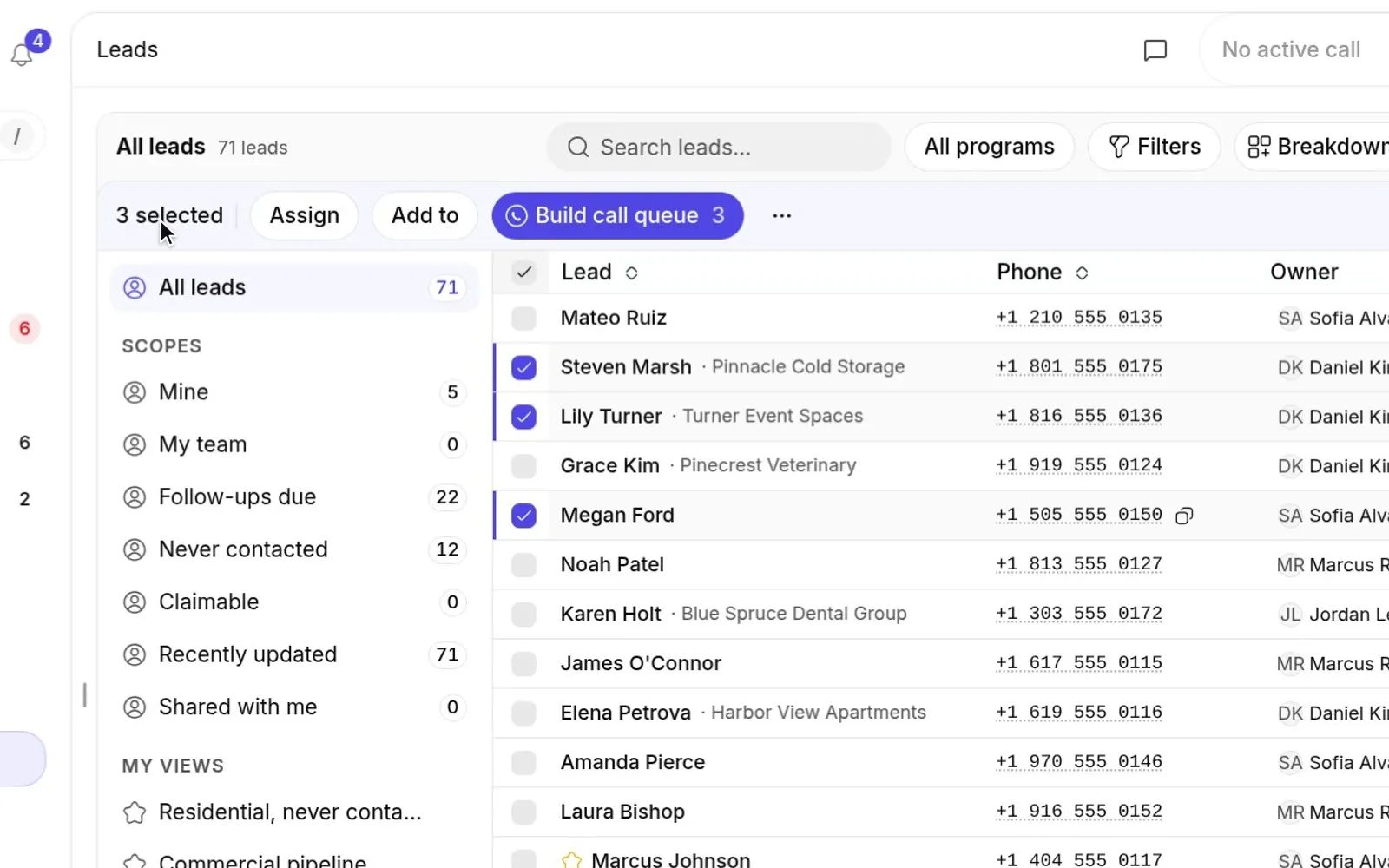
To change many leads at once, tick them in the Leads grid. A bar appears above the grid with Assign, Add to and a ⋯ menu of bulk edits.
Select the leads
- Tick the box at the start of each row you want.
- To select every lead that matches your search and filters, not only the rows loaded so far, tick the box in the header, then press Select all [number] matching.
- To start again, press the cross at the end of the bar, or Clear selection.
Choose what to change
- Assign: give the leads to a person, a role or a team. See Assign, claim and reassign leads.
- Add to → A list… or New list…: put the leads on a list. Leads already on it are left as they are.
- Add to → A sequence…: enroll the leads in a sequence. Leads that are unsubscribed, bounced or already enrolled are skipped.
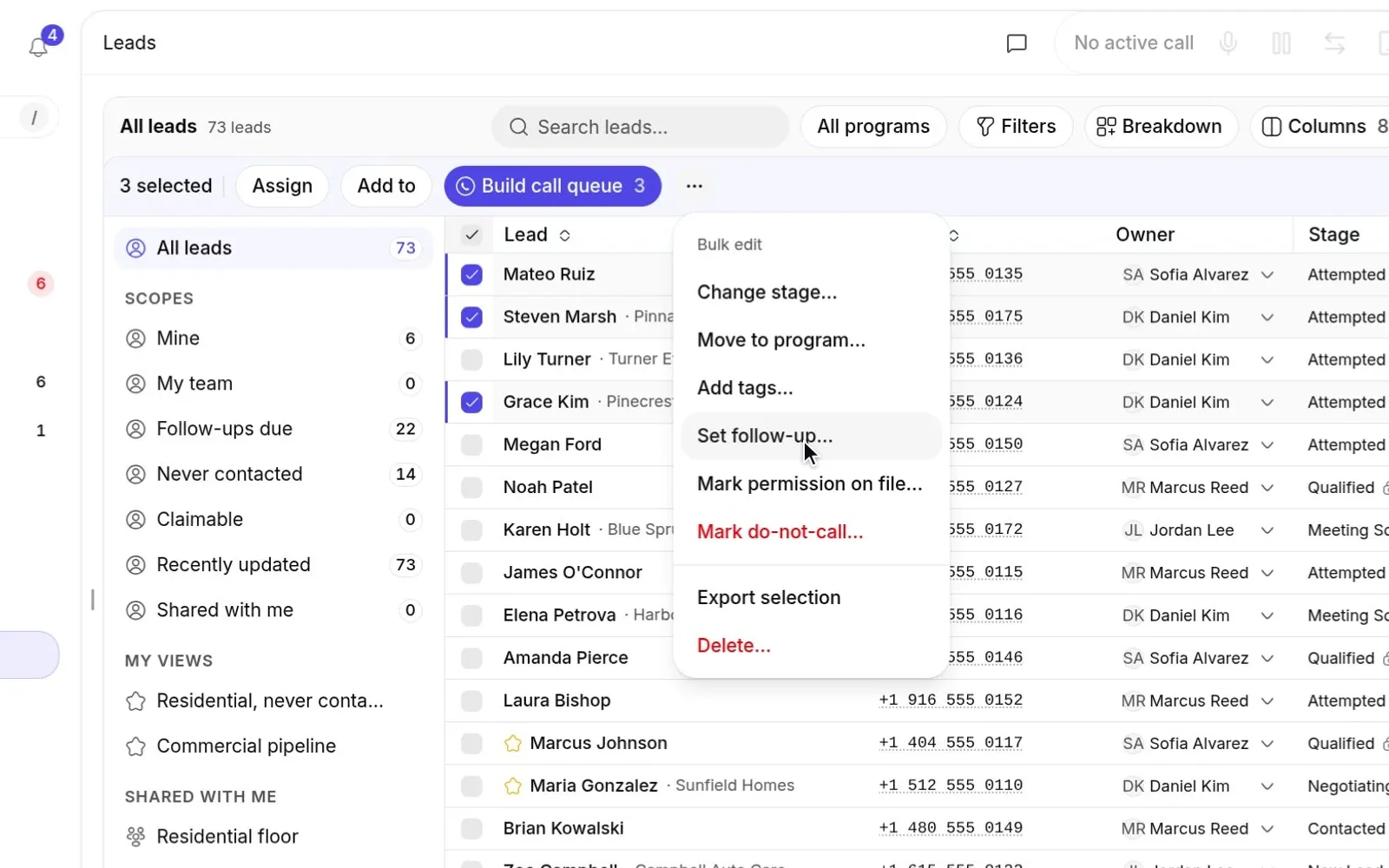
- ⋯ → Change stage…: move each lead to its program's stage with that name. A lead whose program has no such stage stays where it is.
- ⋯ → Move to program…: move the leads to another program. Shown when you have more than one program.
- ⋯ → Add tags…: type tags separated by commas. They're added to what each lead already has; nothing is removed.
- ⋯ → Set follow-up…: put the same day and time on every lead, or pick none to clear their follow-ups.
- ⋯ → Mark do-not-call…: set each lead's own Do Not Call flag.
- ⋯ → Export selection: download the leads as a CSV file.
- ⋯ → Delete…: move the leads to the recycle bin.
Pick the action, make your choice in the dialog, and confirm.
What to expect
- You only see the actions your role allows.
- Leads you aren't allowed to change are left as they were. The message afterwards says how many were changed and how many were kept, and why.
- With more than 5,000 leads, the change runs in the background. The grid catches up as it goes, and a message tells you when it has finished.