
To make a call, open a lead and press Place Call. The call dialog opens with the number to call and the number to call from already picked. Press Call and talk through your browser with a headset.
Before you start
- Your workspace must be approved for calling. Until then, Place Call shows Verify your business to start calling. See Get your workspace approved for calling.
- Your role needs the Telephony & AI permission. An admin can turn it on in Team Management → Roles & Permissions.
- You need a number you're allowed to call from. If the dialog says No caller ID is accessible to your user. Ask your administrator to assign one., see Choose which number your calls show.
- Use a headset, and allow your browser to use the microphone when it asks.
Check that your phone is ready
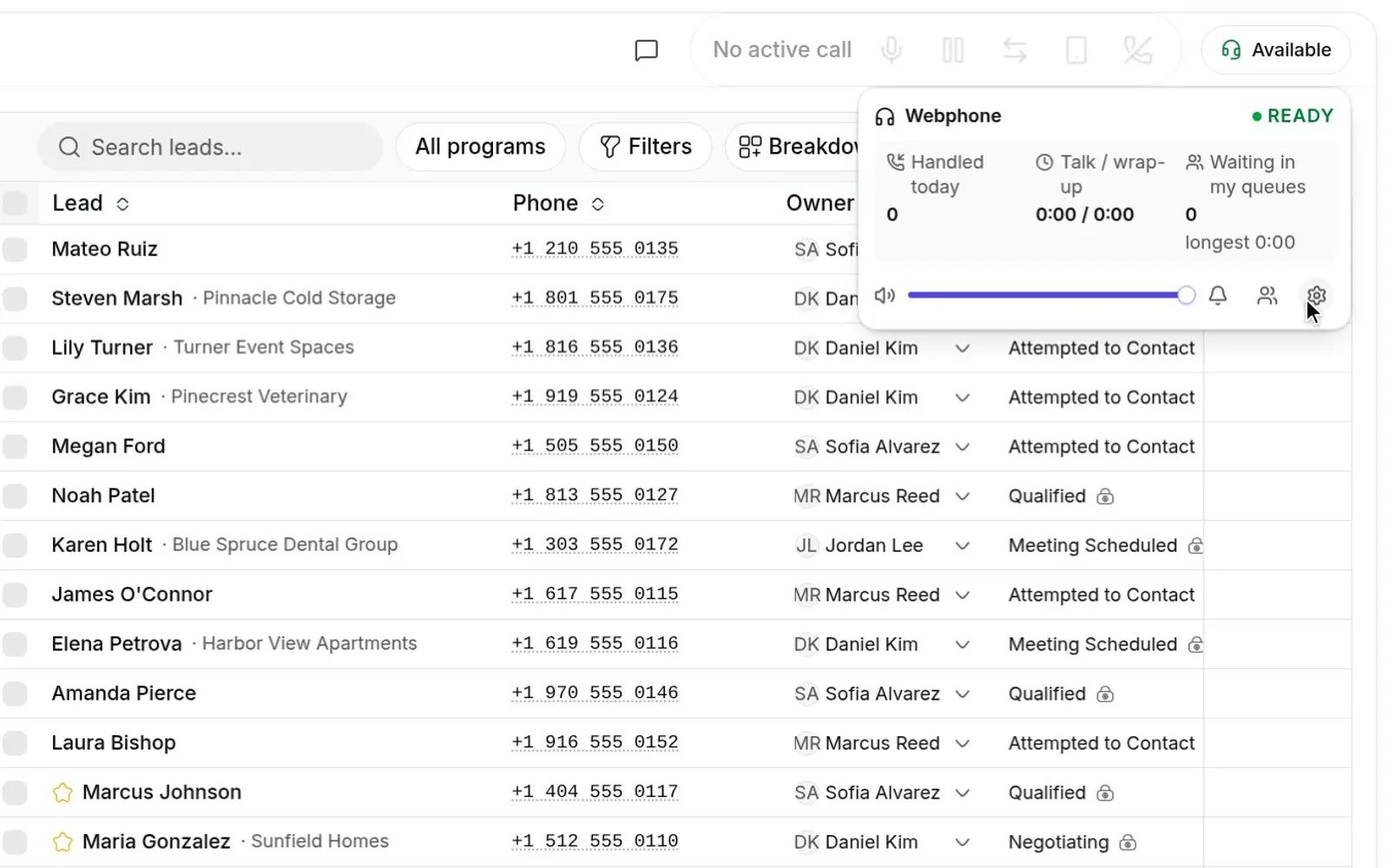
- Find the phone status button, with a headset icon, in the bar at the top of the screen. It shows your status, for example Available.
- Click it to open the Webphone card. The card should say Ready.
- To choose your headset, click the gear icon (Audio settings) and pick a Microphone and a Speaker.
- Press Test sound to check that you can hear.
Call a lead
- Open Leads and click a lead to open their record.
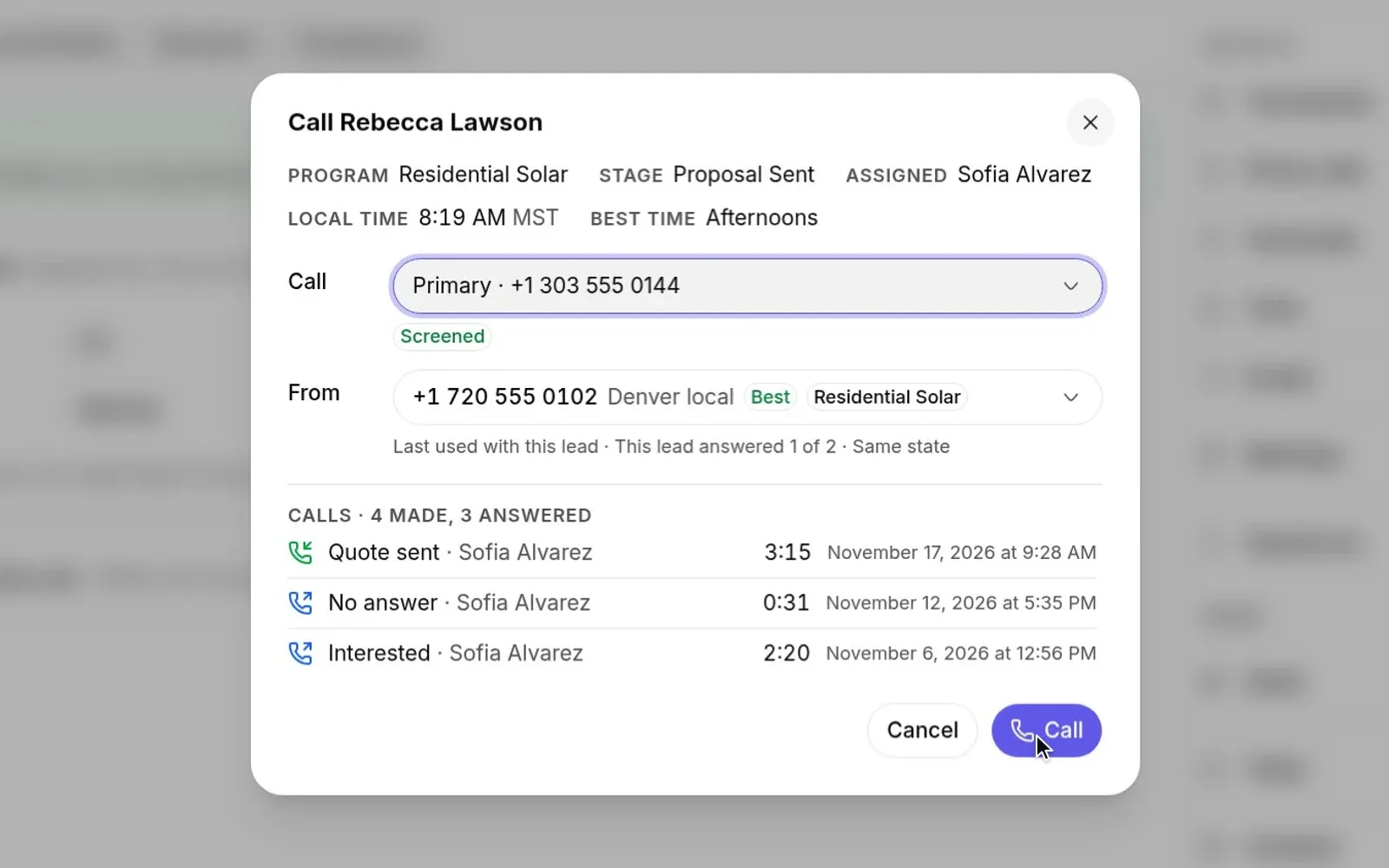
- Press Place Call at the top of the record. It calls the lead's primary number, or their mobile if there's no primary.
- In the call dialog, check the number under Call. If the lead has more than one number, you can pick another. Each number shows a badge such as Screened or Not screened.
- Check the number under From. Adoptiv puts the number most likely to be answered first and marks it Best. The line under it says why, for example Last used with this lead or Same area code. Click it to search for and pick another number.
- Press Call.
The dialog also shows the lead's program, stage, owner and local time, and their last few calls, so you know where things stand before they pick up.
During the call
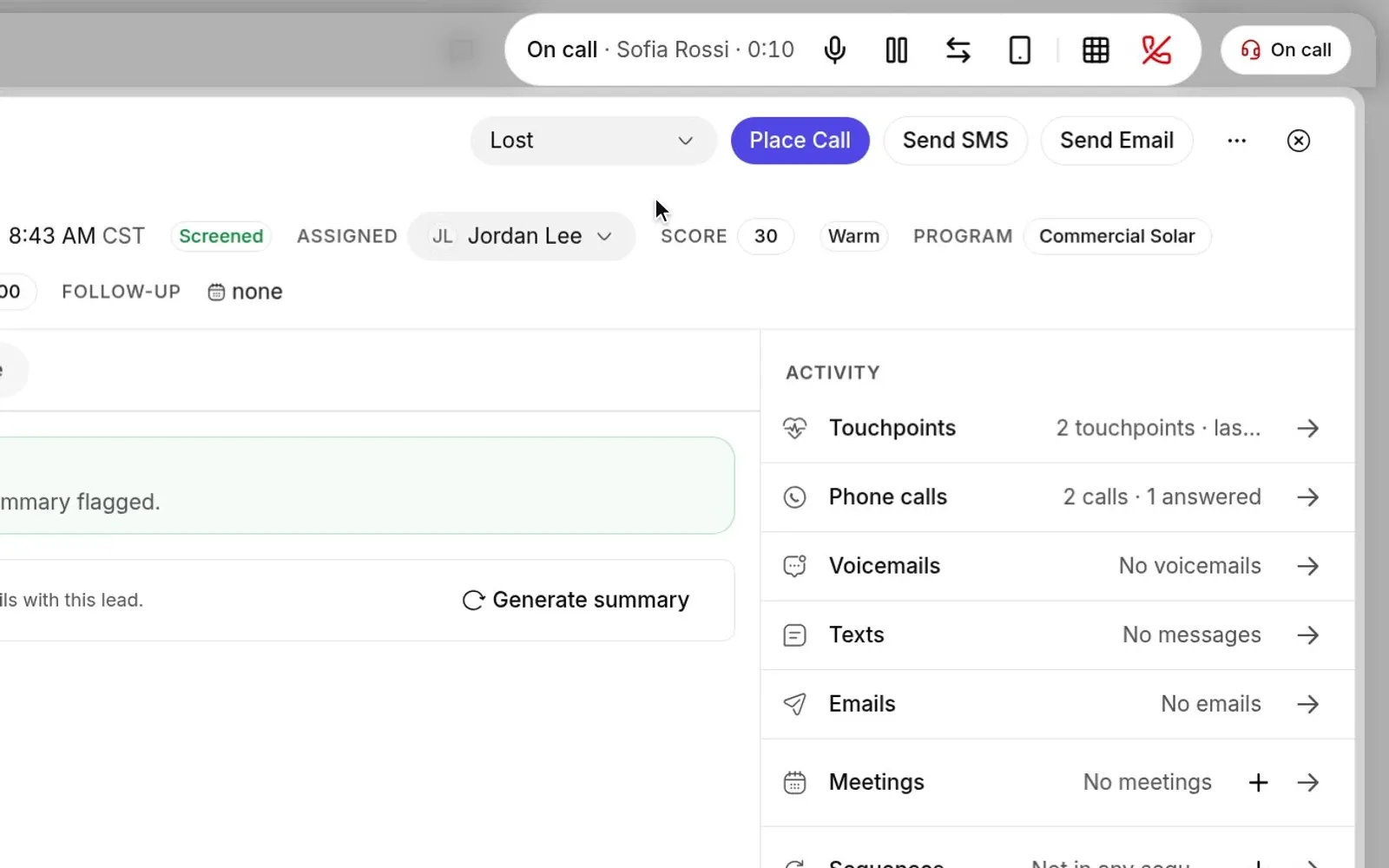
The call controls sit in the bar at the top of the screen. They show Dialing, then On call with the person's name and a running timer. Hover over a button to see its name:
- Mute and Hold. Press them again to Unmute or Resume.
- Keypad sends digits, for example to get through a phone menu.
- Transfer call hands the call to someone else. See Transfer, hold and three-way calls.
- Hang up ends the call.
On a narrow screen, Transfer call and Keypad move into the ⋯ menu.
After the call
When the call ends, the wrap-up panel opens so you can record how it went. See Wrap up after a call.
Call a teammate
- Click the phone status button to open the Webphone card.
- Click the people icon (Call a teammate).
- Search by name or extension, then click the person. The call dialog opens with their extension filled in.
- Press Call.
Calls between teammates are recorded but never analyzed by AI.
If the call doesn't start
- Softphone not registered. Check your connection. Open the Webphone card. It says what's wrong, and offers Try again when that can help.
- Your phone is active on another device. Adoptiv is open somewhere else. Open the Webphone card and press Use phone here.
- Microphone blocked - callers won't hear you. Click the icon at the left of your browser's address bar, allow the microphone, then click I've allowed it - re-check.
- This number can't be called means the number is on a do-not-call list. See Calling hours and do-not-call checks.