
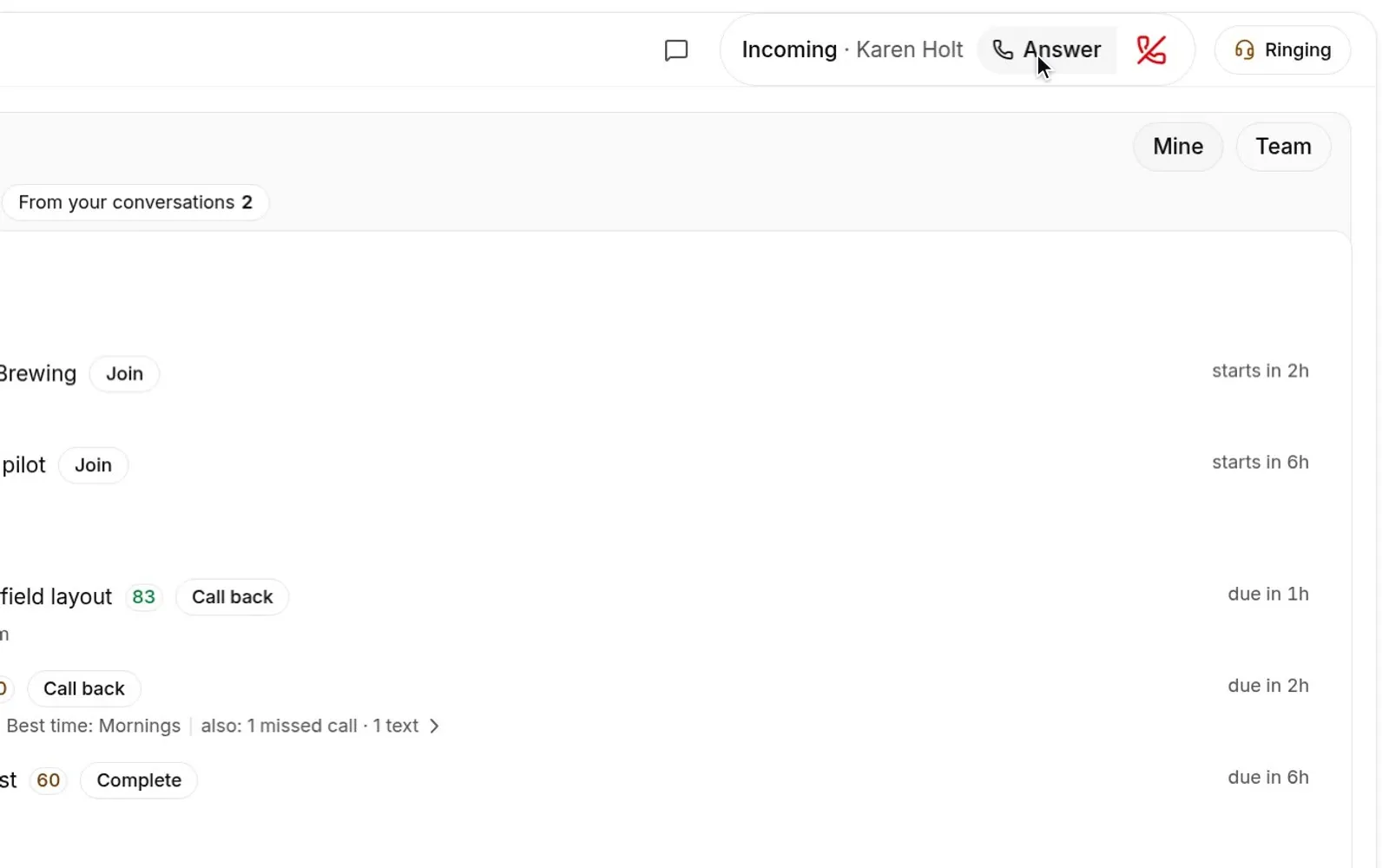
When a call comes in, your browser rings and the call controls at the top of the screen show Incoming and who is calling. Press Answer. The caller's lead record opens over whatever page you're on.
Before you start
- Keep Adoptiv open in a browser tab. Your browser phone is only connected while a tab is open.
- Allow your browser to use the microphone. If it's blocked, the phone status shows No mic and you can't answer.
- Your workspace must be approved for calling, and your role needs the Telephony & AI permission.
Set your status
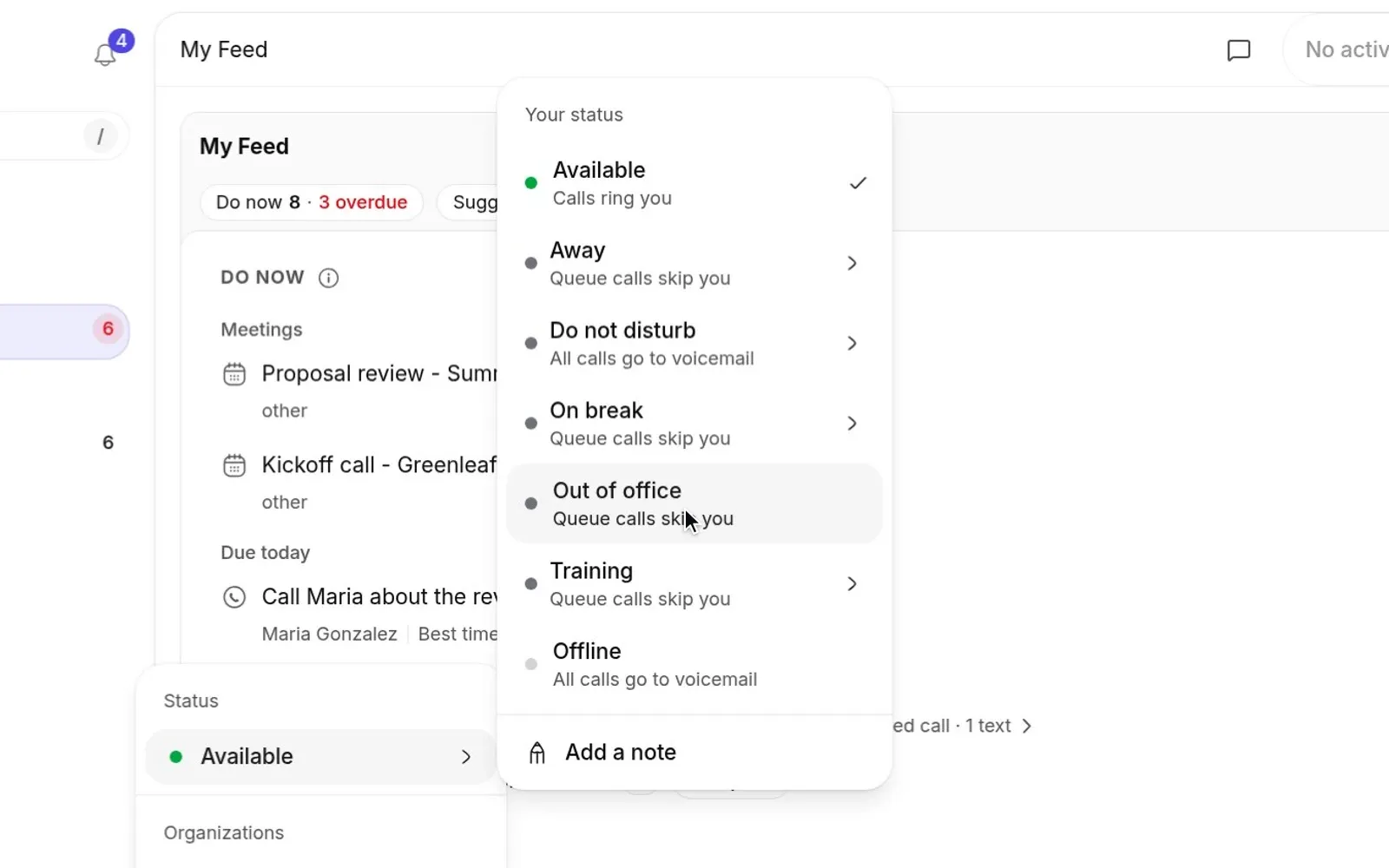
Your status decides which calls ring you. Click your name at the bottom of the sidebar and pick a status under Status.
| Status | What happens to calls |
|---|---|
| Available | Calls ring you |
| Away, On break, Out of office, Training | Queue calls skip you |
| Do not disturb, Offline | All calls go to voicemail |
If your admin has added reasons, a status such as On break opens a short list so you can say why you stepped away.
Answer a call
- When your browser rings, look at the call controls at the top of the screen. They show Incoming and the caller's name or number.
- Press Answer. To turn the call down, press Decline.
Adoptiv looks the number up in your leads and your team. If nothing matches, you see the number, or the name the caller's phone company sends.
See who's calling
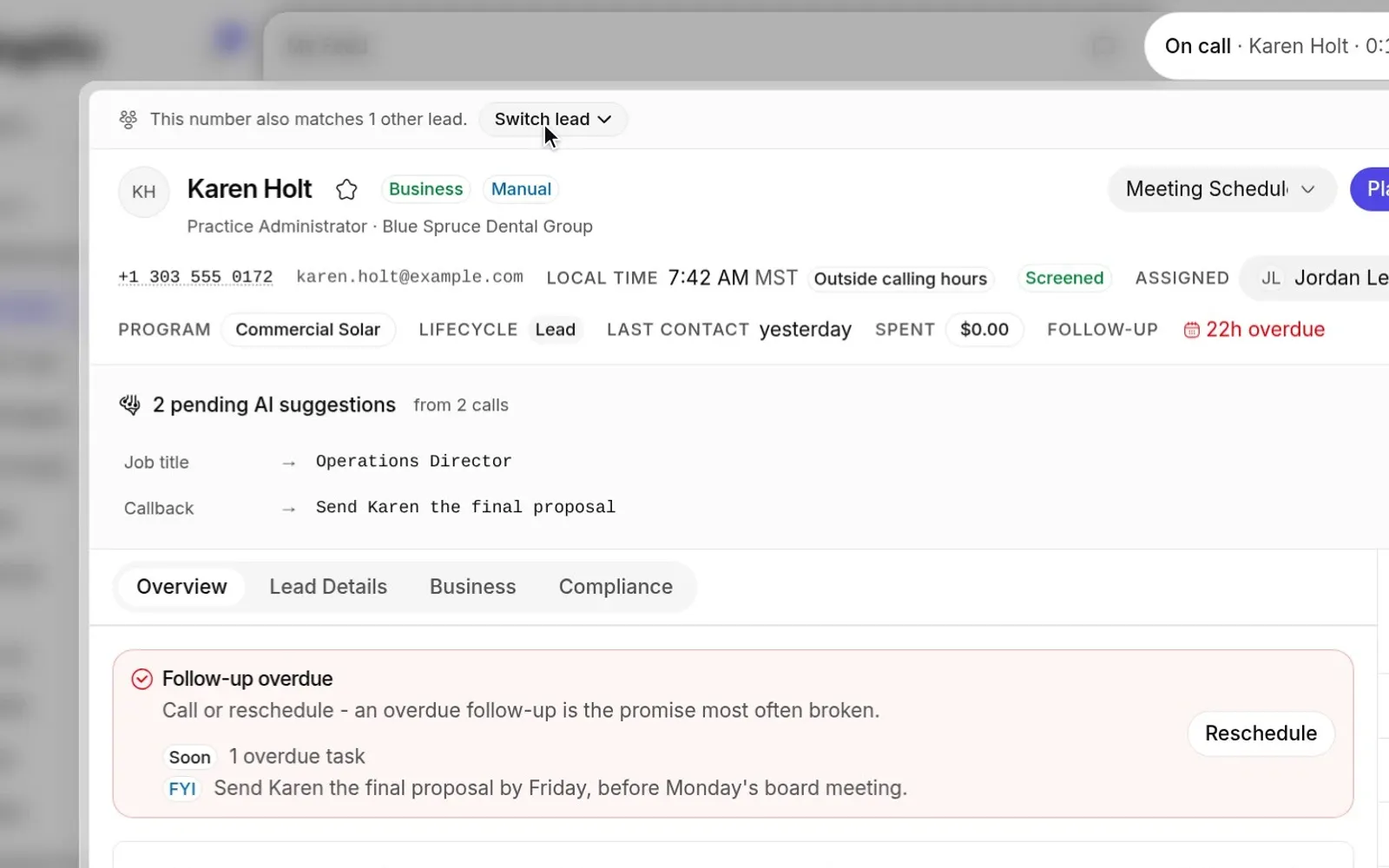
As soon as a call is answered, the caller's lead opens in a panel on the right, on its Overview. This works for calls you make too, whether you answer in the browser or on a desk phone.
- If no lead has the caller's number, nothing opens.
- If several leads have the number, the most recently active one opens, with a banner such as This number also matches 1 other lead. Use Switch lead to open another.
- If you have unsaved changes on a record, Adoptiv asks before replacing it. If you keep editing, the new caller's record waits in a banner and opens when you close the one you're on.
- If the caller is a lead in a program you don't have access to, you see only their name, program and owner. Press Create a lead in my program to add them to your own program.
- If you have Adoptiv open in several tabs, the record opens in the one you used last.
For the length of the call and your wrap-up, you can work on the caller's lead even if someone else owns it, as long as it's in one of your programs.
Choose your ringtone and volume
- Click the phone status button to open the Webphone card.
- Drag the volume slider to set how loud calls are.
- Click the bell to Mute ringer or Unmute ringer.
- Click the gear (Audio settings) and pick a Ringtone: Default, Classic or Modern. You hear a sample when you pick one.
Missed a call?
Missed calls are listed in Call Logs under Missed calls, and in My Feed until someone gets back to the caller. See Voicemail and missed calls.