
To send your calls somewhere else when you can't answer, open My Profile → Devices, turn on Forward my calls under Call forwarding, and choose when and where. On the same page you choose which of your devices ring.
Open your devices
- Click your name at the bottom of the sidebar and choose Profile.
- Choose Devices.
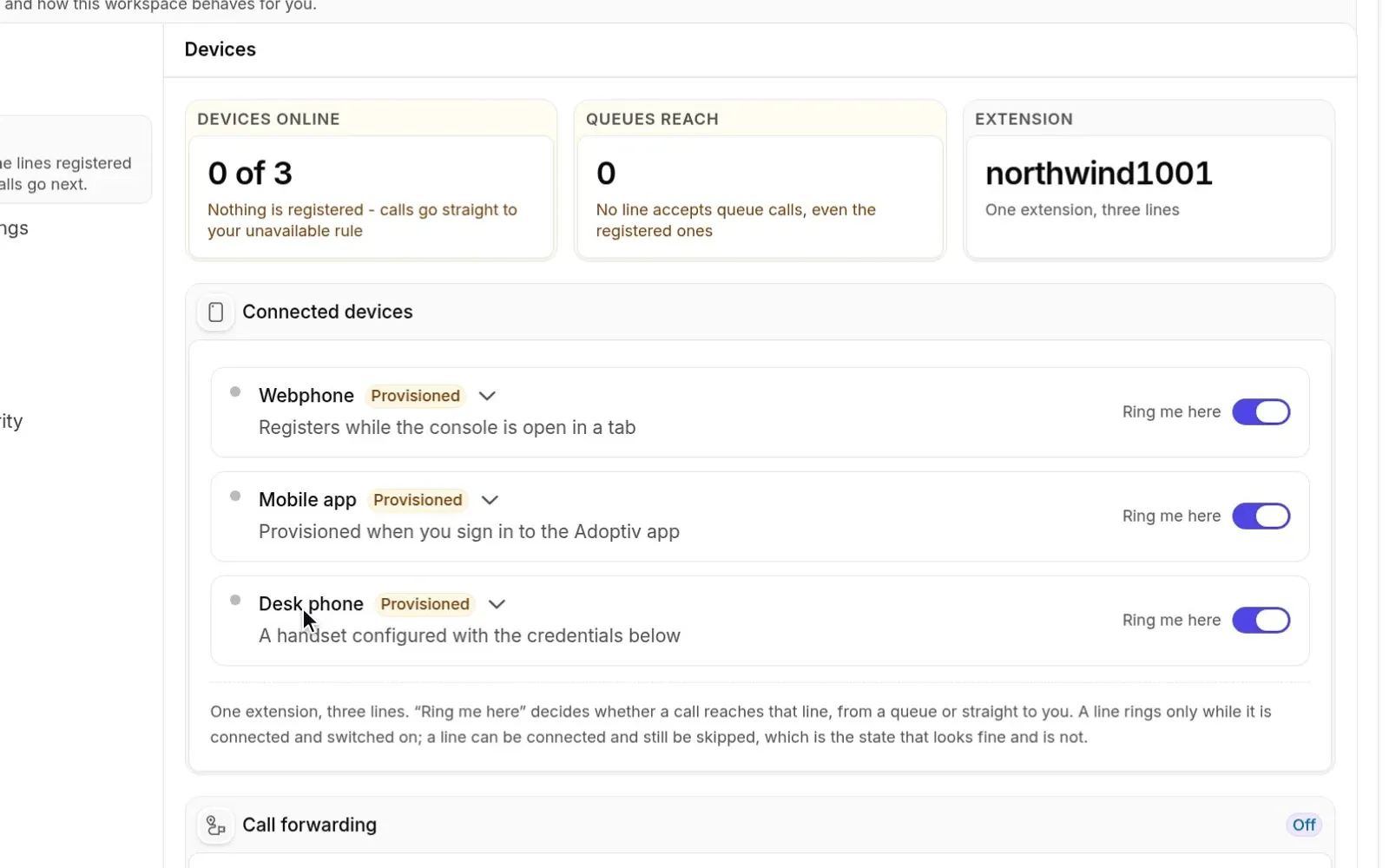
Your extension has three lines under Connected devices: Webphone (your browser, connected while Adoptiv is open in a tab), Mobile app and Desk phone. A line shows Registered when it's connected.
Choose which devices ring
- Find the line under Connected devices.
- Turn Ring me here on or off.
A line rings only while it's connected and switched on. With the switch off, calls skip that line even when it shows Registered. Queues reach at the top of the page shows which lines a queue call will ring.
Forward your calls
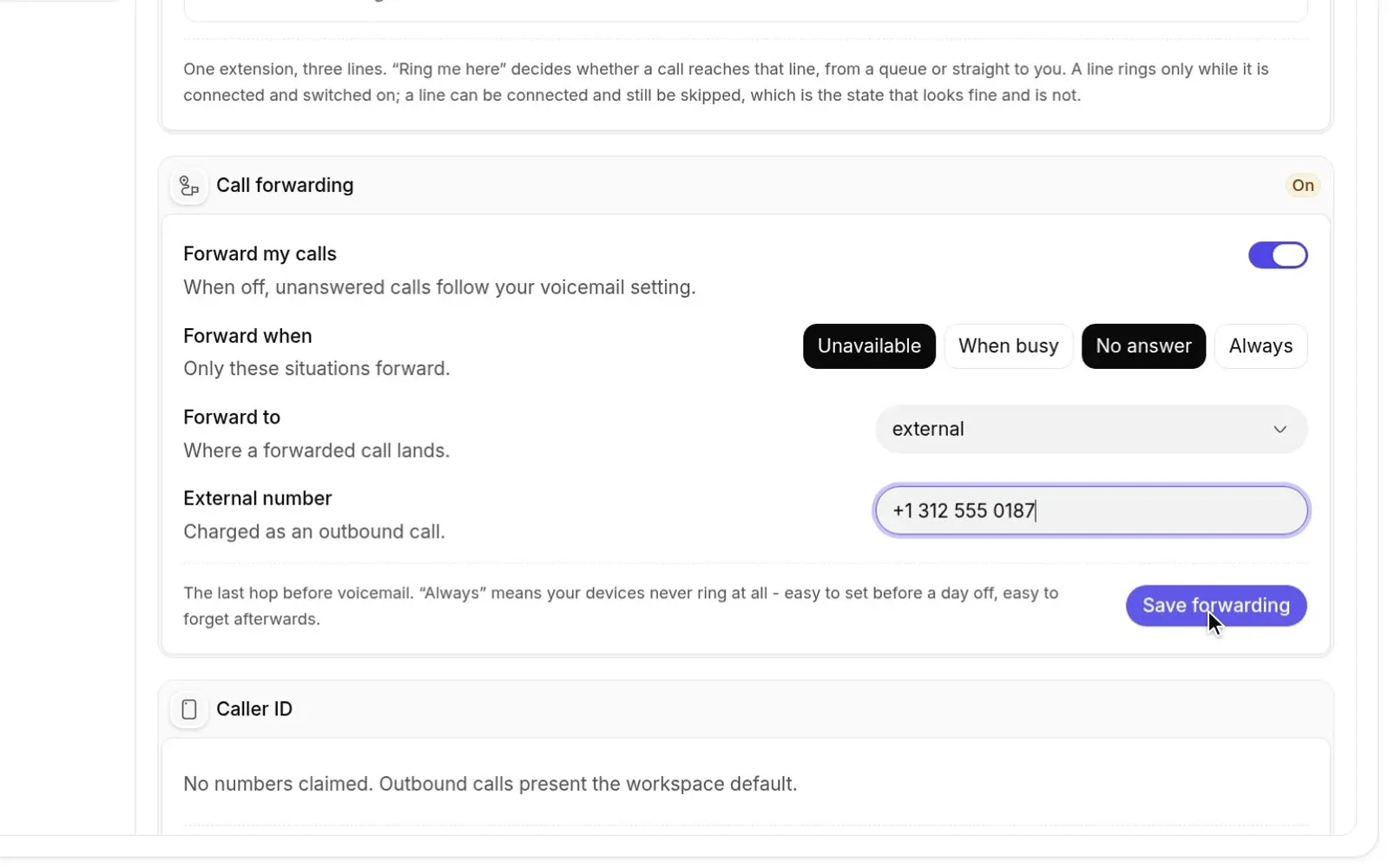
- Under Call forwarding, turn on Forward my calls.
- Under Forward when, pick one or more: Unavailable, When busy, No answer or Always.
- Under Forward to, pick Voicemail or An external number.
- For an external number, type it in External number, for example your cell phone.
- Press Save forwarding. You see Call forwarding updated.
A call forwarded to an external number is charged as an outbound call. With forwarding off, unanswered calls go to your voicemail.
Set up a desk phone
- Click the Desk phone line to open it.
- Enter the SIP user, Server and Password shown there into your handset. Use the copy buttons to avoid typos.
- If a Setup link is shown, you can give that to the phone instead.
- Turn on Ring me here for the desk phone.
New password issues a new password and signs the handset out until you enter it again, so do it from beside the phone. New setup link replaces the setup link.