Adoptiv checks every call you dial by hand. A number on a do-not-call list can't be called at all. A number that hasn't been screened, or a lead called outside 8 am - 9 pm their time, can still be called after you pick a reason, which is saved with the call.
Calling hours
Calls go between 8 am and 9 pm in the lead's own time zone. Adoptiv works this out from the lead's ZIP code, state or phone number's area code. If those disagree, or the lead's state spans two time zones, the call has to be inside the hours in every zone the lead may be in.
- On a lead's record, Local time shows the time where the lead is, and adds Outside calling hours when it's too early or too late.
- In the leads grid, you can turn on the Local time column. It turns amber outside the hours.
Call outside the hours
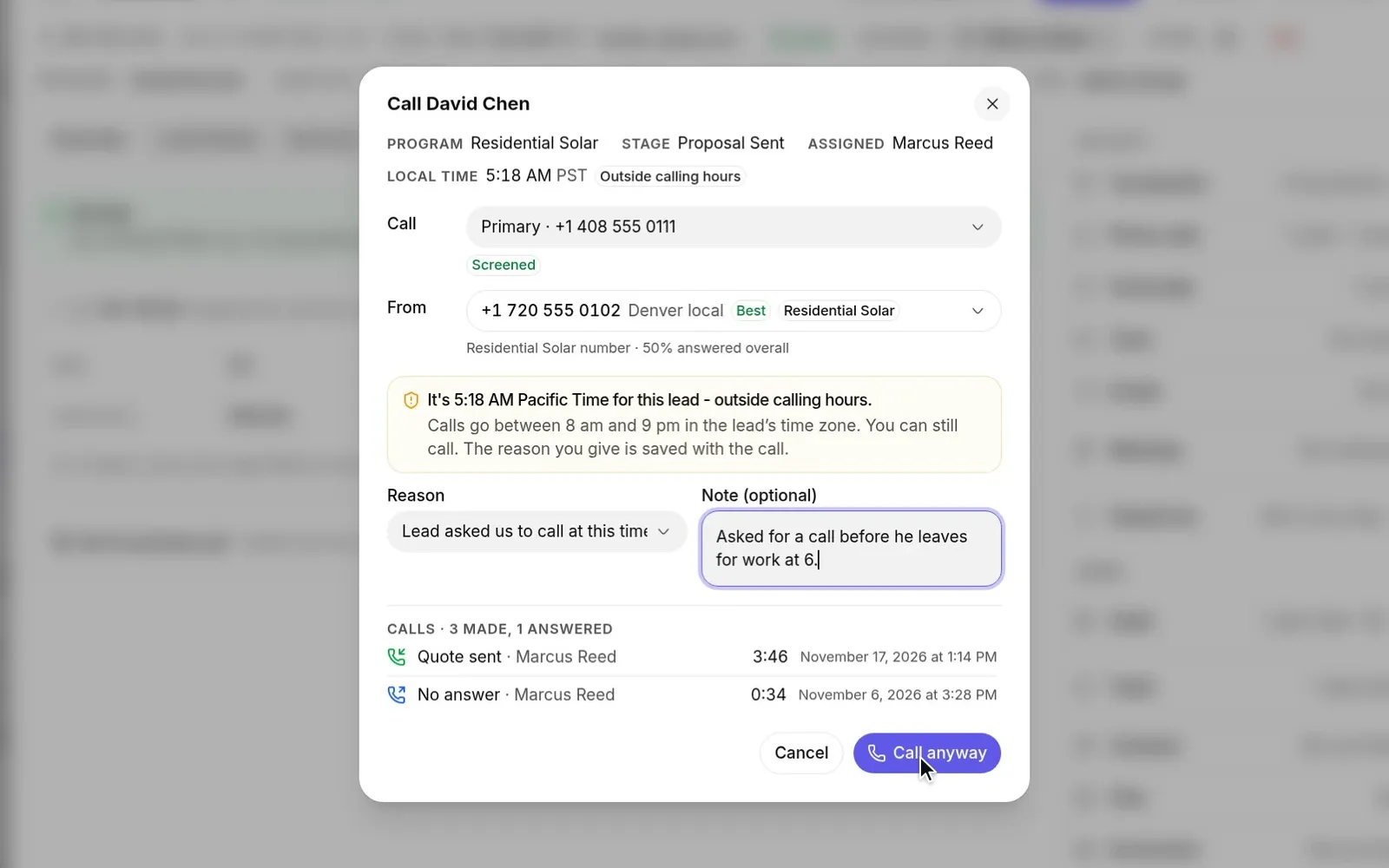
- Start the call as usual. The call dialog shows a warning such as It's 9:12 PM Eastern Time for this lead - outside calling hours.
- Pick a Reason: Lead asked us to call at this time, Returning the lead's call, Business line, within their business hours, The lead's time zone on the record is wrong or Manager instruction.
- Add a Note (optional).
- Press Call anyway.
Do-not-call checks
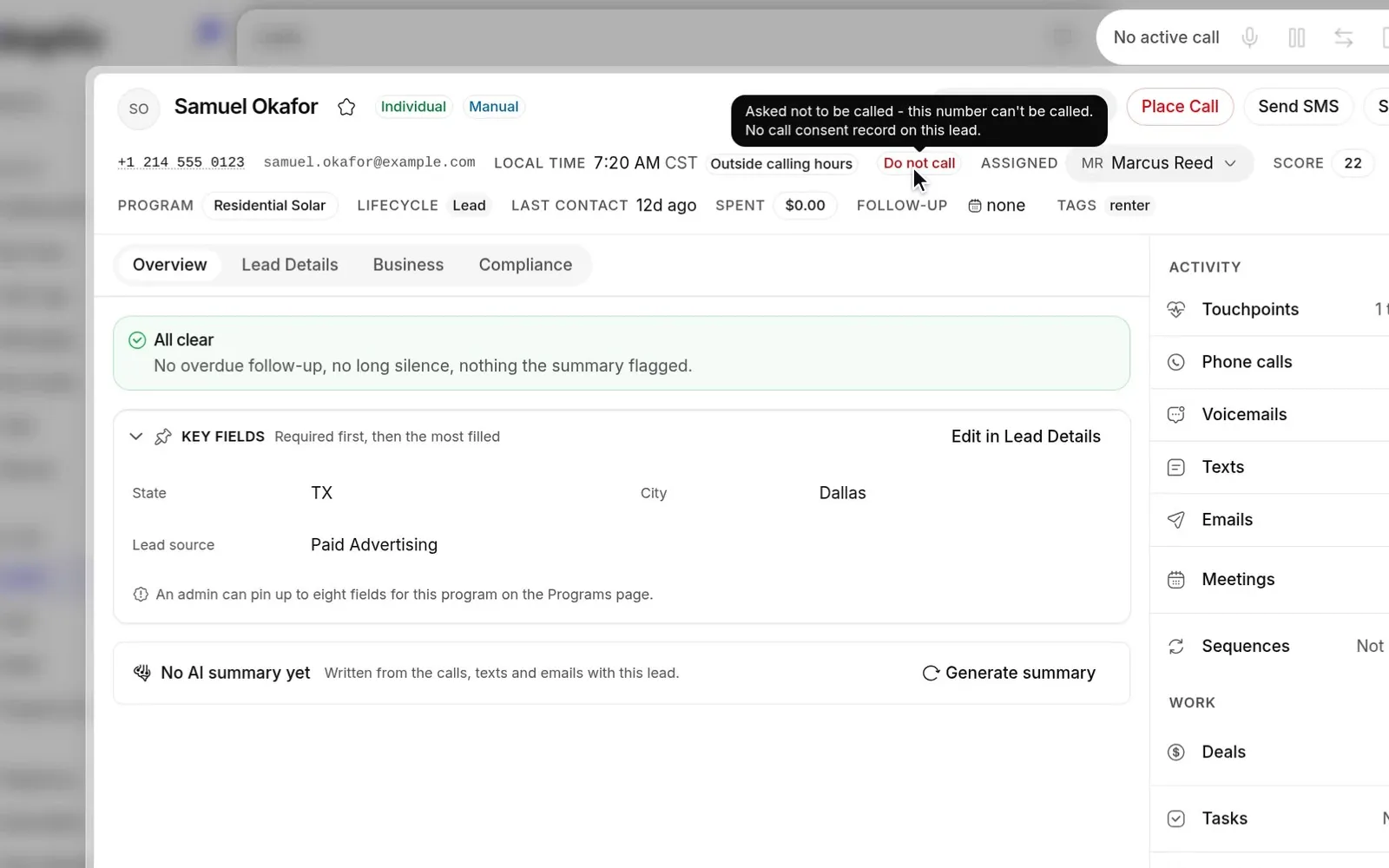
Adoptiv screens leads' numbers against the federal Do Not Call registry and a list of known litigators when the lead is added or a number changes, and checks the number again when you dial. A lead's record shows the result as a badge:
| Badge | What it means | Can you call? |
|---|---|---|
| Do not call | The number is listed, or the lead asked not to be called | No |
| Not screened | The number hasn't been checked against the registry or the litigator list | Yes, after you give a reason |
| Screening out of date | The last check is more than 31 days old | Yes. It's checked again when you dial |
| Screened | Not on the registry or the litigator list | Yes |
Numbers that can't be called
The call is refused, with no way to override it, when the number:
- is on the federal Do Not Call registry,
- belongs to a known litigator,
- is on one of your workspace's active do-not-call lists, or
- belongs to any lead marked Do not call or Internal DNC.
You see This number can't be called and the reason. Unsubscribing from email doesn't stop calls.
Numbers that haven't been screened
- Press Place Call. A dialog opens: Call a number that hasn't been screened.
- Pick a Reason, such as Lead asked us to call them or Existing business relationship applies.
- Add a Note (optional), then press Call anyway. The reason is saved with the call under your name.
Mark a lead as do not call
- Open the lead and go to the Compliance tab.
- On DNC & risk, press Edit.
- Set Do not call (the lead asked not to be phoned) or Internal DNC to Yes.
- Press Save.
The lead's numbers are then kept on your do-not-call list automatically, even if the lead is later deleted.
Add numbers to your do-not-call list
Who can do this: anyone with the Telephony & AI permission.
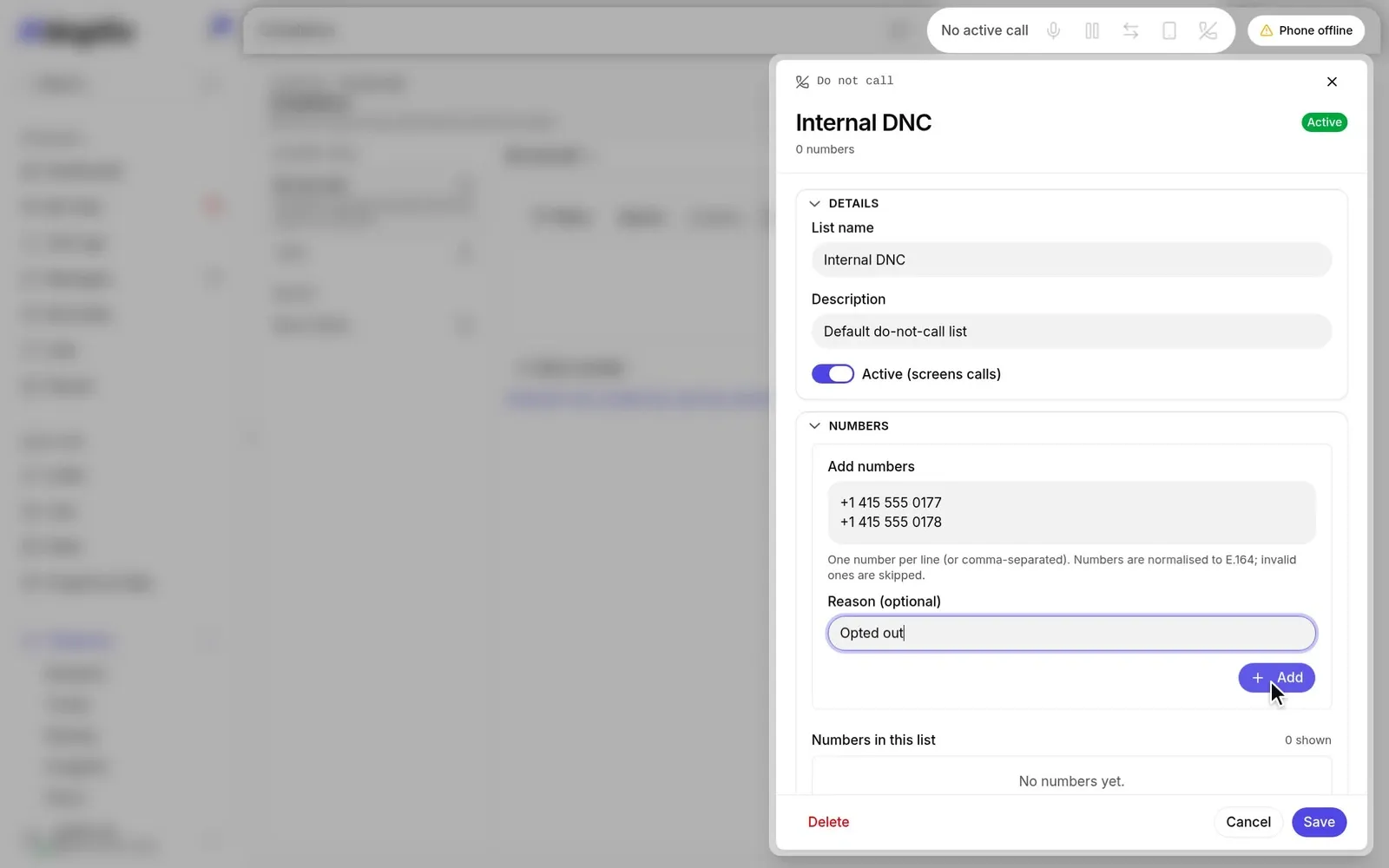
- Open Telephony → Compliance. Do not call lists the numbers on your list.
- Press Add a number. Your list opens.
- On the Numbers tab, type or paste numbers under Add numbers, one per line.
- Add a Reason (optional), such as Opted out.
- Press Add.
To keep separate lists, open Lists on the same page. A number on any active list can't be called.