
Your do-not-call lists hold the numbers nobody in your workspace may call. Open Telephony → Compliance: Do not call shows the numbers on your main list, and Lists shows every list. A call to a number on any active list is refused, with no way to override it - whether you dial it or a call flow or AI agent places the call.
Before you start
- To open Telephony → Compliance and add numbers, your role needs the Telephony & AI permission.
- To create, rename, switch off or delete a list, or to remove a number, you need to be a workspace owner or admin, or have Manage Settings.
Add numbers
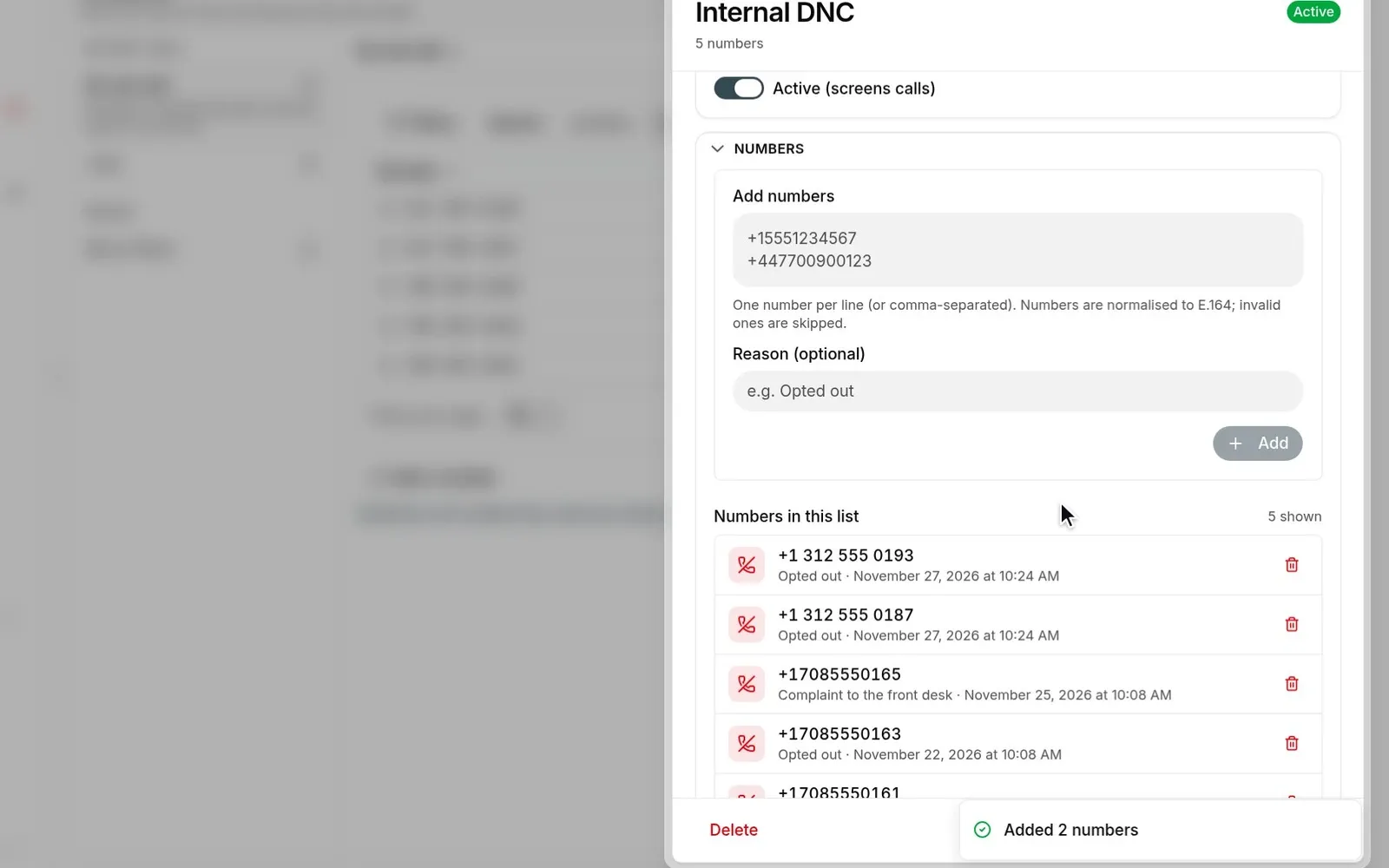
- Open Telephony → Compliance. Under Do not call, press Add a number. Your main list, Internal DNC, opens.
- Open the Numbers section.
- Under Add numbers, type or paste the numbers, one per line or separated by commas.
- Add a Reason (optional), such as Opted out. It's saved with each number.
- Press Add. When you add several, a message says how many were added and how many were invalid.
There's no file upload. To add a long list, paste it: up to 5,000 numbers at a time.
Keep separate lists
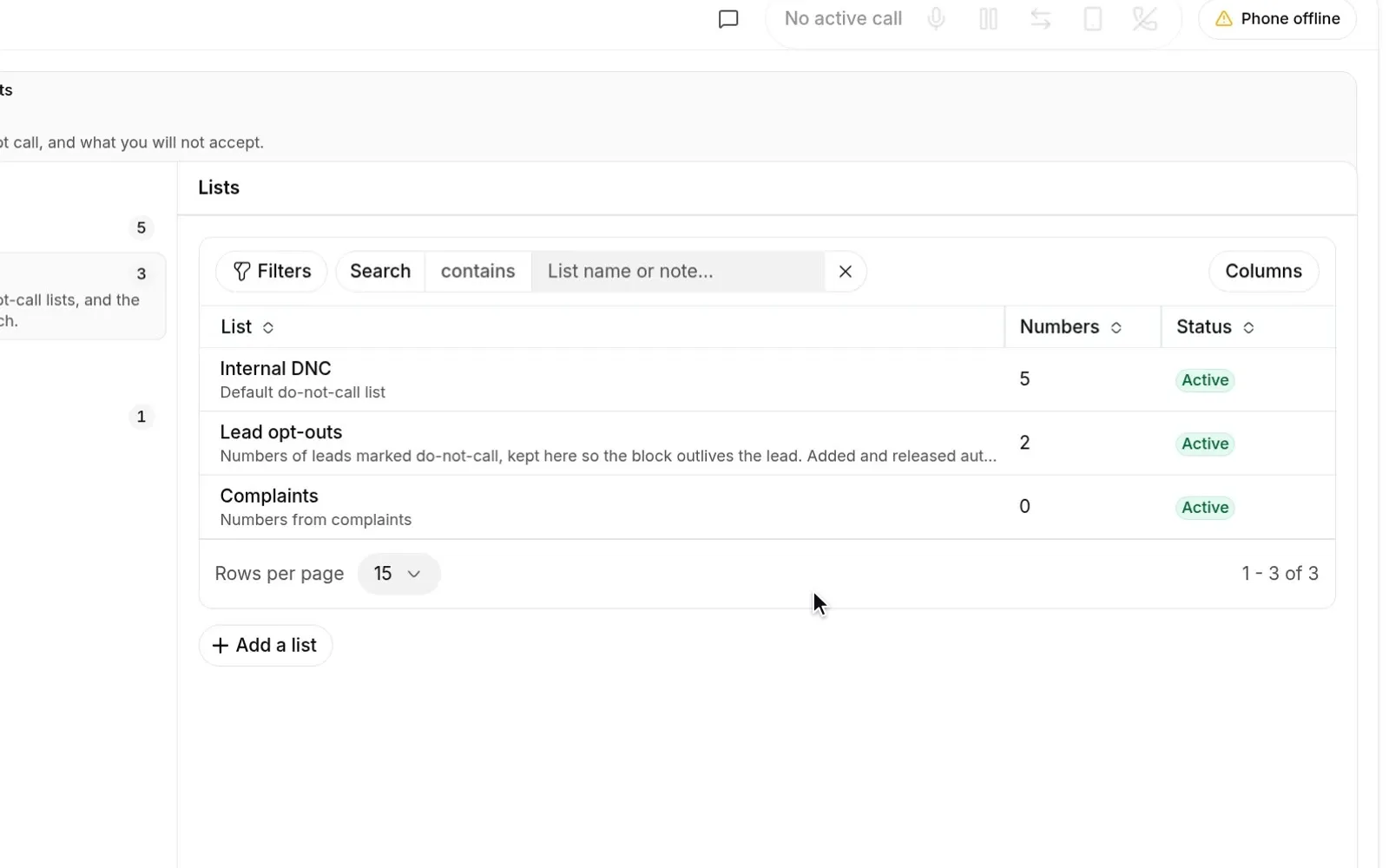
Use more than one list to keep numbers apart - opt-outs taken on calls, say, and numbers from complaints.
- Open Telephony → Compliance → Lists and press Add a list.
- Type a List name and, if you like, a Description.
- Leave Active (screens calls) on and press Create.
- Open the new list from Lists and add numbers in its Numbers section.
To stop a list blocking calls without losing its numbers, open it, switch off Active (screens calls) and press Save. To delete a list and all its numbers, open it and press Delete. A call flow can also add a caller to your main list: its Manage List step has an Add to Internal DNC option.
Numbers kept for leads
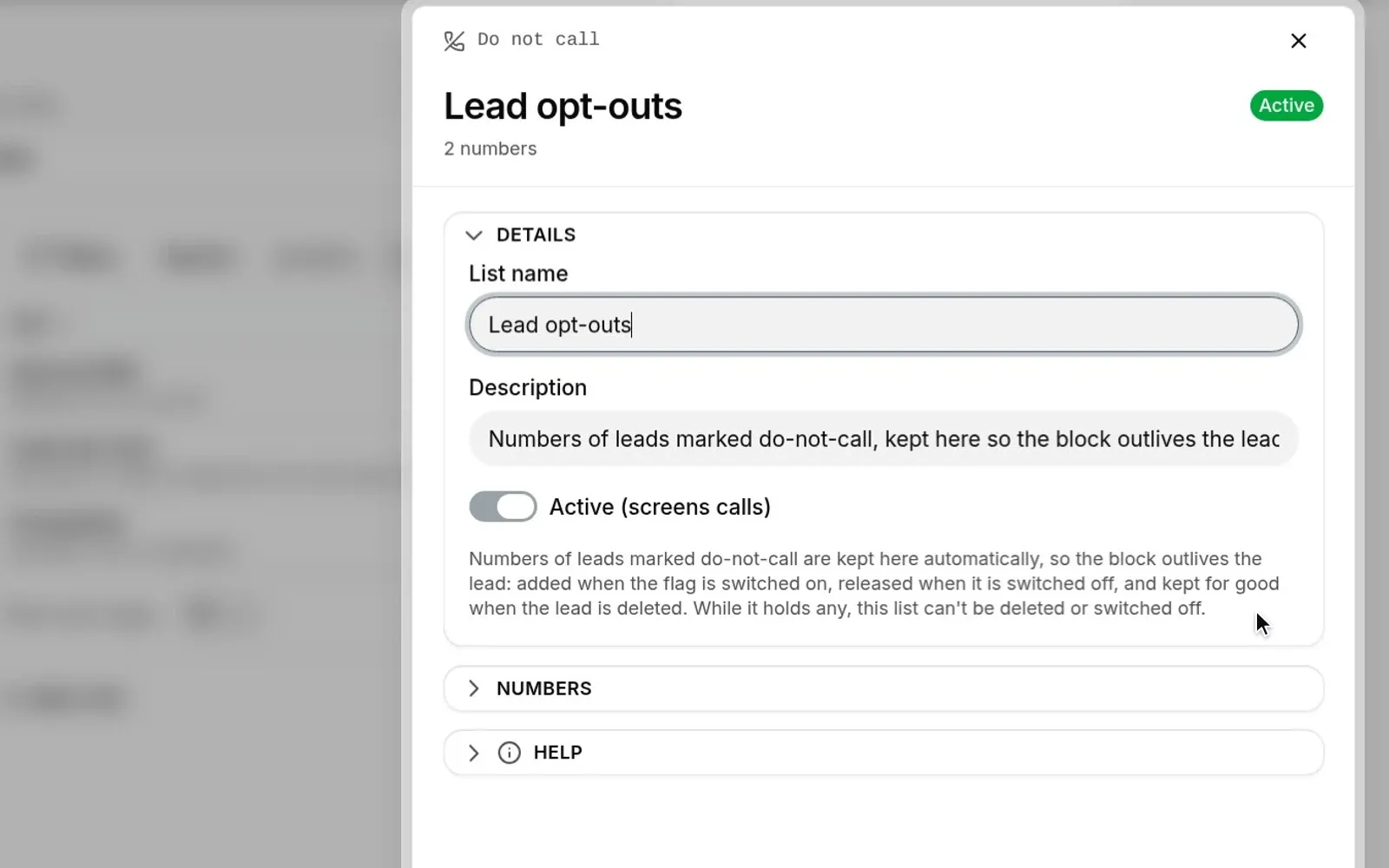
When a lead is marked Do not call or Internal DNC - on its Compliance tab, or with Mark do-not-call… on a selection of leads - its numbers go on a list called Lead opt-outs.
- The numbers stay on it when the lead is deleted or merged away, so a lead imported again still can't be called.
- Setting the lead's flag back to No takes its numbers off, unless another lead marked do-not-call has the same number.
- While it holds lead numbers, Lead opt-outs can't be switched off or deleted.
To mark a lead, see Calling hours and do-not-call checks.
Remove a number
- Open the list from Lists, or press any number under Do not call to open your main list.
- In the Numbers section, find the number under Numbers in this list and press the bin icon beside it.
The number is still refused if it's on another active list, on the federal registry, or belongs to a lead marked Do not call or Internal DNC. Every number added or removed, and every list change, is recorded in your workspace's audit trail with who made it.
To see every list a number is on, and why, use Can I contact this person? - see Email unsubscribes and suppressions.
What blocks calls, texts and email
| What applies | Calls | Texts | |
|---|---|---|---|
| Number on an active do-not-call list | Refused | Not checked | Not checked |
| Number on the federal registry, or a known litigator | Refused | Not checked | Not checked |
| Lead marked Do not call | Refused | Not checked | Not checked |
| Lead marked Internal DNC | Refused | Refused | Not checked |
| Lead marked Do not text, or the number replied STOP | Not checked | Refused | Not checked |
| Lead marked Do not email or Email bounced, or the address is on the Do-Not-Contact list (an unsubscribe link sets the first and the last) | Not checked | Not checked | Refused |
Adoptiv applies these checks; what the law asks of your calls and texts is for your own counsel to confirm. A do-not-call list doesn't stop people calling you. For texts, see Text opt-outs: STOP and START.