
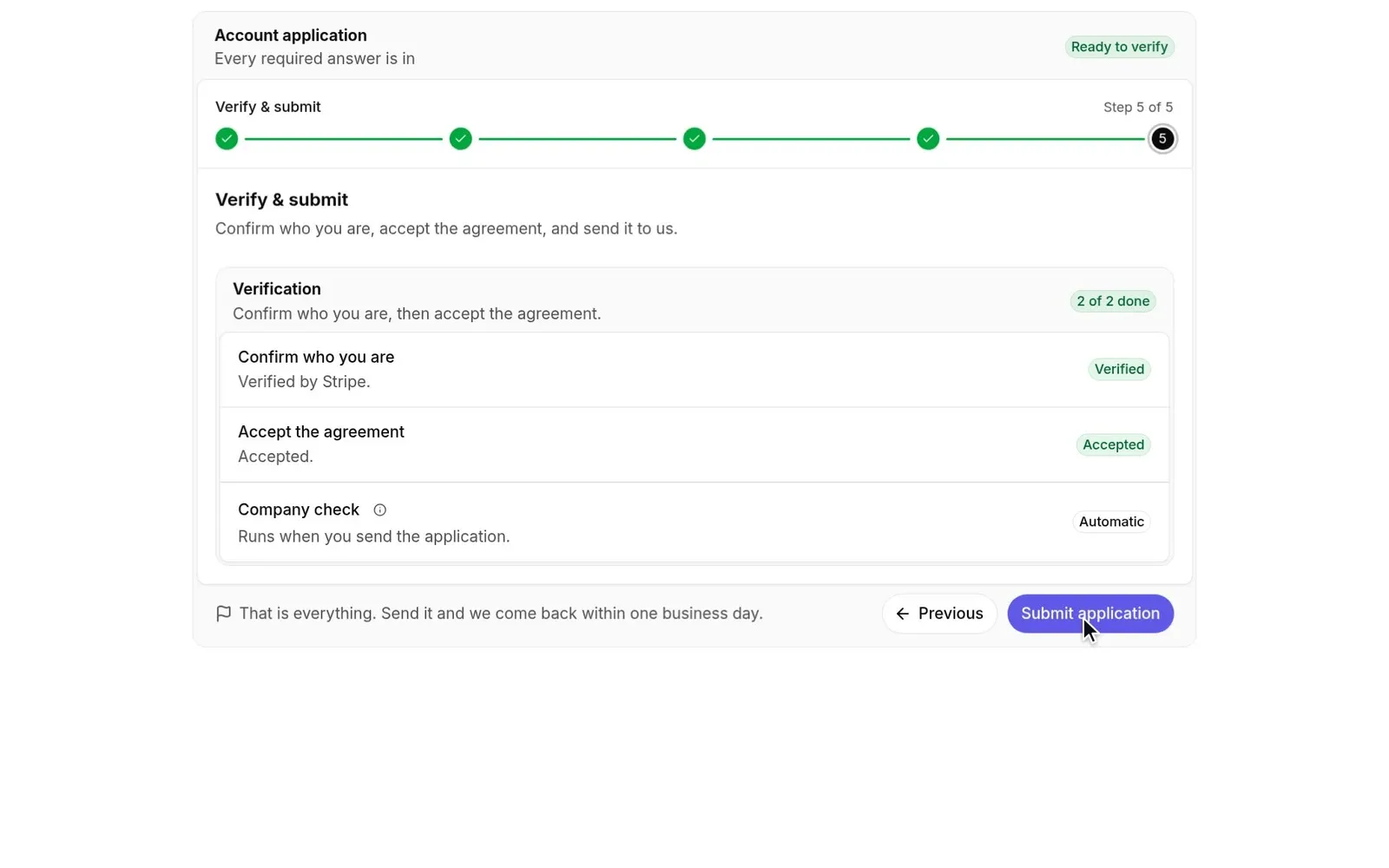
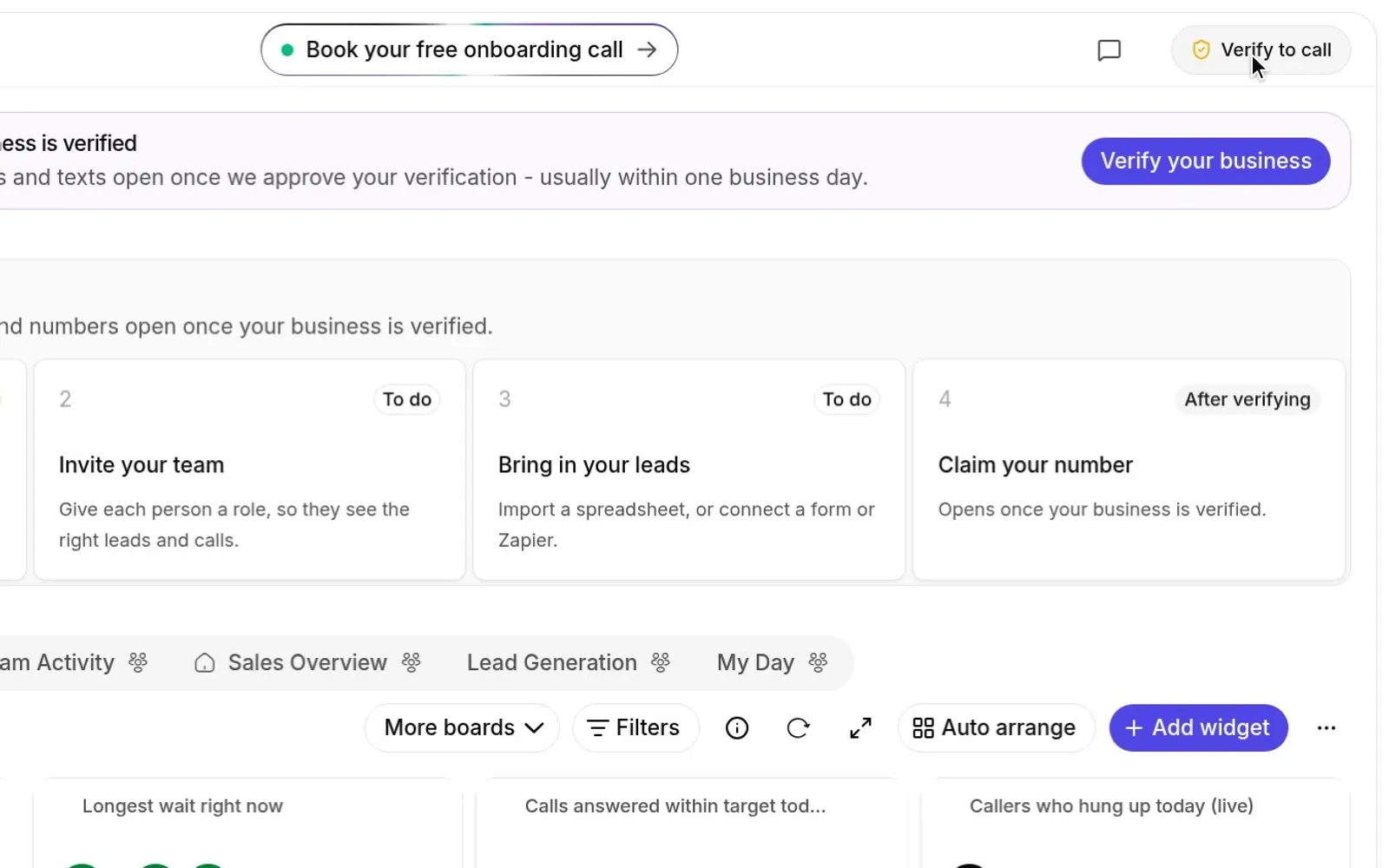
To start calling, press Verify to call at the top of any page, fill in the account application, confirm your identity, accept the agreement and press Submit application. It takes a few minutes, and we usually review it within one business day.
What waits for approval
You can use leads, deals, imports, dashboards, invitations, email from a connected mailbox and AI straight away. These wait until your business is approved:
- Making and taking calls, voicemail and call recording
- Phone numbers: buying, claiming or moving them to Adoptiv, and using your own carrier
- Sending texts
- Buying a plan or adding credit (you can still view Billing)
- The Adoptiv mobile app, wallboard screens and connecting other apps, such as Zapier
Your free trial starts the day you're approved. See Your free trial and starting credit.
Before you start
- Only the workspace owner or an admin can fill in and send the application. Other members can see where it stands.
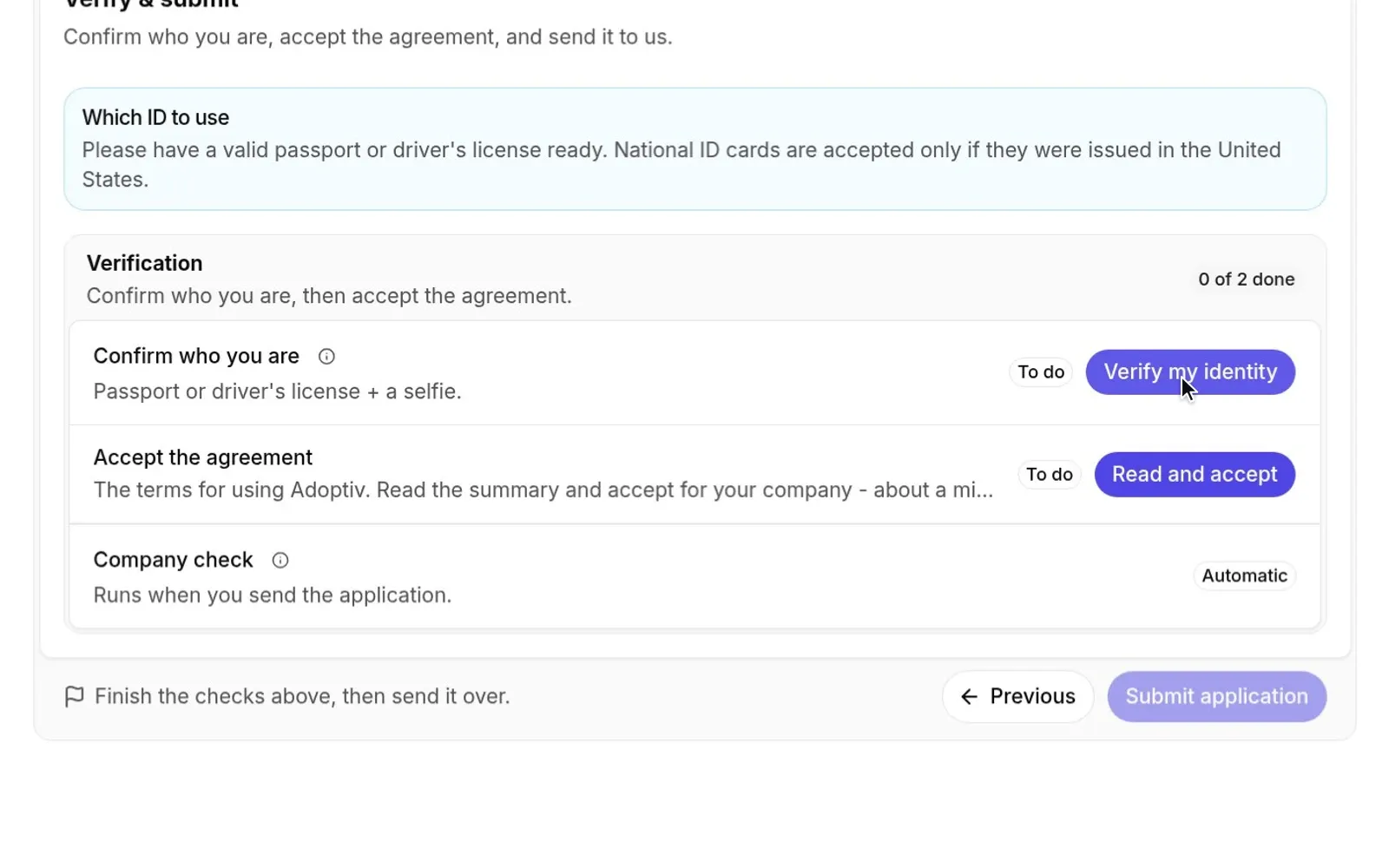
- Have a valid passport or driver's license ready. National ID cards are accepted only if they were issued in the United States. You'll also take a selfie.
Open the application
Press Verify to call in the header. You can also press Verify your business on the banner at the top of the page, or on the Get verified to start calling card on your dashboard.
Fill in the four sections
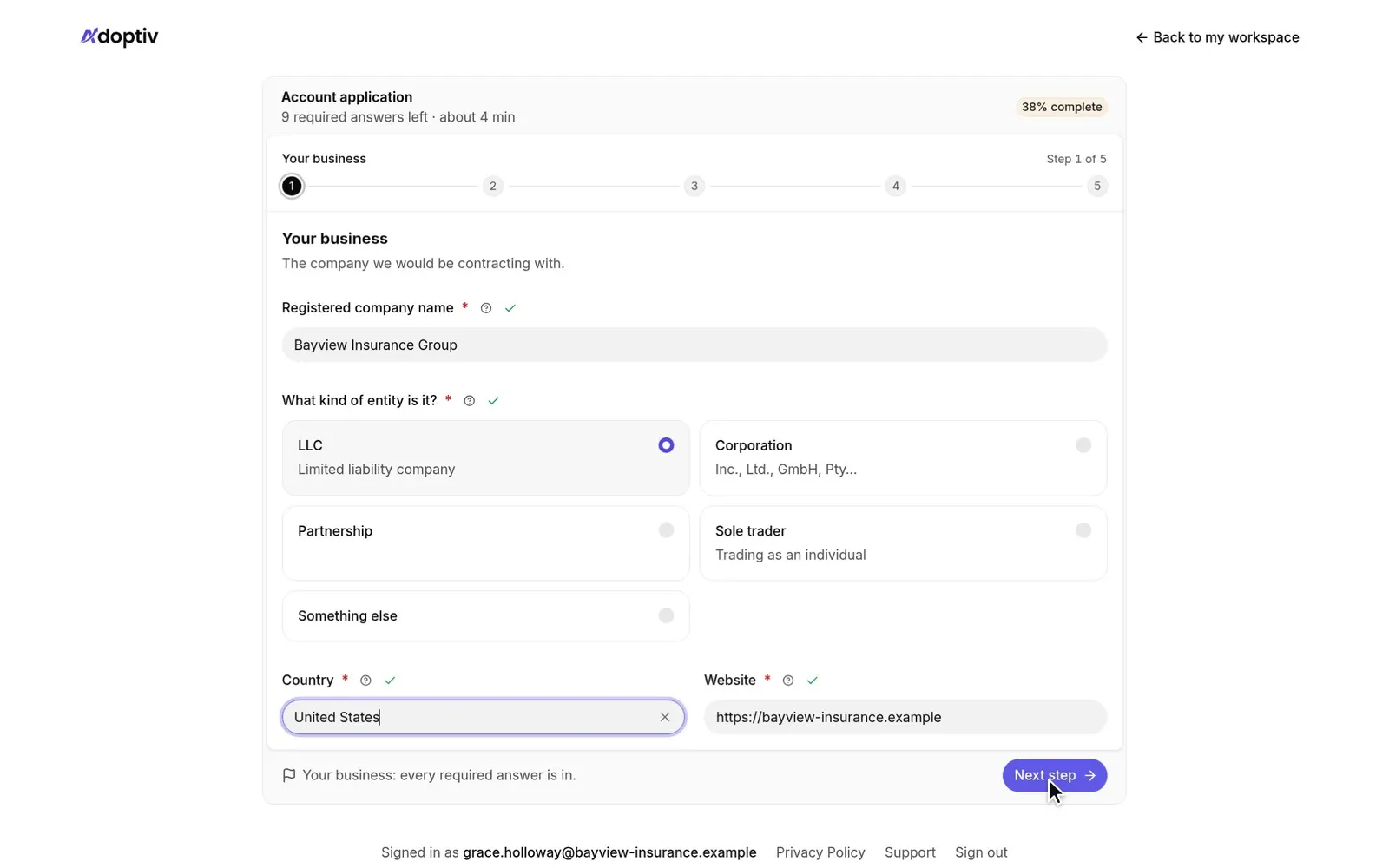
Some answers are filled in from your sign-up. Check each one, and press Next step to move on.
- Your business: your registered company name, what kind of entity it is, the country and your website.
- Your address: start typing in Find your address and pick it, or fill in the street and city yourself. If invoices go somewhere else, press Bill to a different address.
- Who we talk to: your name, job title, email and mobile. The compliance and invoice contacts use Same as above unless you switch it off and enter someone else.
- Your calling: whose calls they are, where you call, what the calls are about, and a few yes-or-no questions about how you call and about consent. Yes is never a wrong answer here.
Verify and submit
- On Verify & submit, press Verify my identity and follow the steps. Stripe checks your ID and selfie, usually in under a minute. Adoptiv never sees or stores the document.
- Press Read and accept, read The Adoptiv agreement, tick the box to accept it on behalf of your company and press Accept.
- Press Submit application.
The Company check runs by itself when you send the application. There's nothing for you to do, and not being found in a public register is not a problem.
After you send it
- We usually review it within one business day and email you the decision.
- While it's in review, you can press Withdraw. Your answers are kept.
- Once approved, calls, numbers and texts open for everyone in the workspace. Next, get a number: Buy a phone number.
- If it's declined, the reason is shown on the page and in the email. Press Edit and re-apply, fix what was asked and send it again.