
Everything in Adoptiv is reached from the sidebar on the left. To jump straight to a page or a lead, press / or Ctrl+K (Cmd+K on a Mac) and start typing.
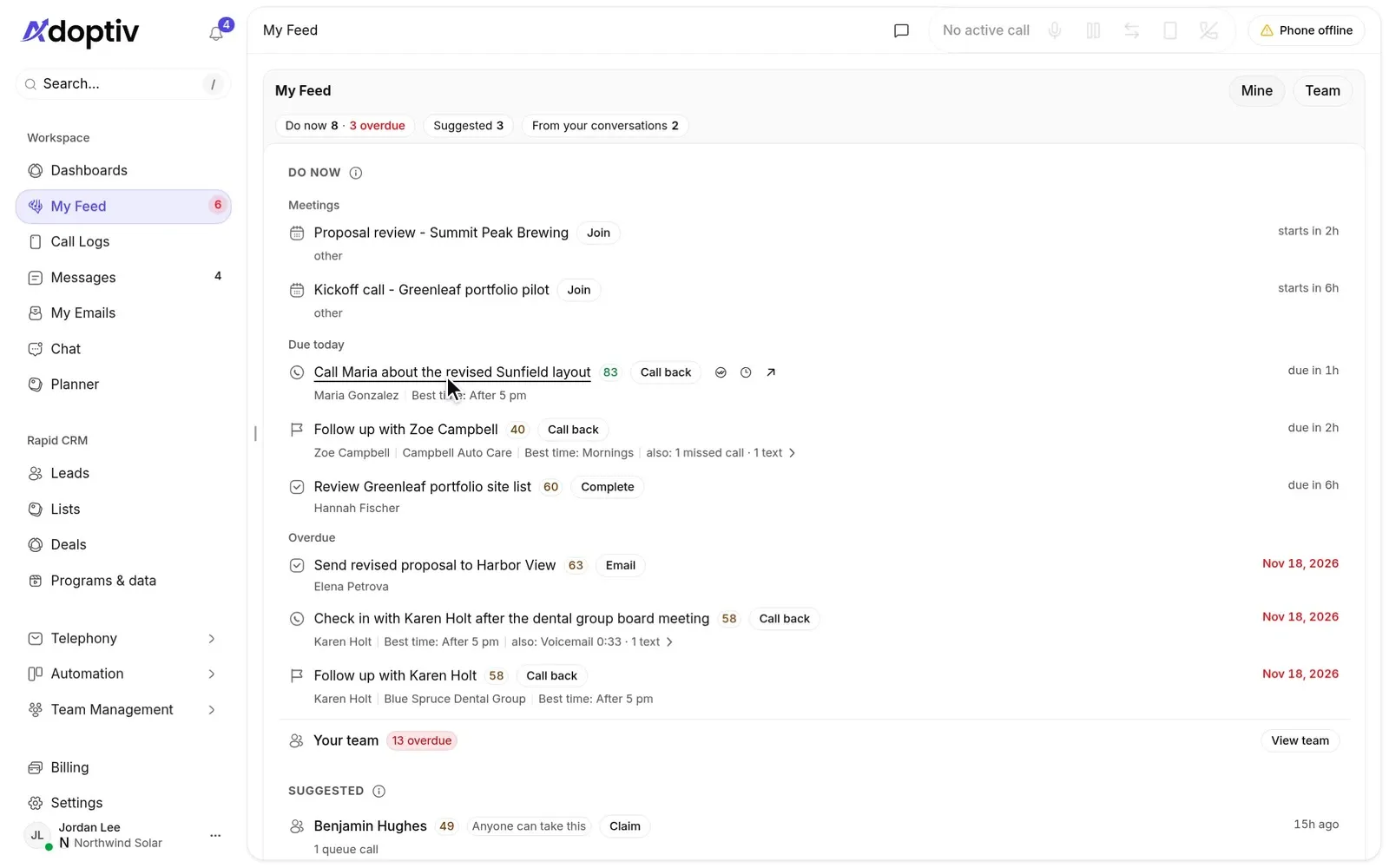
The sidebar
What you see depends on your role's permissions. A page you can't use isn't listed.
Workspace
- Dashboards: your boards of figures and charts.
- My Feed: what needs you today. See Plan your day with My Feed.
- Call Logs: every call, with voicemails on their own tab.
- Messages: your texts.
- My Emails: your mailbox, with templates, connections and signatures on tabs.
- Chat: channels and direct messages with your team.
- Planner: your tasks and calendar in one place.
Rapid CRM
- Leads, Lists (with your imports on a tab) and Deals.
- Programs & data: programs, lead stages, lead sources and custom fields.
Telephony, Automation and Team Management
Click one to open it:
- Telephony: Numbers, Trunks, Routing, AI agents, Hours, Hold music, Audio and Compliance.
- Automation: Call flows, Sequences and Suppressions.
- Team Management: Members, Teams, Roles & Permissions and Invitations.
Billing and Settings
- Billing: your plan, wallet and invoices.
- Settings: workspace-wide settings, such as Business Settings, integrations, webhooks and the audit trail.
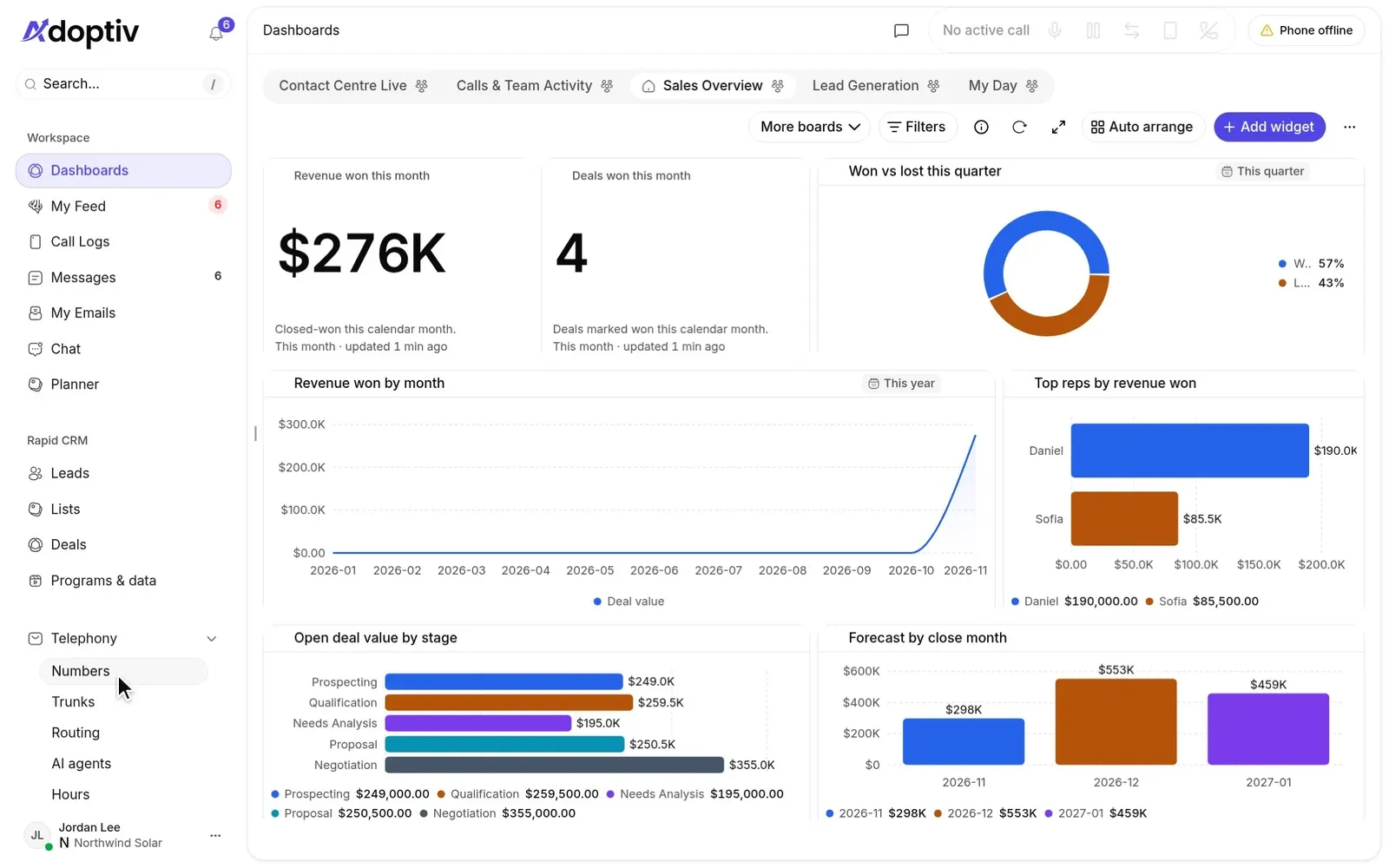
The header
- On the left, the page you're on.
- Verify to call, until your business is approved. Afterwards, Claim your number appears if your plan includes a free number you haven't taken yet.
- Your phone: whether it's ready and your status, plus the call controls when you're on a call.
- The team chat window.
The header stays usable when a record is open, so you can run a call without closing the lead.
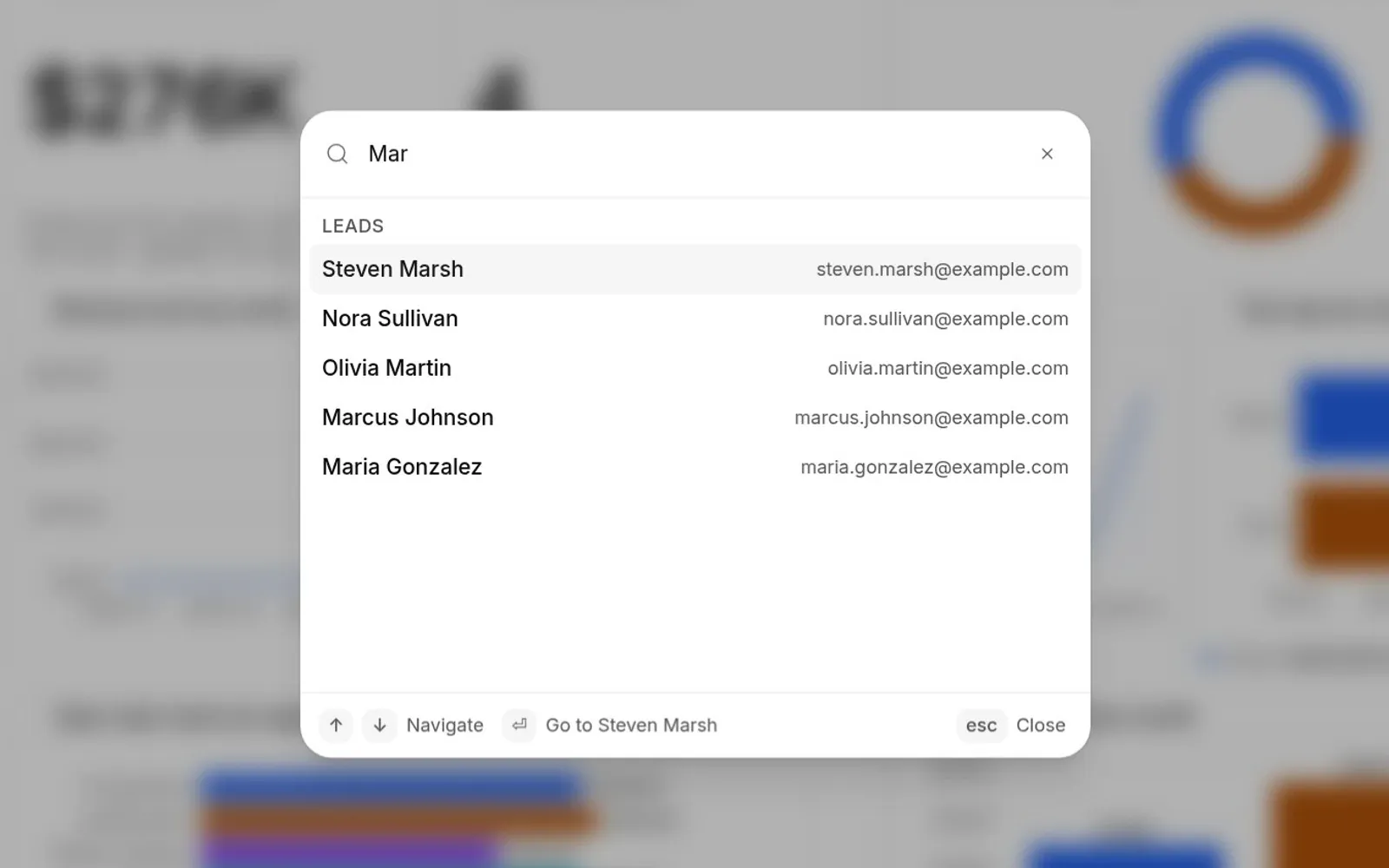
Search
- Press Search... at the top of the sidebar, or press /.
- Type a page name, or a lead's name, email, phone number or company.
- Click a result, or use the arrow keys and press Enter.
Search also lists actions for the page you're on.
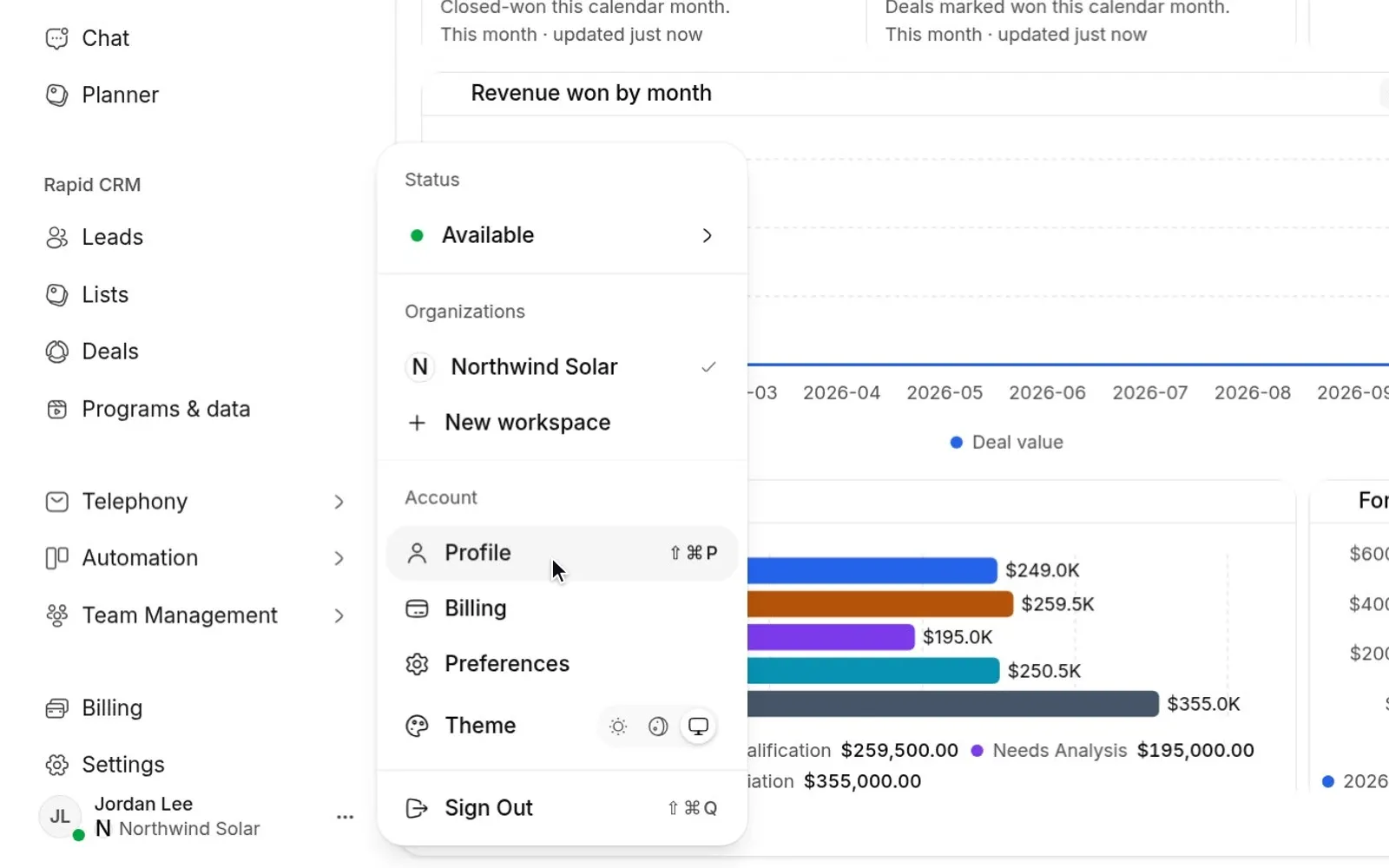
Your account menu
Click your name at the bottom of the sidebar to:
- Set your Status, if you take calls.
- Switch between Organizations, or create a New workspace.
- Open your Profile, Billing or Preferences, and pick a Theme: Light, Dark or System.
- Sign Out.
Your profile holds your own settings, such as About you, Devices (your extension and call forwarding), Preferences and Sign-in & security.
Notifications and support
The bell next to the Adoptiv logo opens your notifications. Owners and admins also see Chat with support there.
The getting-started card
Owners and admins see a card on Dashboards with four steps: Verify your business, Invite your team, Bring in your leads and Claim your number. It stays until your business is verified. After that you can hide it, and it goes by itself once all four are done.