
To text a lead, open the lead and press Send SMS. Their replies show up in Messages in the sidebar and in the lead's Texts.
Before you start
- Your workspace must be approved for calling. Texts wait for approval, just like calls. See Get your workspace approved for calling.
- You need at least one number with texting switched on. Adoptiv handles the 10DLC registration for you. See Get your numbers ready to send texts.
Send the first text
- Open the lead.
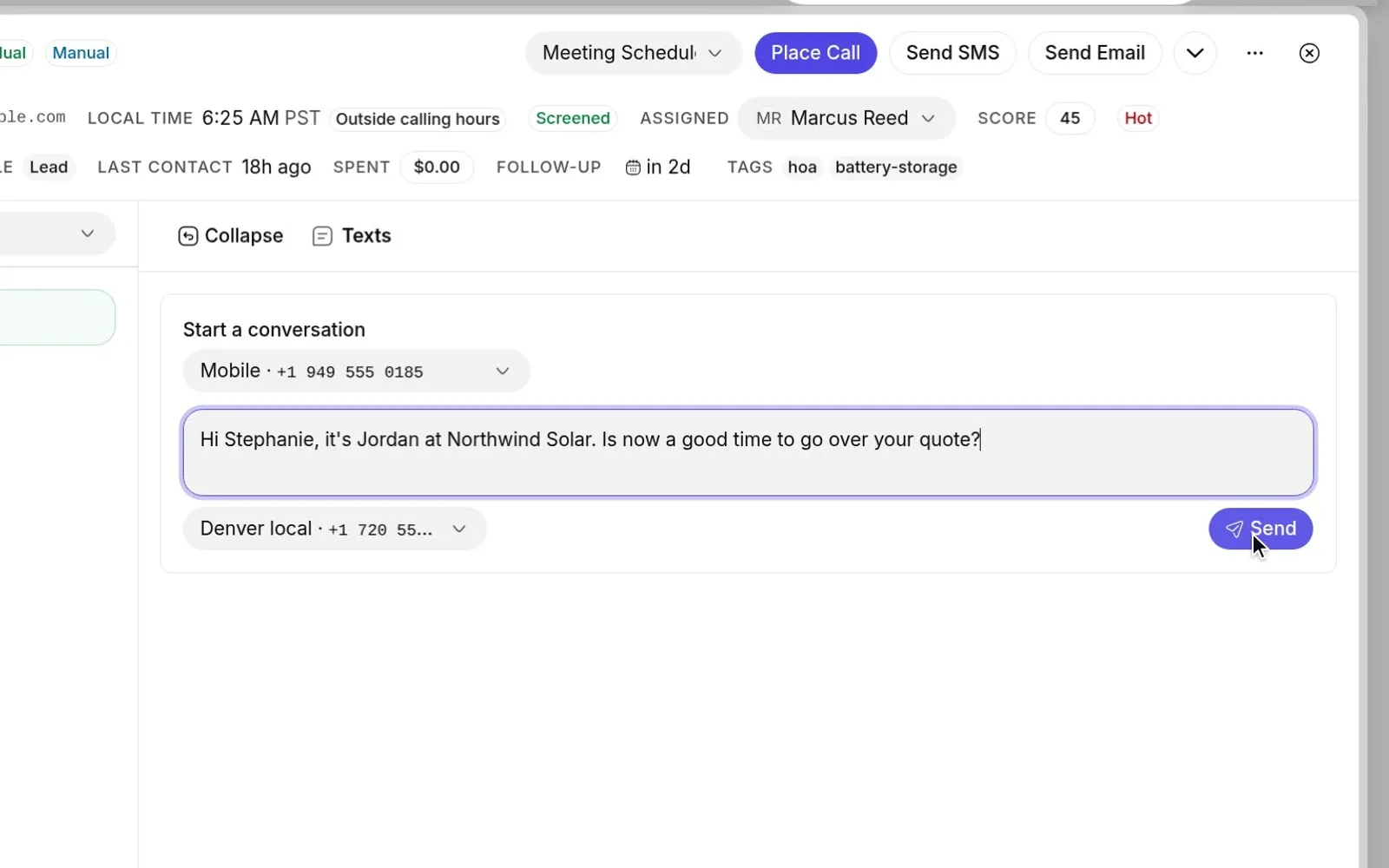
- Press Send SMS at the top of the record. The lead's Texts open.
- Under Start a conversation, choose which of the lead's numbers to text, if they have more than one. Their mobile is offered first.
- Choose the number to Send from.
- Write your text and press Send. Enter also sends; Shift+Enter starts a new line.
Each conversation is between one of your numbers and one of theirs. Once a conversation exists, reply in it with the Reply by text… box.
Read and answer in Messages
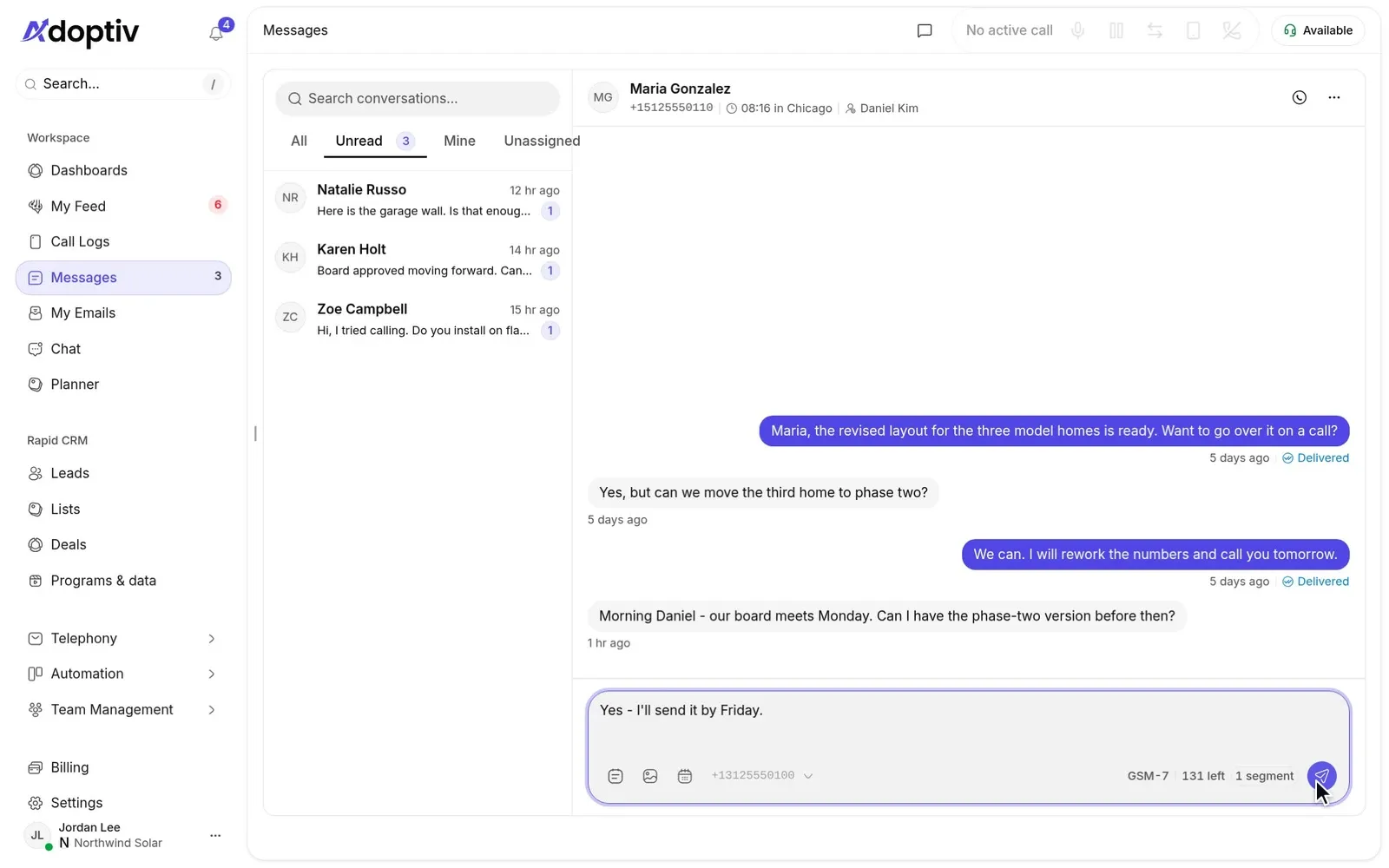
- In the sidebar, open Messages.
- Use All, Unread, Mine or Unassigned, or Search conversations..., to find a conversation. Mine means texts with leads you own, or on a line that rings you.
- Click the conversation. Opening it marks it as read.
- Type your reply and press the send button, or Ctrl+Enter (Cmd+Enter on a Mac).
The top of the conversation shows their number, their local time, and who it belongs to. Their local time turns amber outside 8am-9pm where they are. Click the lead's name to open their record.
Your sent texts show a status of Queued, Sent, Delivered or Failed. The counter beside the send button shows how many segments the text will use; long texts, and some characters such as emoji, use more.
Opt-outs
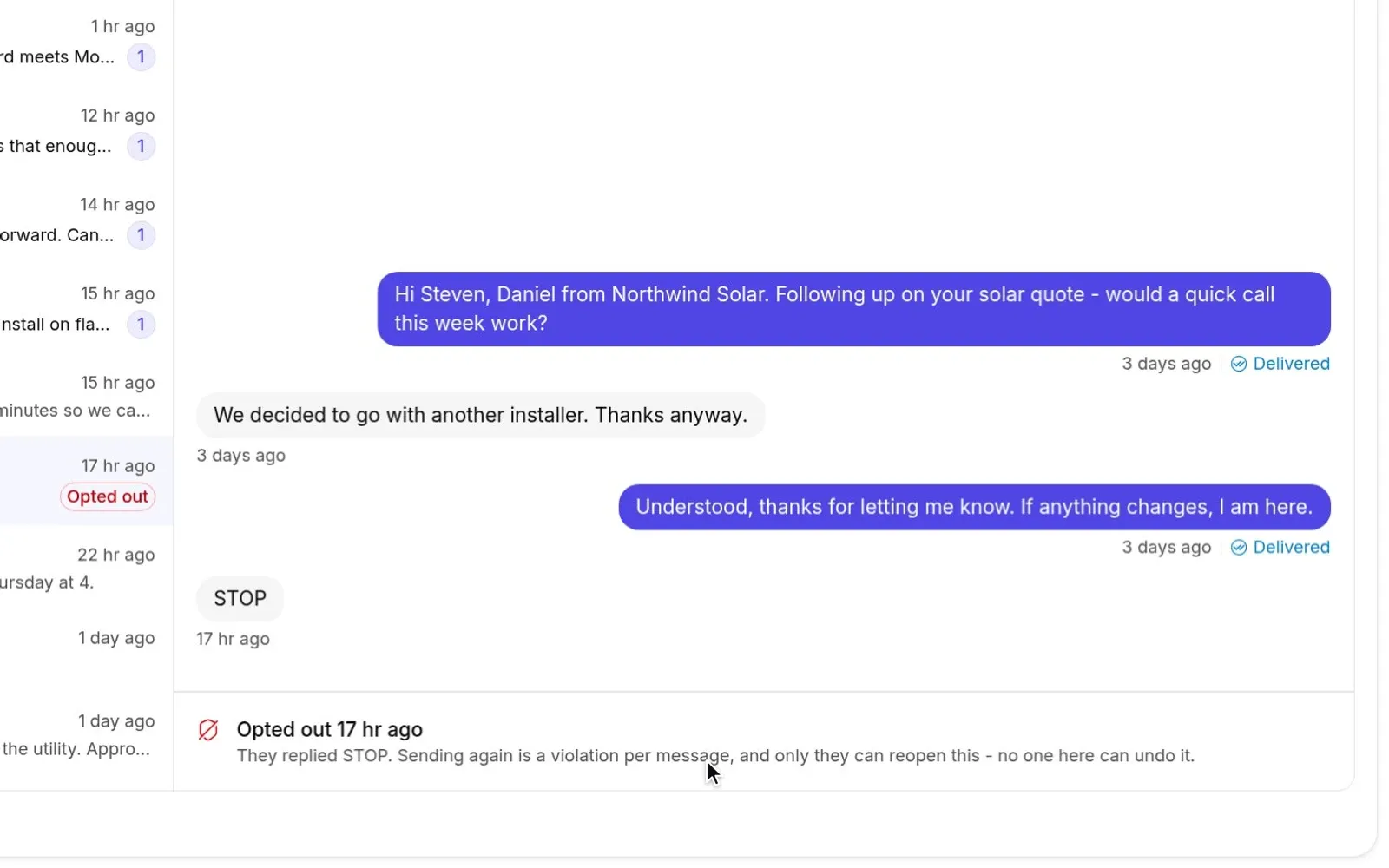
When someone replies STOP (or STOPALL, UNSUBSCRIBE, CANCEL, END or QUIT), they are opted out automatically. The conversation shows Opted out and has no reply box. Nobody in your workspace can undo this. Only the person can, by texting START, UNSTOP or YES.
When a text can't be sent
- This lead can't be texted: the lead replied STOP, is marked do not text, or is on your internal do-not-call list.
- Replies are off on this line: the number the conversation is on can't send texts right now. Check it in Telephony → Numbers, or start a conversation from another number.
- Verify your business to start calling: your workspace isn't approved yet.