
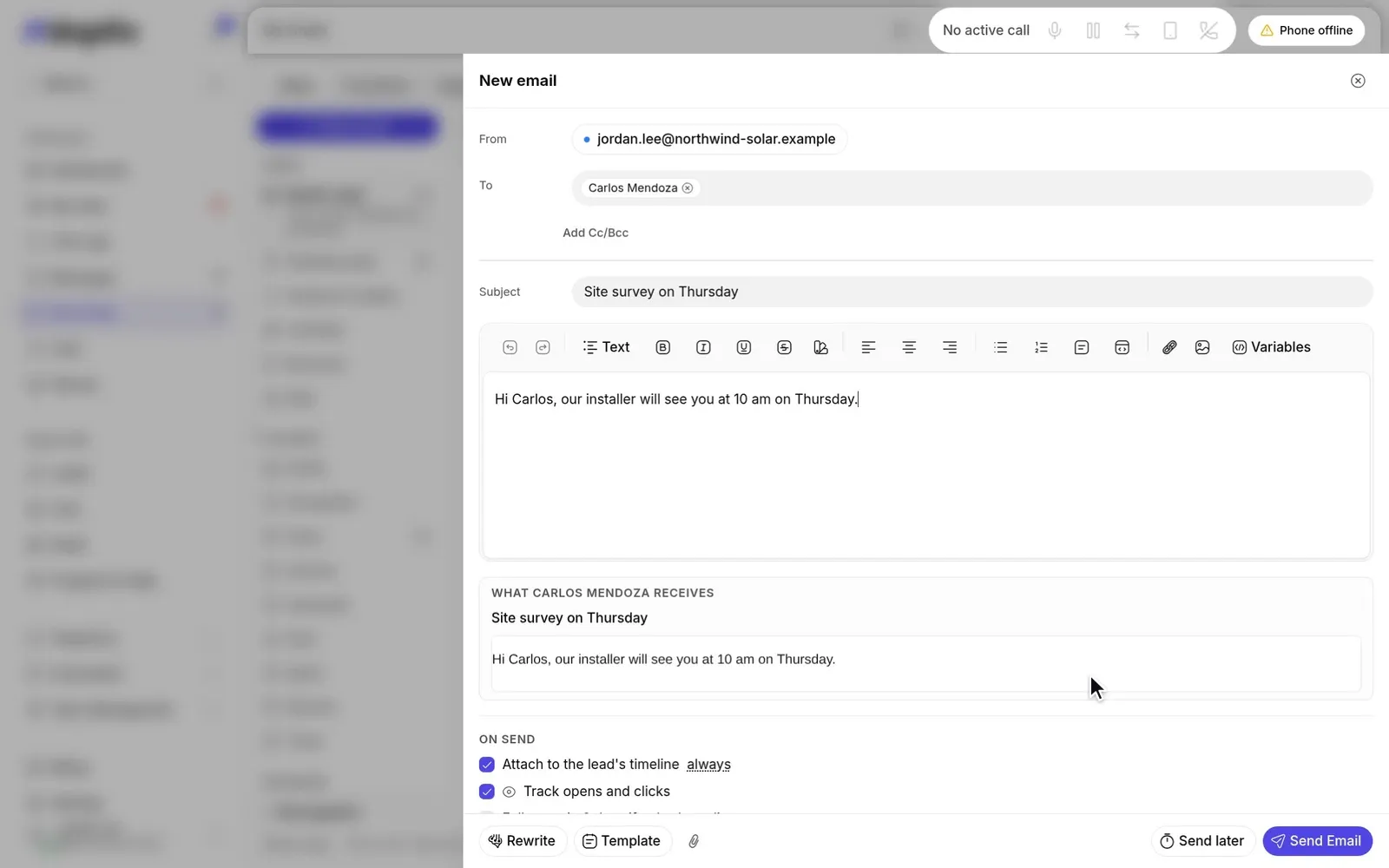
To send an email, open My Emails and press New Email, or open a lead and press Send Email. Write your message and press Send Email. Every email you send lands on the lead's record.
Before you start
- You need an address to send from: connect your mailbox, or ask an admin to let you send from one of the workspace's outgoing servers.
Write and send
- In the sidebar, open My Emails and press New Email. From a lead, press Send Email instead; the lead is already in To.
- Check From. If you can send from more than one address, pick one. Shared mailboxes are marked shared.
- In To, search for a lead or type an email address. Press Add Cc/Bcc if you need them.
- If you added more than one person, choose under Send as: Send individually (one email each, merged with each lead, nobody sees the others) or One email to all (everyone sees each other, and merge variables are turned off).
- Enter the Subject and write the email. Use Template to start from a saved template, and the paperclip to attach files (up to 25 MB in total).
- Check the preview. It shows what the first recipient will receive, with their details filled in.
- Under On send, choose your options: Track opens and clicks (on by default), Follow up in 3 days if nobody replies (adds a task for you, due 3 days after the email goes) and Link to deal to put the email on one of the lead's open deals.
- Press Send Email. You have 5 seconds to press Undo, which puts the email back in the composer.
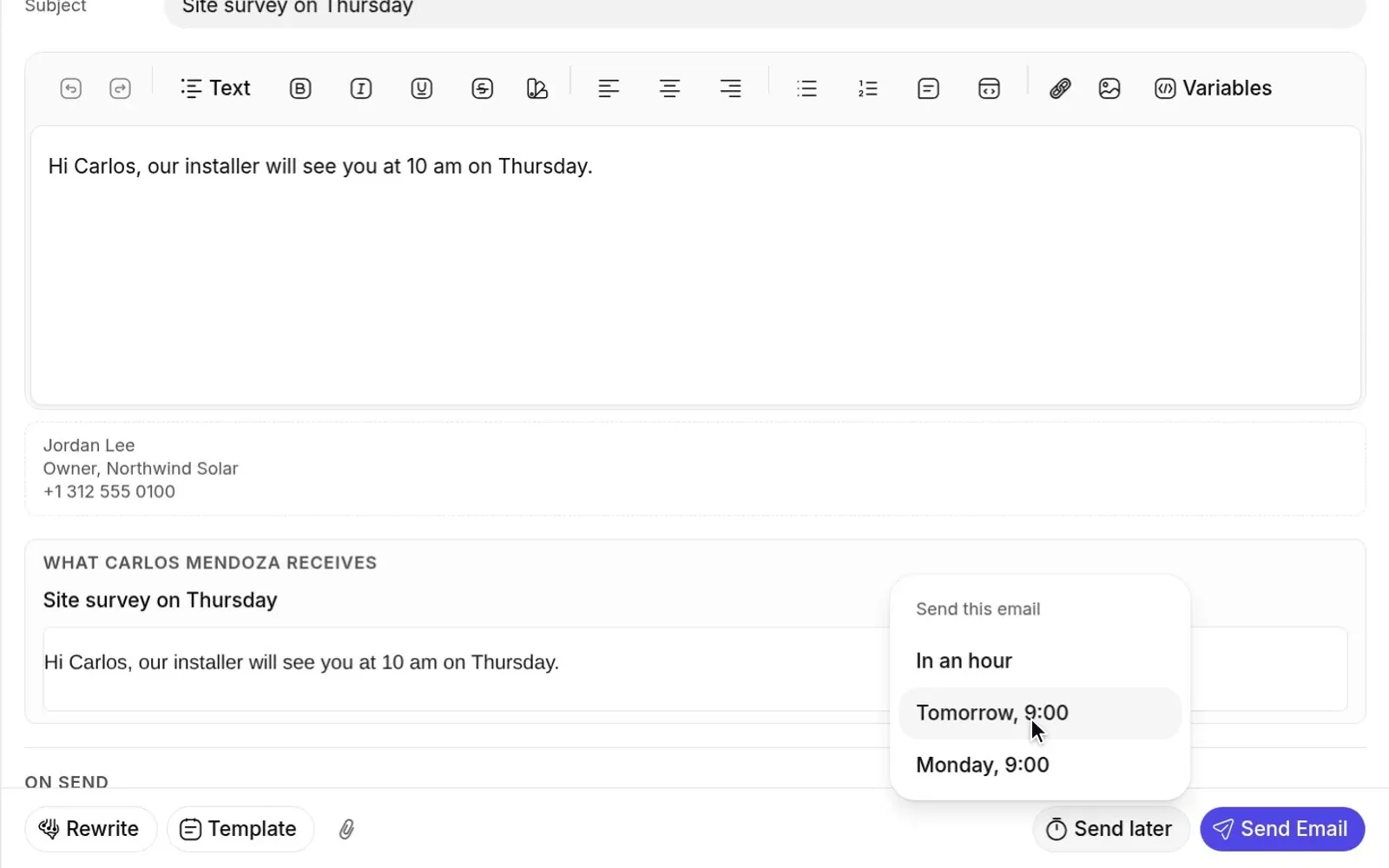
Send it later
Instead of Send Email, press Send later and choose In an hour, Tomorrow, 9:00 or Monday, 9:00. Times are in your own time zone. Scheduled emails wait in the Scheduled folder in your inbox; press Cancel on the confirmation if you change your mind.
Let SIYA help you write
Press Rewrite and choose Improve, Shorten, Warmer, More formal, More direct, Fix spelling and grammar or Your own instruction…. SIYA shows the new version next to yours, and nothing changes until you press Use this. When you reply to an email, Draft a reply writes a first draft for you to check.
Reply to an email
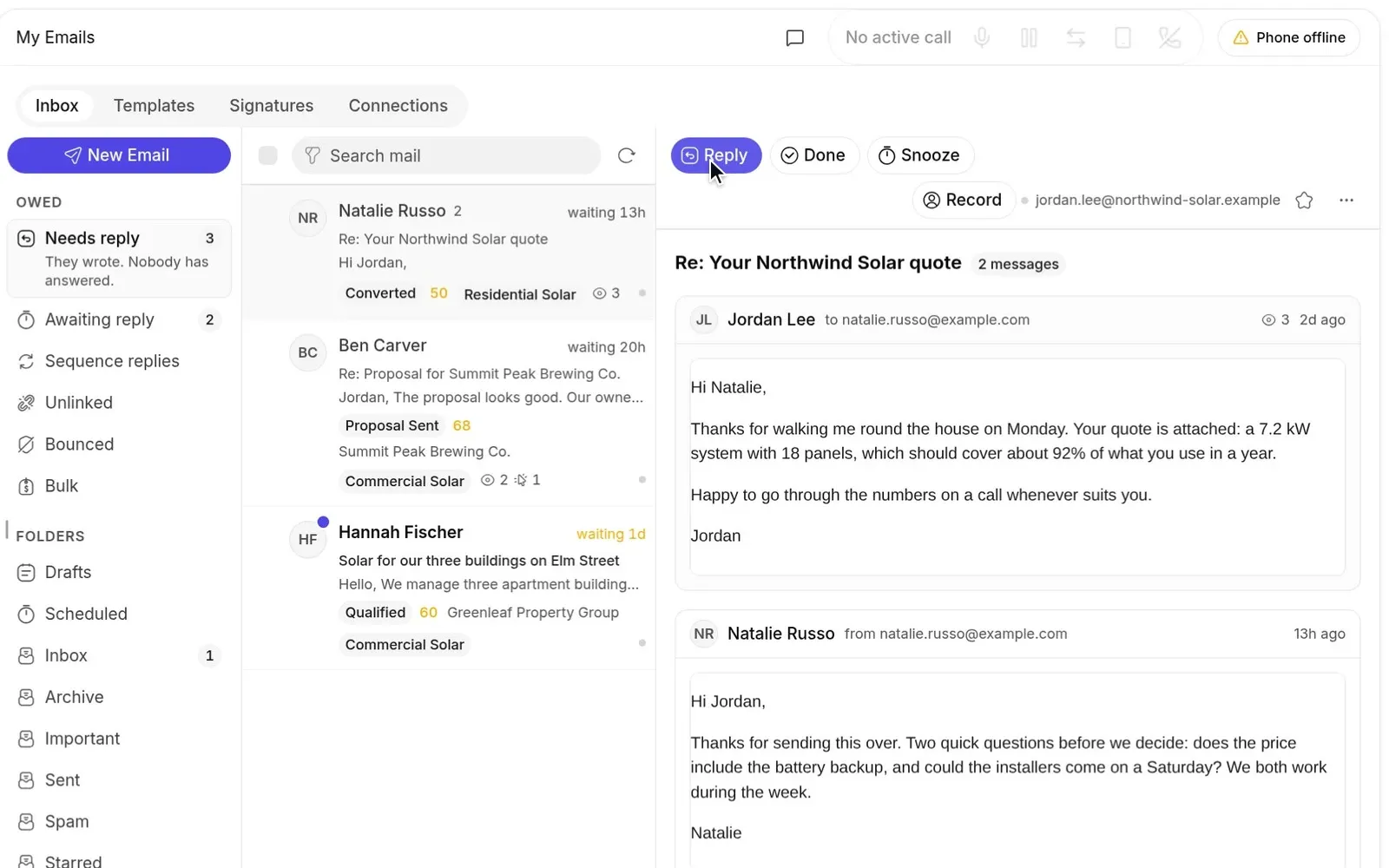
- In My Emails, use Needs reply on the left to see emails nobody has answered yet.
- Open the conversation and press Reply.
- Write your reply and press Send Email.
If you dealt with it another way, such as a phone call, press Done to clear it from the list.
When an email can't go
- A lead who unsubscribed, is marked do not email, or whose address bounced is flagged in red, and Send Email stays off until you remove them from To.
- By default you can send to 500 recipients a day, and each sending address to 2,000 a day. Every recipient counts, not every email.
- If a scheduled email fails, it goes back to your Drafts and Adoptiv tells you in your notifications.