
Create templates in My Emails → Templates with New Template. To use one, press Template in any email you are writing and pick it.
Before you start
- Anyone can create templates. A template is private to you until you put it in a group that is shared with roles or teams.
- To get going quickly, press Add starter templates. It adds five plain templates (Missed call, Follow-up, Meeting confirmation, Quote sent and Thank you) to your own Starter group.
Create a template
- In the sidebar, open My Emails and choose the Templates tab.
- Press New Template.
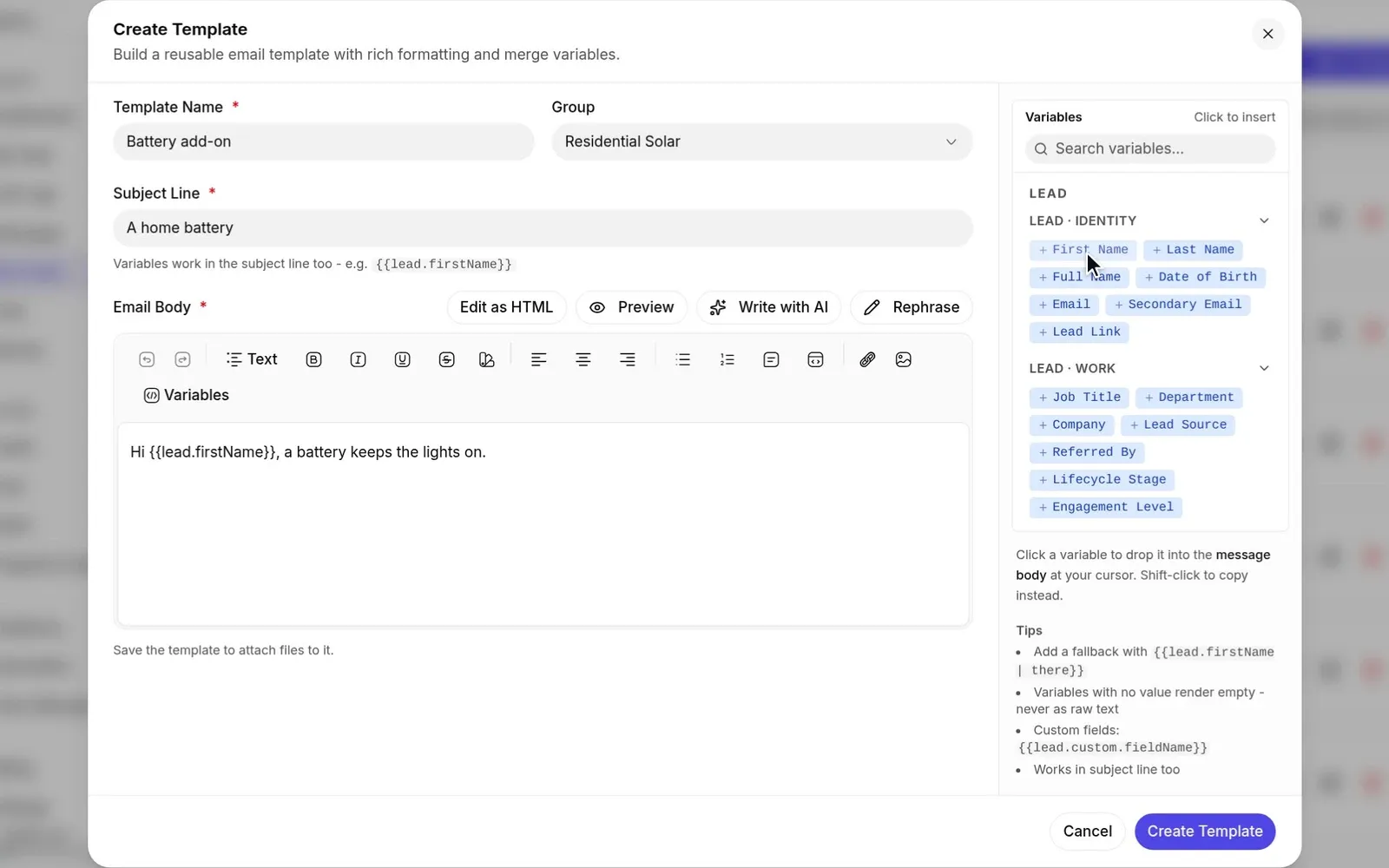
- Enter a Template Name and, if you like, choose a Group.
- Enter the Subject Line and write the Email Body.
- To personalize it, click a variable in the panel on the right. It drops in at your cursor, in the subject or the body.
- Press Preview to see it with sample data.
- Press Create Template.
Variables look like {{lead.firstName}}. Add a fallback for leads with no value, such as {{lead.firstName | there}}. Custom fields work too, as {{lead.custom.fieldName}}. If you type a variable Adoptiv doesn't know, it warns you and suggests the closest one, because an unknown variable would go out blank.
You can also Edit as HTML, start with Write with AI, or Rephrase what you wrote.
Attach files to a template
- Save the template first.
- Open it again with the edit button.
- Press Attach files and choose them. You can add up to 10 files, 10 MB each.
- Press Update Template.
The files are added to the email whenever someone uses the template.
Use a template in an email
- Start a new email or a reply.
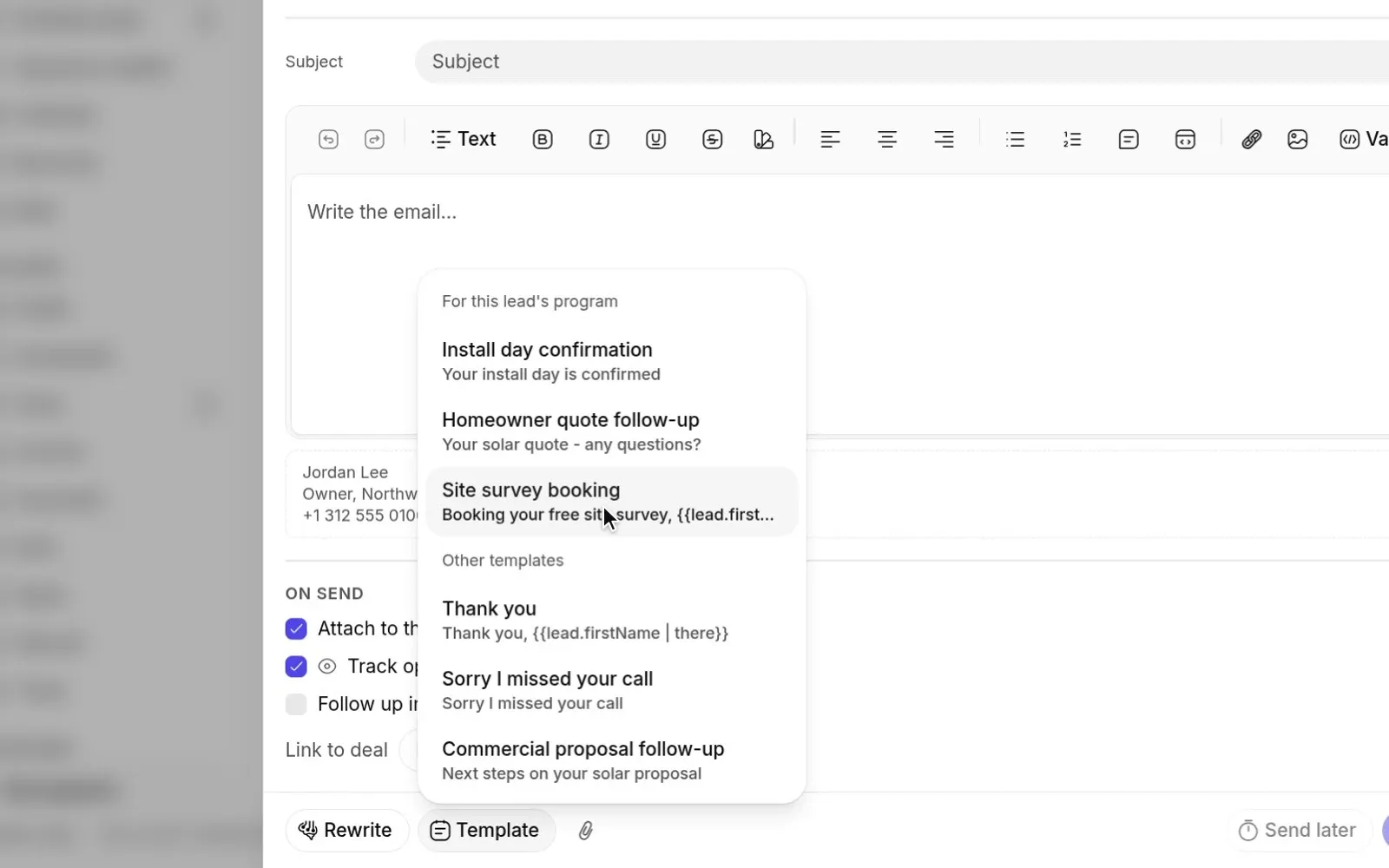
- Press Template. Templates for the lead's program are listed first, under For this lead's program.
- Pick a template. Its subject, body and files fill the email, with each lead's details merged in.
The template replaces what you had written. Press Undo on the message that appears to get your words back. In a reply, your subject and the quoted email you're answering are kept.
Organize and share templates with groups
- Press New Group.
- Enter a Group Name, and optionally a Description, a Parent Group and a Color. If your workspace has more than one program, you can tie the group to a Program so its templates come first for that program's leads.
- Press Create Group.
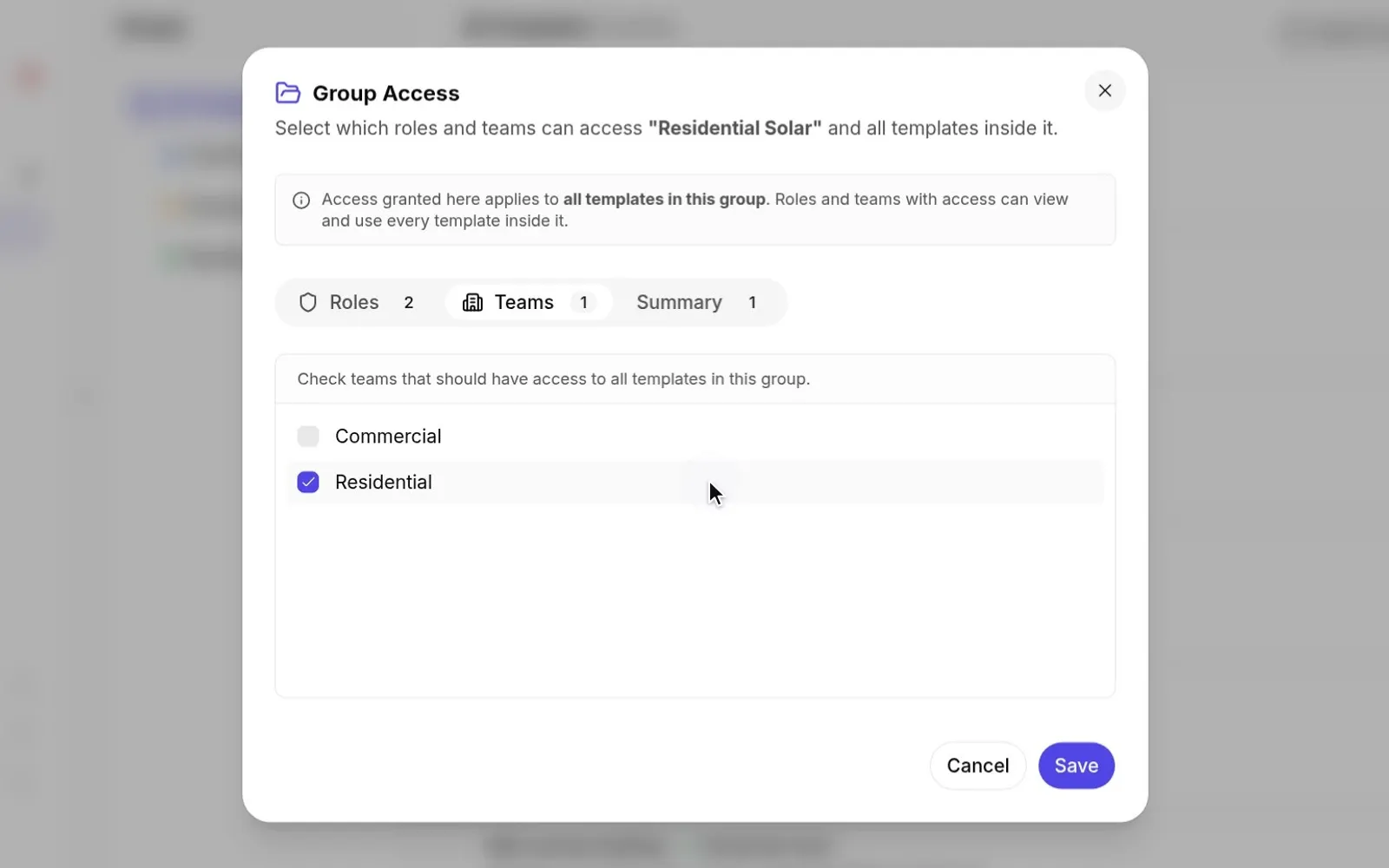
- To share it, press ⋯ next to the group and choose Manage permissions.
- Tick the roles on the Roles tab and the teams on the Teams tab, then press Save.
People in those roles and teams can see and use every template in the group, but not change them. Shared templates can be changed by the person who created them and by workspace admins.
Edit, restore or delete a template
- Each template shows how many times it has been applied. Use the buttons on its row to duplicate, edit or delete it.
- When you edit a template, History keeps the last 10 saves. Press Restore on one to put it back.
- A template used by a call flow can't be deleted until you pick another template in that flow.
- A group can only be deleted once it is empty.