
To see which of your phones are connected, click your name at the bottom of the sidebar, choose Profile, then Devices. Each of your three lines shows Registered while it's connected. If a line looks connected but calls still don't arrive, open Diagnostics in the same Profile menu to see what the phone network sees right now.
Your three lines
Your extension has three lines, listed under Connected devices:
- Webphone is your browser. It connects while Adoptiv is open in a tab. Closing every tab disconnects it.
- Mobile app is set up when you sign in to the Adoptiv mobile app. If it stops working, sign out of the app and back in.
- Desk phone is a handset set up with the details shown when you click this line.
| Badge | What it means |
|---|---|
| Registered | Connected now. The line also says when it was last seen. |
| Provisioned | Set up, but not connected right now. |
| Not set up | Nothing has been set up on this line yet. |
At the top, Devices online counts the lines that are registered. If it says Nothing is registered - calls go straight to your unavailable rule, none of your phones can ring. Queues reach counts the lines a queue call will ring: a line rings only while it's registered and its Ring me here switch is on.
Check a line with Diagnostics
- Click your name at the bottom of the sidebar, choose Profile, then Diagnostics.
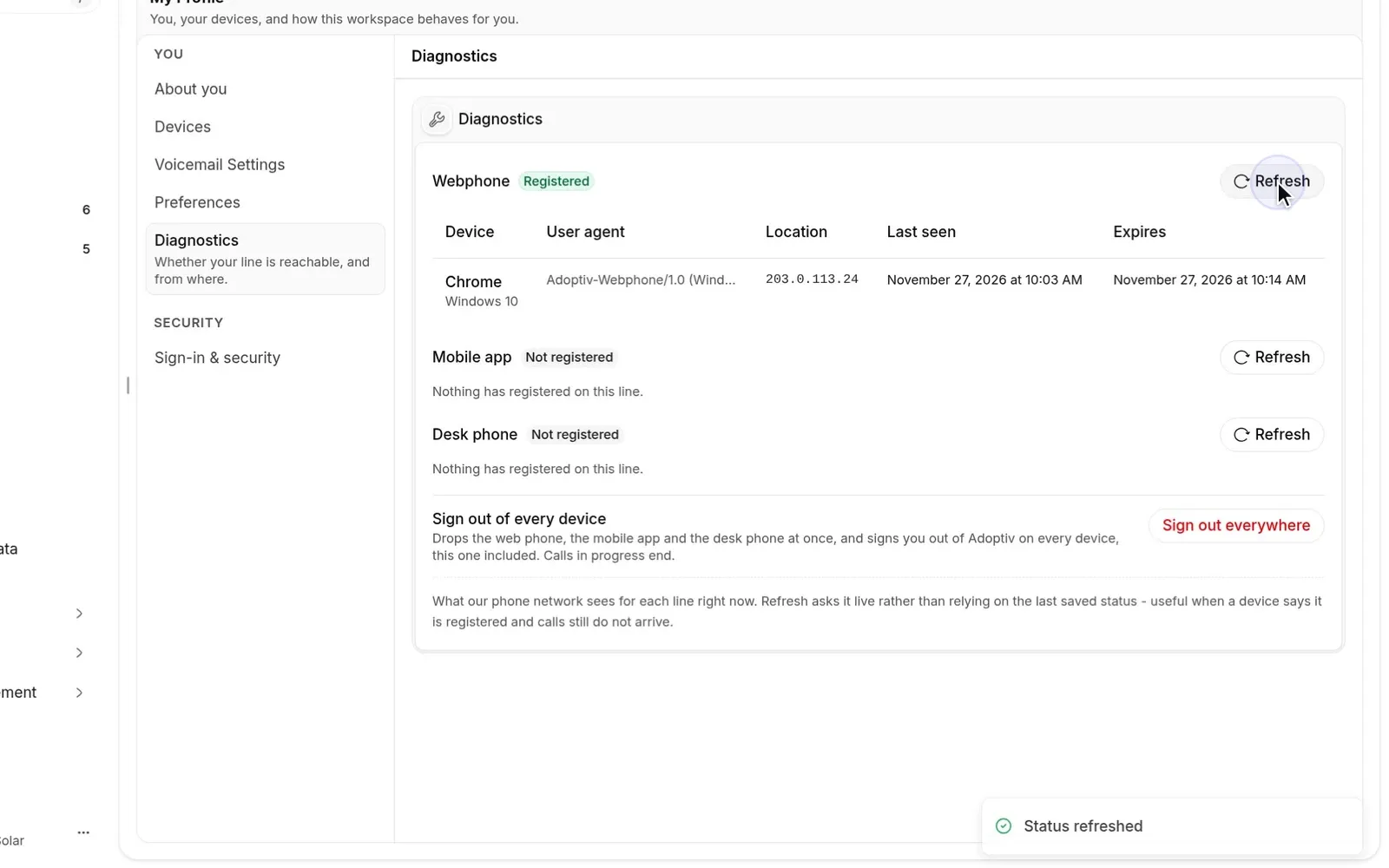
- Find the line: Webphone, Mobile app or Desk phone. Its badge says Registered or Not registered.
- Press Refresh on that line. Adoptiv asks the phone network live instead of showing the last saved status. You see Status refreshed.
For each connected device, a table shows the Device, its User agent (the app or browser it uses), its Location (IP address and place), when it was Last seen and when its connection Expires. A line with nothing connected says Nothing has registered on this line.
A device or location you don't recognize means your line is connected somewhere you didn't expect. Use Sign out everywhere (below).
Fix a line that isn't registered
- Webphone: open Adoptiv in a tab and click the phone status button in the bar at the top of the screen. If the Webphone card says Your phone line is in use on another device., press Use phone here. Your browser phone works in one browser at a time.
- Mobile app: sign out of the app and sign in again.
- Desk phone: click the line on Devices and check that the handset has the SIP user, Server and Password shown there. See Forward your calls and choose which devices ring.
If Devices says No extension assigned, so there is nothing to register., ask an admin to give you an extension. Diagnostics stays empty until you have one.
Sign out of every device
At the bottom of Diagnostics, Sign out everywhere drops your web phone, mobile app and desk phone at once, and signs you out of Adoptiv on every device, this one included.
- Press Sign out everywhere.
- Read the warning and confirm.
- Sign in again on each device you use. A desk phone needs the new Password shown when you click Desk phone on Devices.
If nothing here helps
If a line shows Registered and calls still don't ring, see Calls don't ring, or you can't hear the caller.
Contact Adoptiv support by live chat on adoptiv.com/help, or by email at support@adoptiv.com. It helps to send:
- your extension, shown under Extension on Devices
- which line has the problem, and what Diagnostics shows for it after Refresh: the badge and the Last seen time
- the date and time of a call that didn't ring