
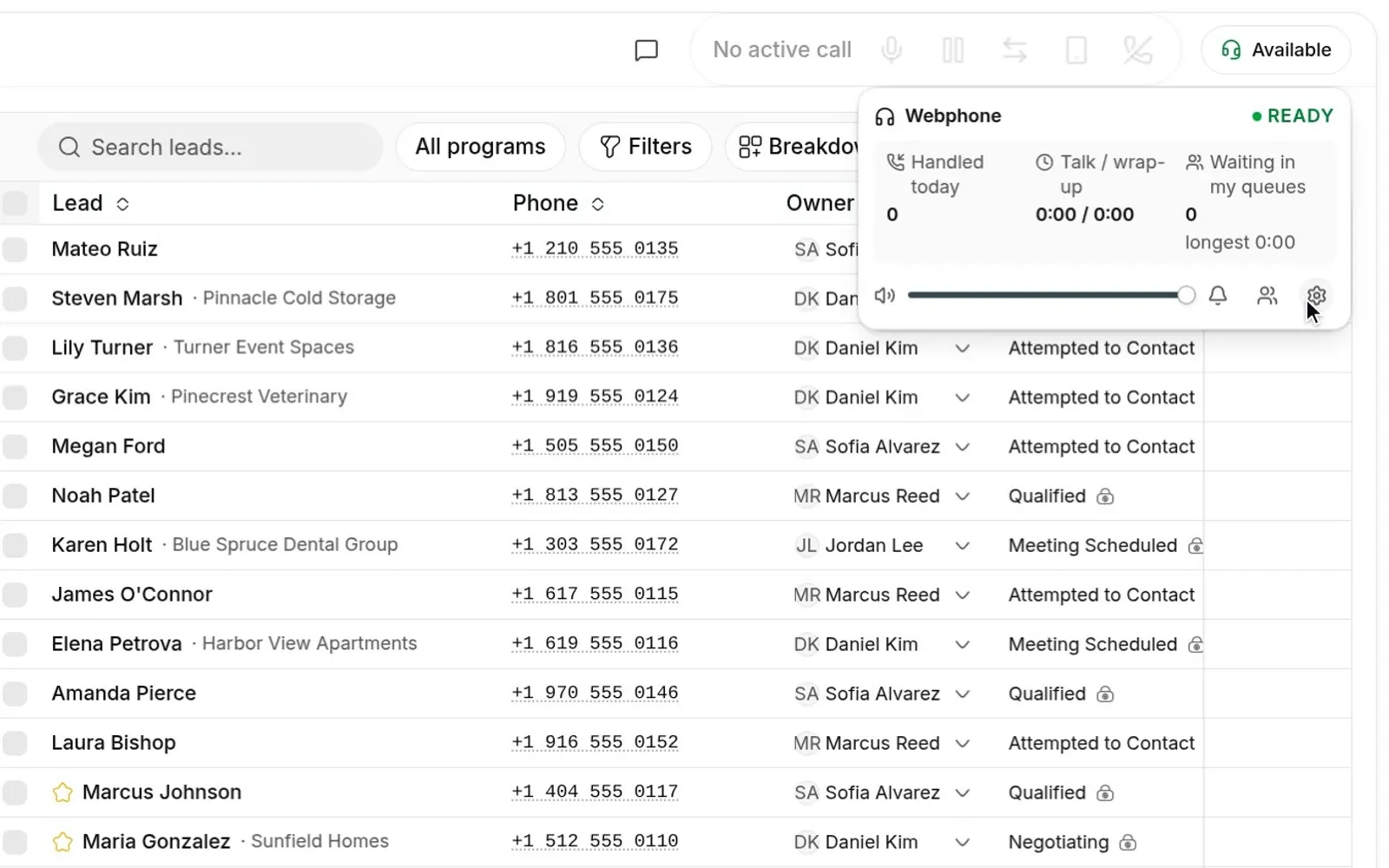
When calls don't reach you, or you can't hear each other, the cause is almost always your browser phone: it isn't connected, or the browser is blocking the microphone. Click the phone status button in the bar at the top of the screen. It shows a headset, or a warning sign when something is wrong. The Webphone card it opens should say Ready. If it doesn't, it says what's wrong - find the message below. Your browser phone is only connected while Adoptiv is open in a tab.
The phone isn't connected
The phone status shows a problem, such as Phone offline or No internet, and the Webphone card says why:
- You're offline. Calls won't connect until your internet is back. The phone reconnects by itself once you're back online.
- We can't reach the phone server. Trying again automatically. or The phone server turned the connection down. Trying again automatically. Wait a minute, or press Try again.
- The phone server didn't accept this phone's sign-in. Press Try again. If it keeps happening, ask your admin to check your extension.
- No extension assigned means you don't have a phone extension yet. Ask an admin to check Telephony → Routing → Extensions.
Your phone is in use somewhere else
Your browser phone works in one browser at a time. When you sign in to Adoptiv in another browser or on another computer, the phone moves there by itself, unless the device that has it is on a call. The browser that lost it shows Your web phone moved to another device., and its Webphone card says Your phone line is in use on another device. Press Use phone here to move it back.
If the other device is on a call, the card asks The other device is on a live call. Move it here and hang that up? Press Force hang up & move to end that call and move the phone, or Cancel to leave it.
If Answer can't be pressed and its hint says This call is ringing on another device, answer it in your other tab or on your desk phone.
The browser is blocking your microphone
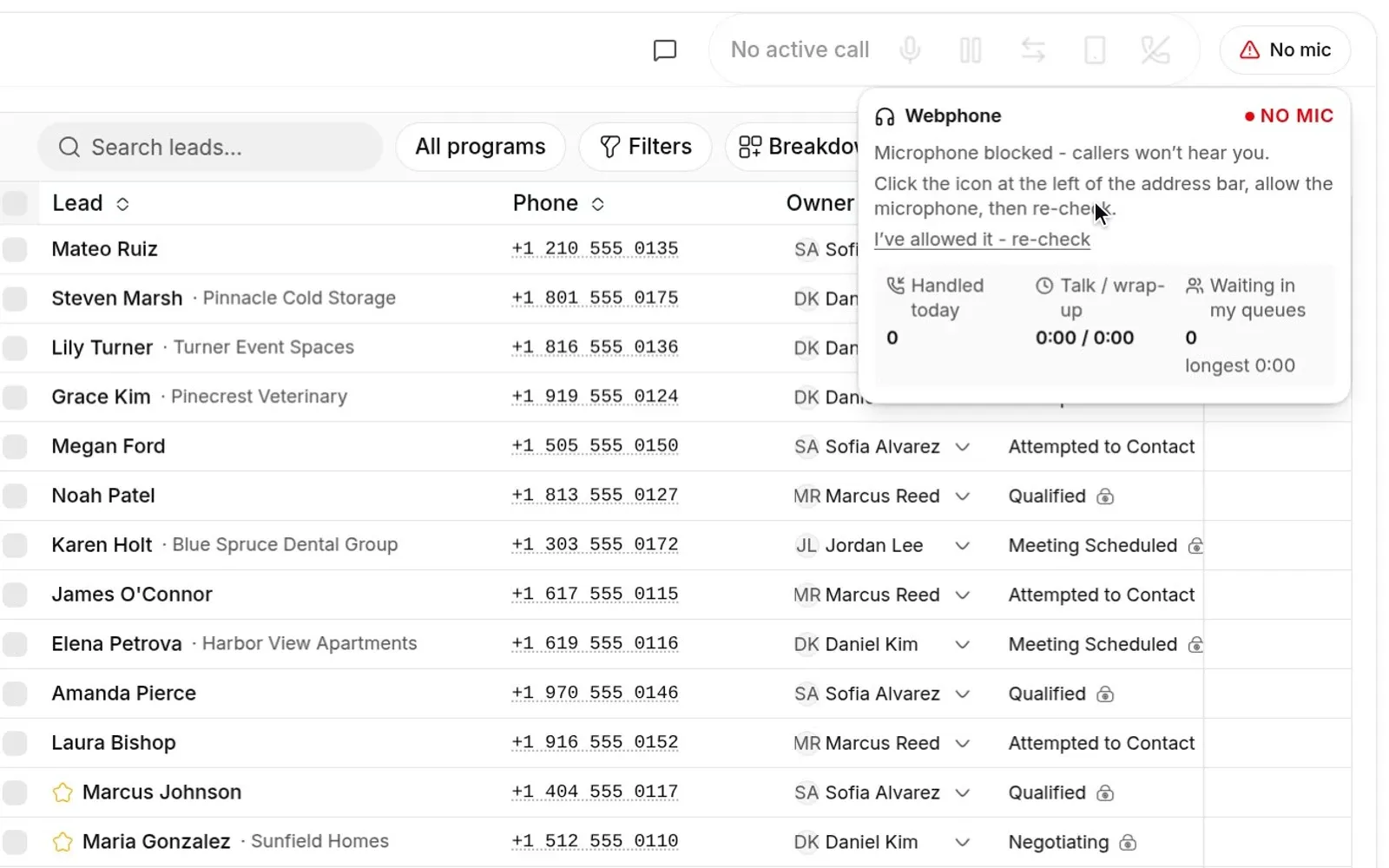
The phone status shows No mic, and calls can't be answered in this browser until it's fixed. The Webphone card says which problem it is:
- Microphone blocked - callers won't hear you. The browser won't ask again by itself. Click the icon at the left of the address bar, allow the microphone for Adoptiv, then press I've allowed it - re-check.
- Microphone not available - it may be unplugged or in use by another app. Plug your headset in, or close the other app using it, then press Try again.
- Microphone unavailable in this browser. Calls can't be answered here. Open Adoptiv in an up-to-date browser on your computer.
Calls skip you
If the card says Ready but calls still don't ring you:
- Your status. With Away, On break, Out of office, Training, Do not disturb or Offline, queue calls skip you. With Do not disturb, calls made straight to you go to your voicemail too. Click your name at the bottom of the sidebar and pick Available under Status.
- You're busy. Queue calls skip anyone already on a call, and anyone still in the wrap-up time the queue allows after a call.
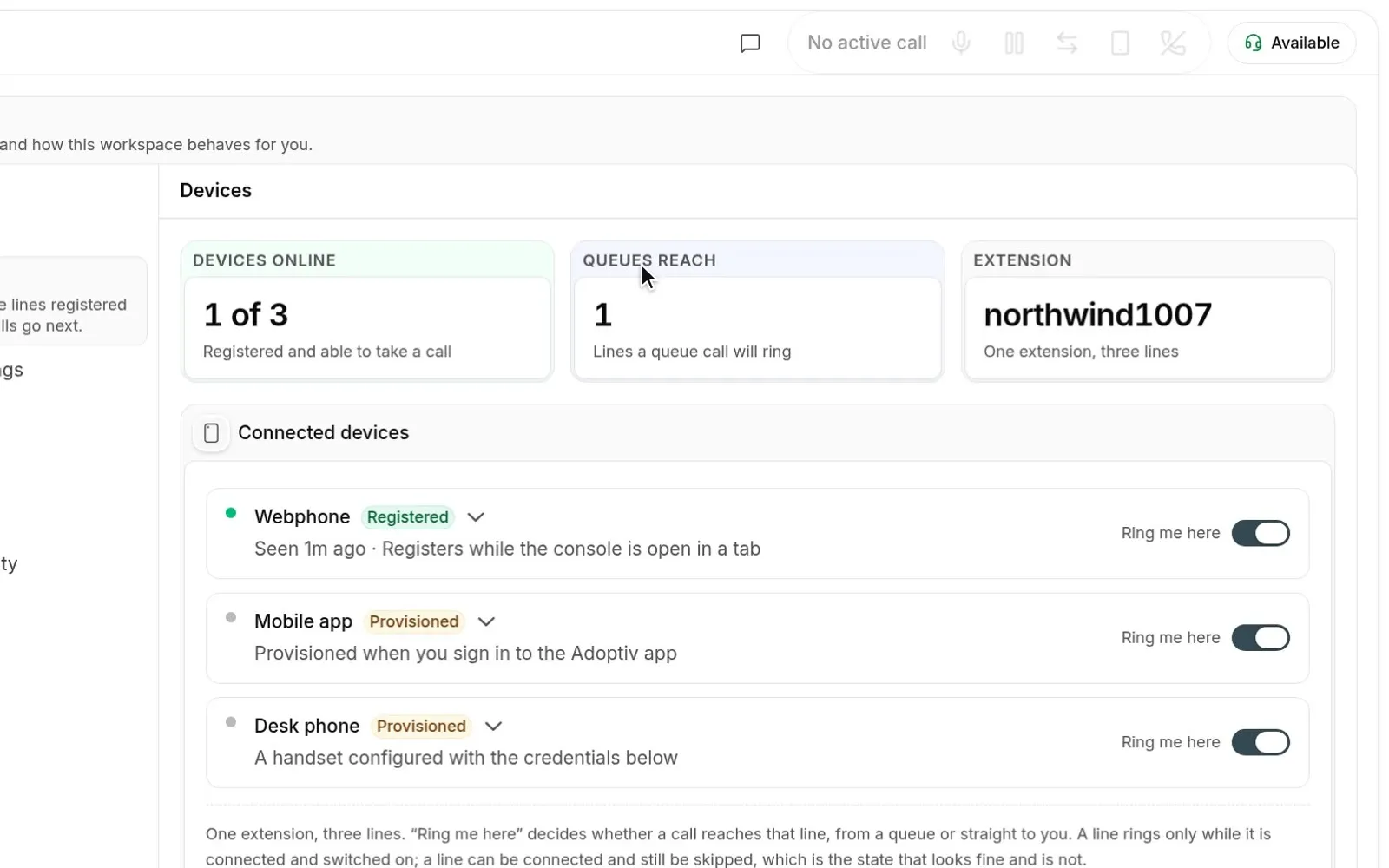
- Ring me here is off. Click your name at the bottom of the sidebar, choose Profile, then Devices. A line rings only while it's connected and its Ring me here switch is on. Queues reach at the top shows how many of your lines a queue call will ring.
- Your calls are forwarded. On the same page, check Call forwarding. Always means your devices never ring at all.
See Forward your calls and choose which devices ring.
It rings, but you can't hear it
- Open the Webphone card. If the bell is crossed out, click it to Unmute ringer.
- Drag the volume slider up. It sets the caller's volume and the test tone, not the ringtone.
- Click the gear (Audio settings) and press Test sound. You should hear a tone.
The ringtone and the test tone play on your computer's default sound output, so check your computer's volume and output device too.
You're on a call but there's no sound
- They can't hear you. Check that you haven't pressed Mute (its microphone icon is then crossed out and its tooltip says Unmute) and that the phone status doesn't say No mic. In Audio settings, pick the right Microphone - you can change it during the call.
- You can't hear them. In Audio settings, pick the right Speaker, and check the volume slider and your computer's volume.
- Connection lost unexpectedly. The call's audio connection dropped, so the call ended. Check your internet. If it only happens on one network, such as hotel or office Wi-Fi, tell support which one.
If Audio settings shows Choose microphone & speaker instead of the lists, press it and allow the microphone.
If nothing here helps
Check what the phone network sees for each of your lines in Diagnostics. See See which of your phones are connected.
Contact Adoptiv support by live chat on adoptiv.com/help, or by email at support@adoptiv.com. It helps to send:
- the date and time of a call that didn't work, and the other number
- your extension, shown on Profile → Devices
- the device: which browser, the mobile app or a desk phone
- the exact words on the Webphone card