Each lead with calls, texts or emails gets an AI summary on the Overview tab of its record, and the AI suggests updates that you can apply or dismiss. Open a lead from Leads to see both.
Before you start
- Anyone who can see a lead can read its summary. To refresh a summary or act on a suggestion, you need to be able to edit the lead.
- Suggestions from emails and texts stay off until a workspace admin, or someone with the Manage Settings permission, turns them on (see the last section).
Read the summary
- Open a lead and go to the Overview tab.
- Find the AI summary card.
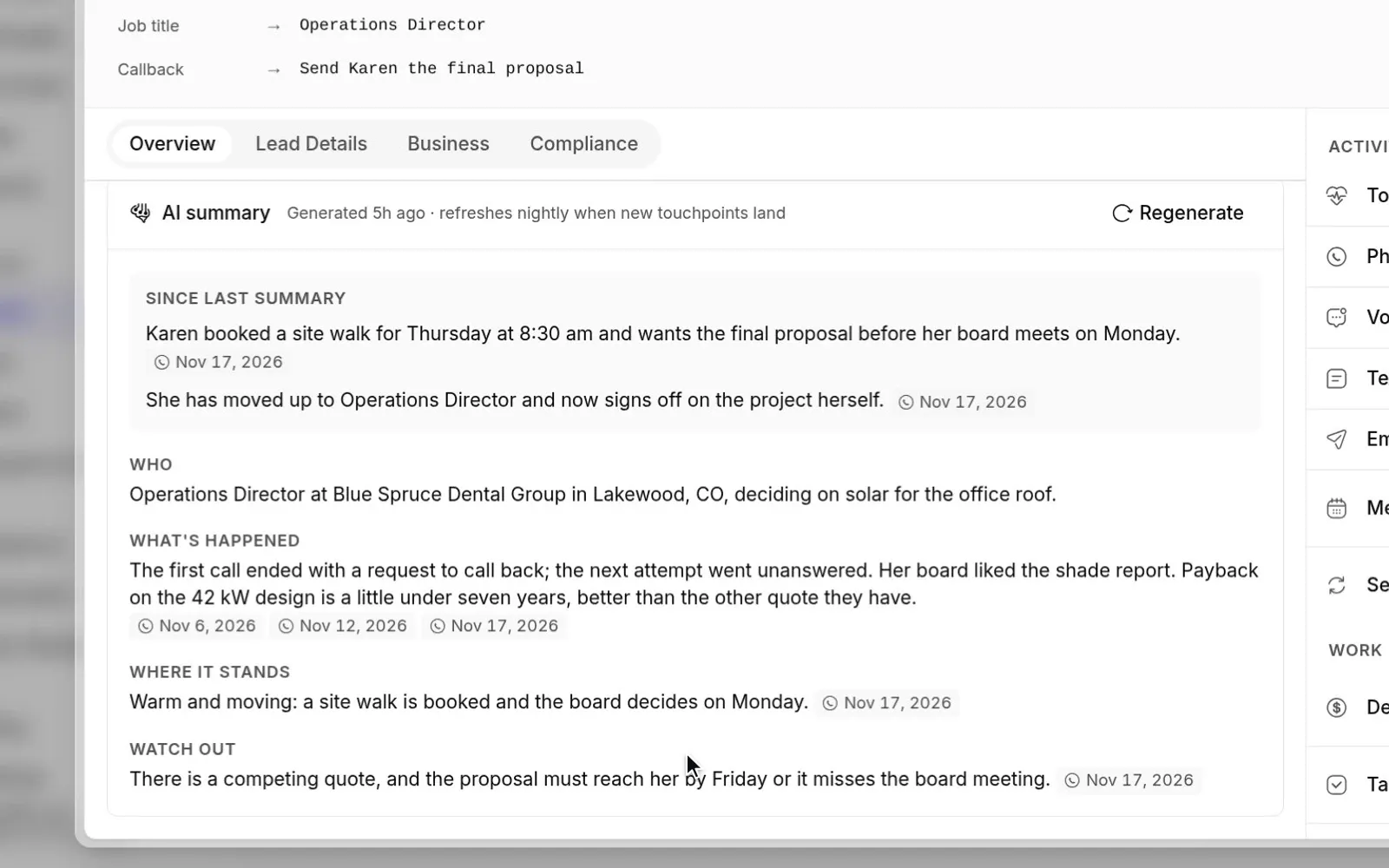
- Read Since last summary first. It lists what changed since the previous summary.
- Read the rest, split into Who, What's happened, Where it stands and Watch out.
- Click a source chip at the end of a paragraph to open the call, email, text or note it came from.
The AI's recommended next step appears with the alerts at the top of the Overview tab, marked "From the AI summary."
The summary is written from calls on the lead's own numbers, texts, emails, notes, comments and open tasks. It leaves out deals, and emails in a person's private mailbox, because everyone who can see the lead can read the summary. It refreshes overnight when something new has happened with the lead. A lead with no calls, texts or emails has no summary.
Refresh the summary
- On the AI summary card, press Regenerate. A lead with no summary yet shows Generate summary instead.
- Wait a moment for the new summary to appear.
You can refresh a lead's summary by hand once every 12 hours. Until then the button is off, and hovering over it shows when you can try again. If nothing new has happened since the last summary, Adoptiv keeps the one you have.
Review suggestions on a lead
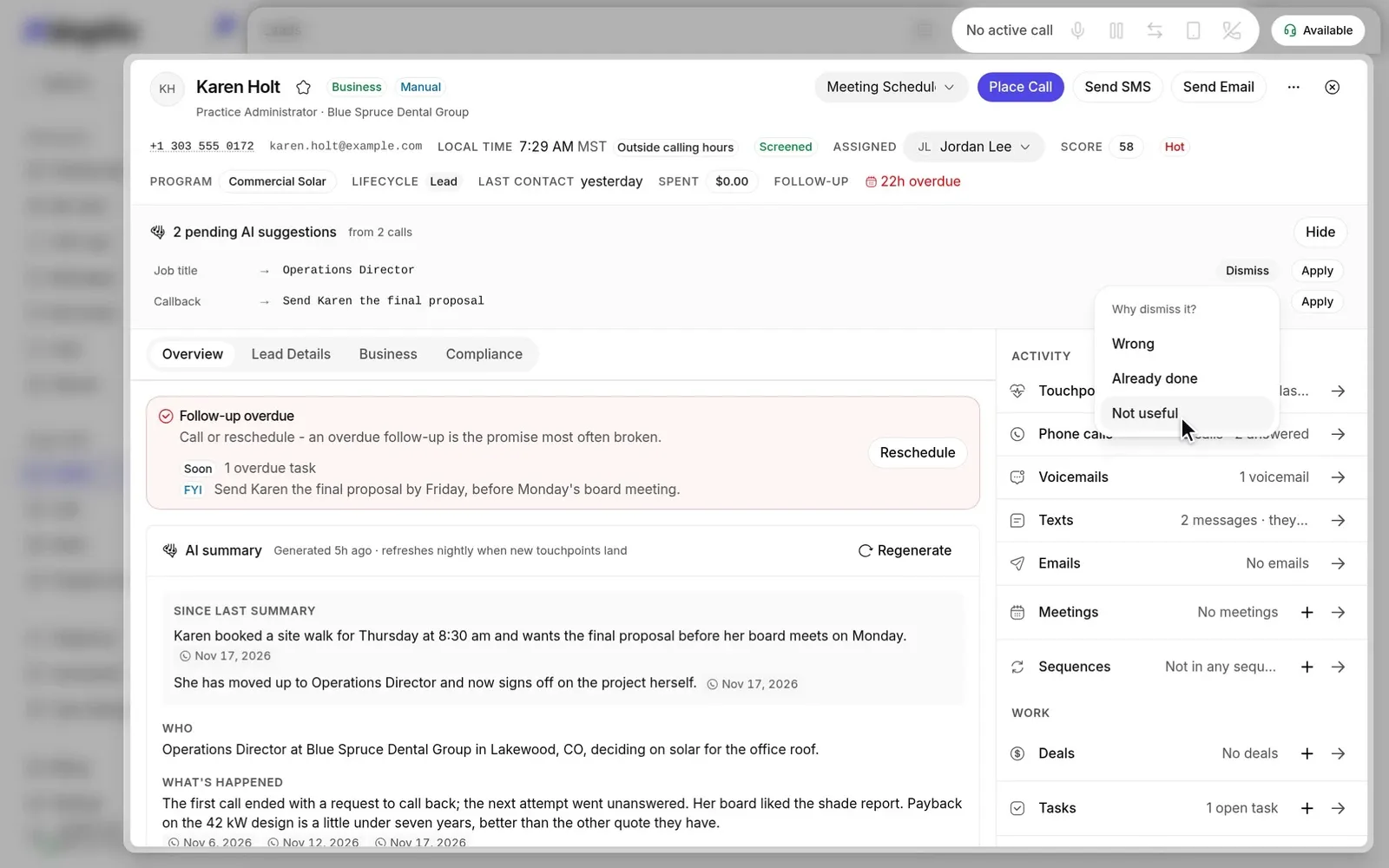
When the AI has suggestions, a bar under the lead's header says how many are pending and whether they came from calls or from the AI summary.
- Press Review. With one or two suggestions, the list is already open.
- Read what each row would change. Hover over a row to see the words it came from. A low confidence badge means the AI is less sure.
- Press Apply to make the change.
- Or press Dismiss and pick why: Wrong, Already done or Not useful. A dismissal hides the suggestion for you only.
Suggestions expire after 7 days unless the same thing comes up again in a new conversation. You'll also find them on the call they came from (see AI call summaries and analysis) and as cards in My Feed (see Plan your day with My Feed).
Turn on suggestions from emails and texts
- Open the AI Analysis page. AI call summaries and analysis explains how to get there.
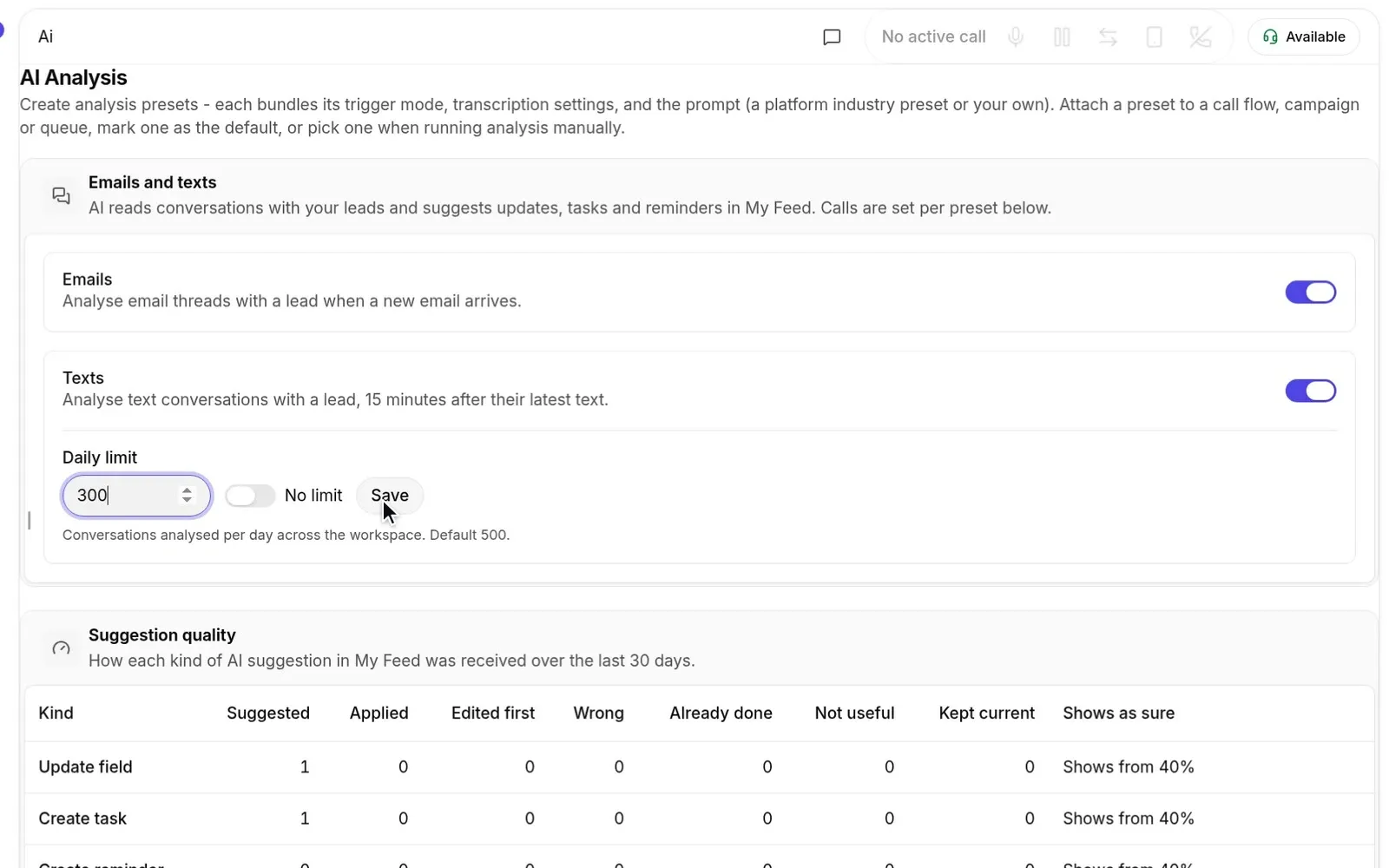
- In the Emails and texts card, turn on Emails to analyze email threads with a lead when a new email arrives.
- Turn on Texts to analyze text conversations with a lead 15 minutes after their latest text.
- For texts, set a Daily limit on how many conversations are analyzed per day across the workspace (500 by default), or turn on No limit. Press Save.