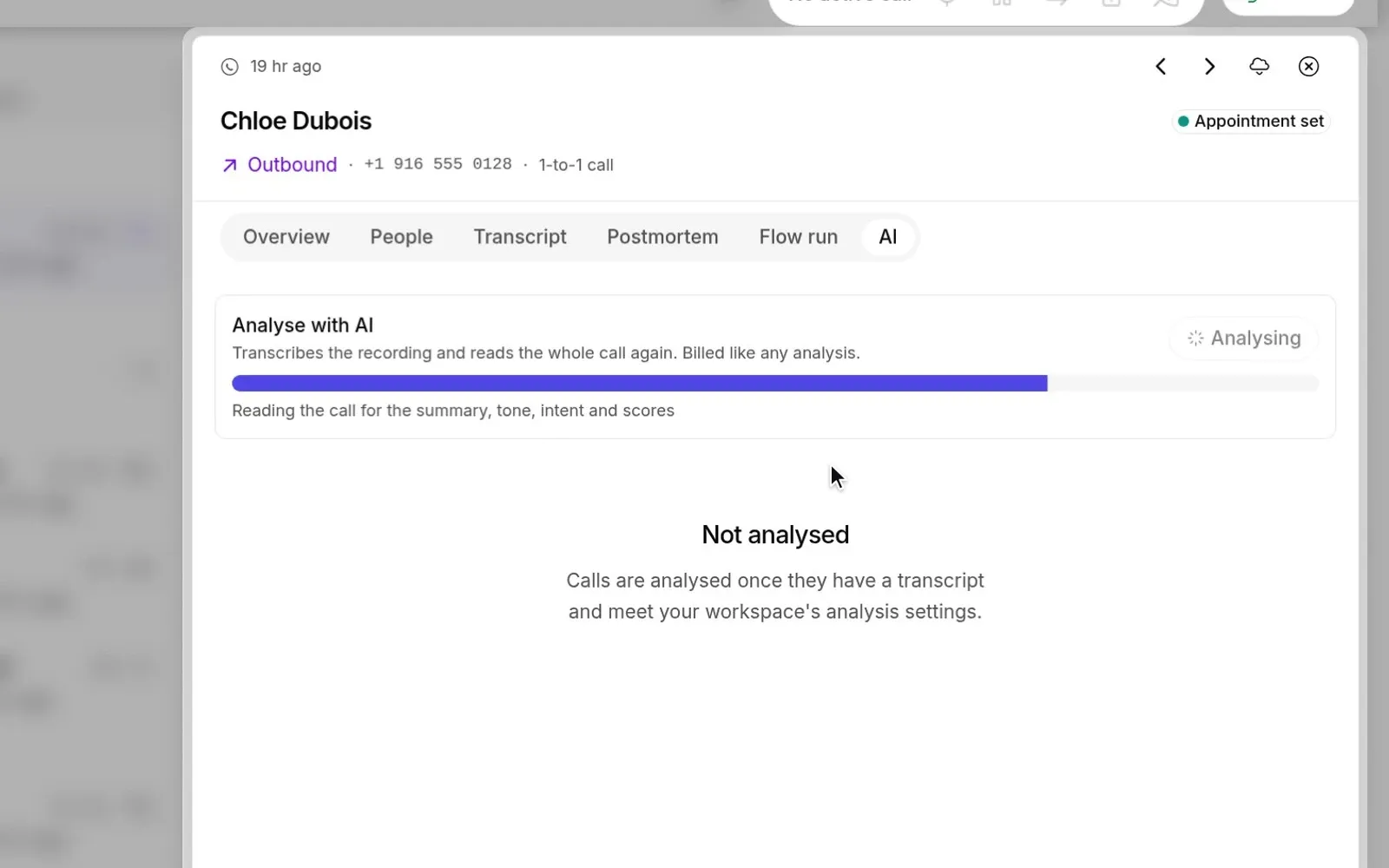
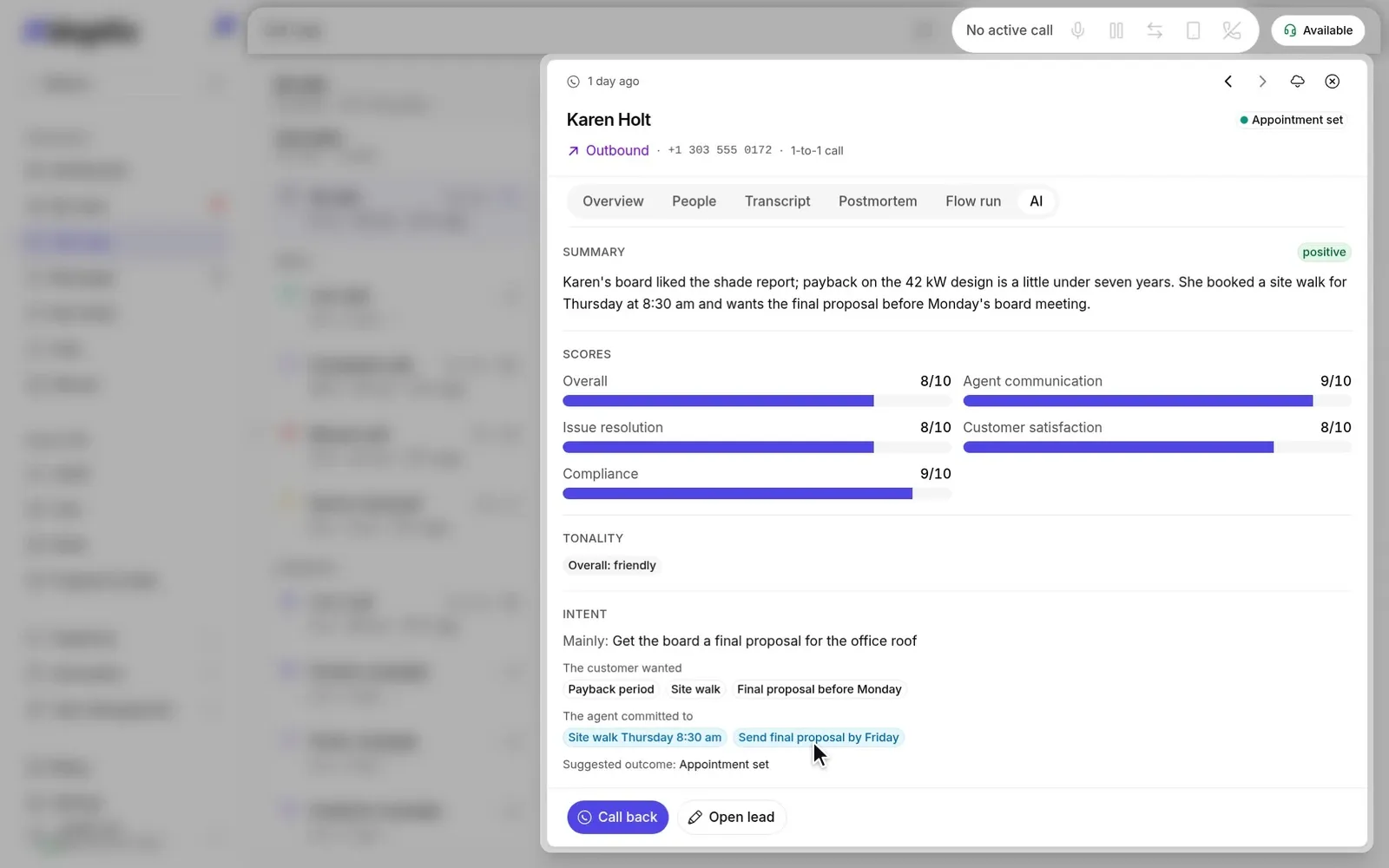
When a recorded call is analyzed, Adoptiv's AI writes a summary and scores the call. To read it, open Call Logs, click the call and open its AI tab. To choose which calls are analyzed automatically, use the AI Analysis page.
Before you start
- To open Call Logs you need the Telephony & AI permission.
- To change analysis settings, or to analyze a call by hand, you need to be a workspace admin or have the Manage Settings permission.
- Calling waits for account approval. See Get your workspace approved for calling.
- Only calls with a recording can be analyzed.
Read a call's analysis
- Open Call Logs from the sidebar and click a call.
- On the Overview tab, the AI analysis section shows the call's score out of 10 and its outcome.
- Open the AI tab. It shows the Summary with the call's sentiment, five Scores out of 10 (Overall, Agent communication, Issue resolution, Customer satisfaction and Compliance), the Tonality of each side, and the Intent: what the customer wanted, what the agent committed to, and a suggested outcome.
- Open the Transcript tab to read the conversation itself.
The analysis can also suggest changes to the lead, such as an updated field or a follow-up task. They appear under Suggestions on the call's Overview tab. Press Accept or Reject on each one, or Accept all. See AI lead summaries and suggestions.
Which calls are analyzed automatically
- A call needs at least 30 seconds of talk time, and an outbound call at least 60 seconds. Ringing doesn't count.
- Calls between teammates are never analyzed.
- Calls picked up by an answering machine are skipped.
- A preset's Minimum call duration can raise the 30-second floor, but not lower it.
Turn on automatic analysis
Analysis settings live in presets on the AI Analysis page. The page isn't in the sidebar. Open it with the AI settings button that My Feed shows while AI suggestions are off, or add /ai to the end of your workspace's web address.
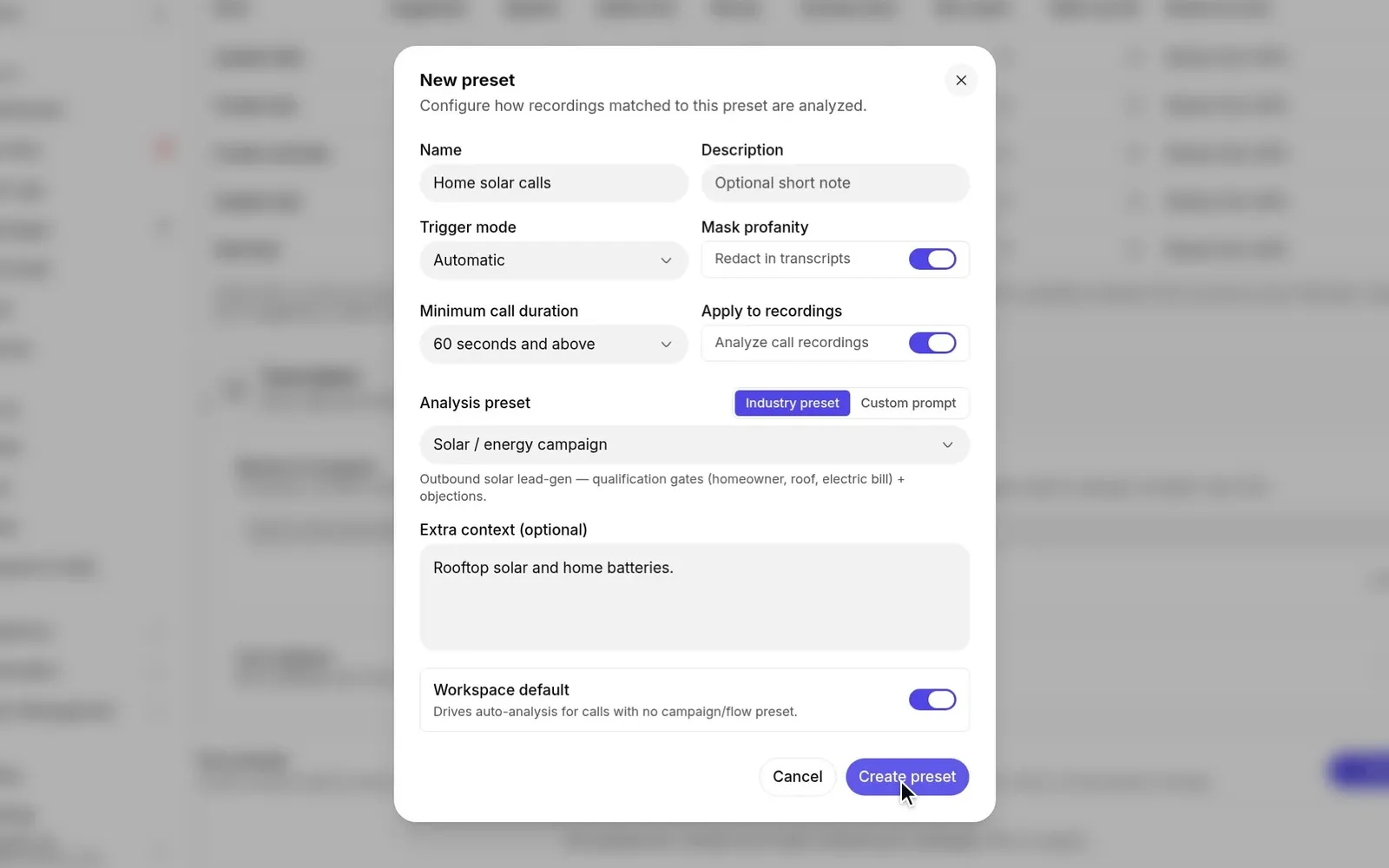
- On the AI Analysis page, press New preset.
- Enter a Name.
- Set Trigger mode to Automatic.
- Choose a Minimum call duration and leave Apply to recordings on.
- Under Analysis preset, choose an industry preset, or choose Custom prompt and describe what the AI should look for.
- Optionally add Extra context, such as your products and the terms your team uses.
- Turn on Workspace default so the preset applies to every call that has no other preset.
- Press Create preset.
To use a different preset for calls through one call flow, pick it in the flow editor's AI preset menu.
Analyze one call by hand
- Open the call in Call Logs and go to the AI tab.
- Press Analyse with AI. If the call was analyzed before, the button reads Analyse again and asks you to confirm, because the new run replaces the old results.
- Wait for the progress bar to finish. A message tells you when the analysis is ready.
A run you start by hand ignores the minimum call length and is billed like any other analysis.