
Knowledge lets an AI agent look things up during a call, such as your services, hours or policies. Open Telephony → AI agents, choose Knowledge and press Add a source, then tick the source on the agent's Tools tab. An agent searches only the sources ticked for it.
Before you start
- You need the Telephony & AI permission.
- Create and save the agent first. See Set up SIYA, the AI receptionist.
Add a source
- Open Telephony → AI agents and choose Knowledge.
- Press Add a source.
- Pick a tab:
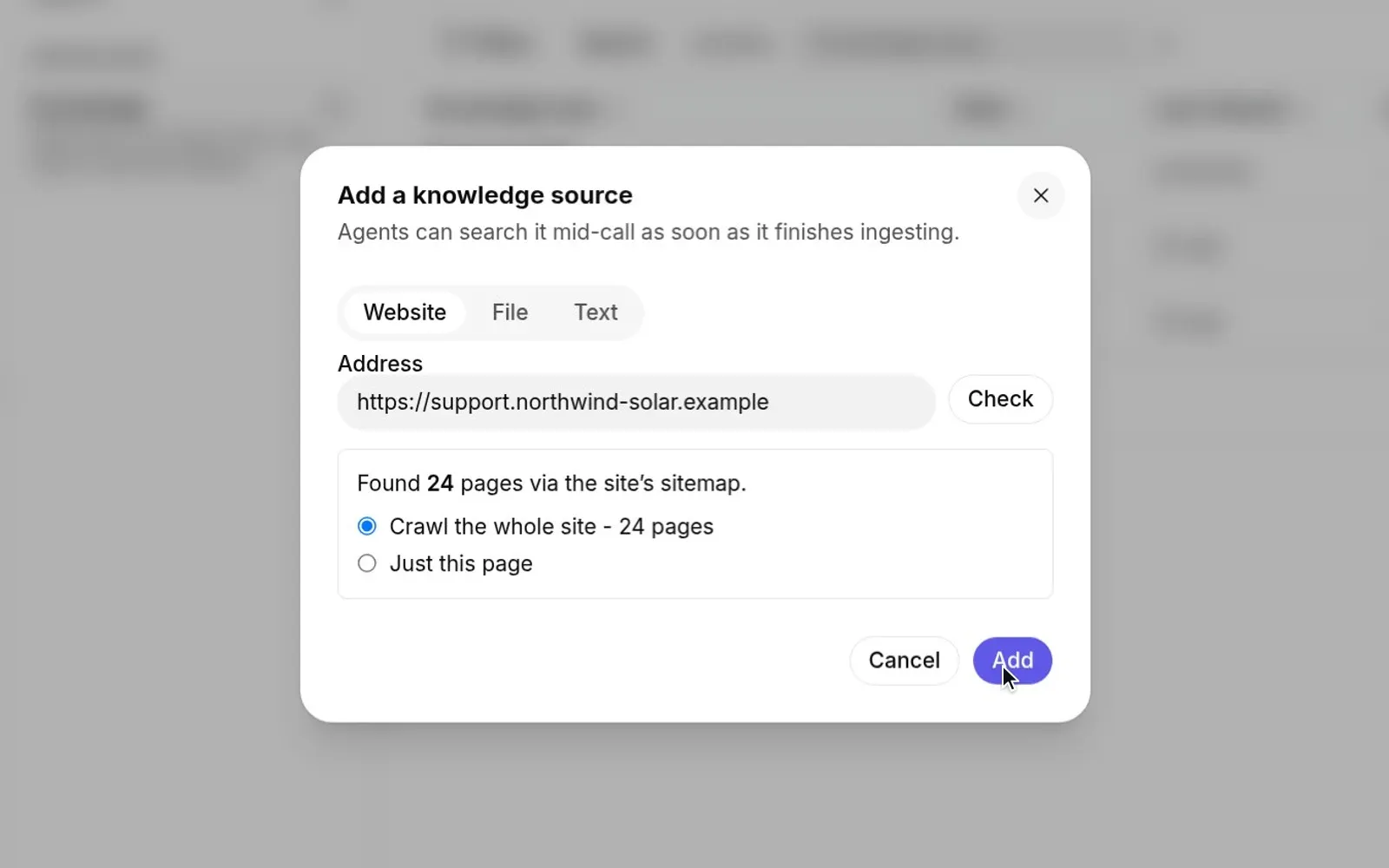
- Website: enter the Address and press Check. Adoptiv says how many pages it found. If there's more than one, choose Crawl the whole site (up to 500 pages) or Just this page.
- File: choose a PDF, DOCX or text file (.txt, .md or .csv) of up to 2 MB. Scanned PDFs are read with OCR.
- Text: enter a Name and paste the Content.
- Press Add.
The source shows as indexing while Adoptiv reads it, then ready. Websites are read again about once a week. A source last indexed more than a week ago shows as stale.
Choose which sources an agent searches
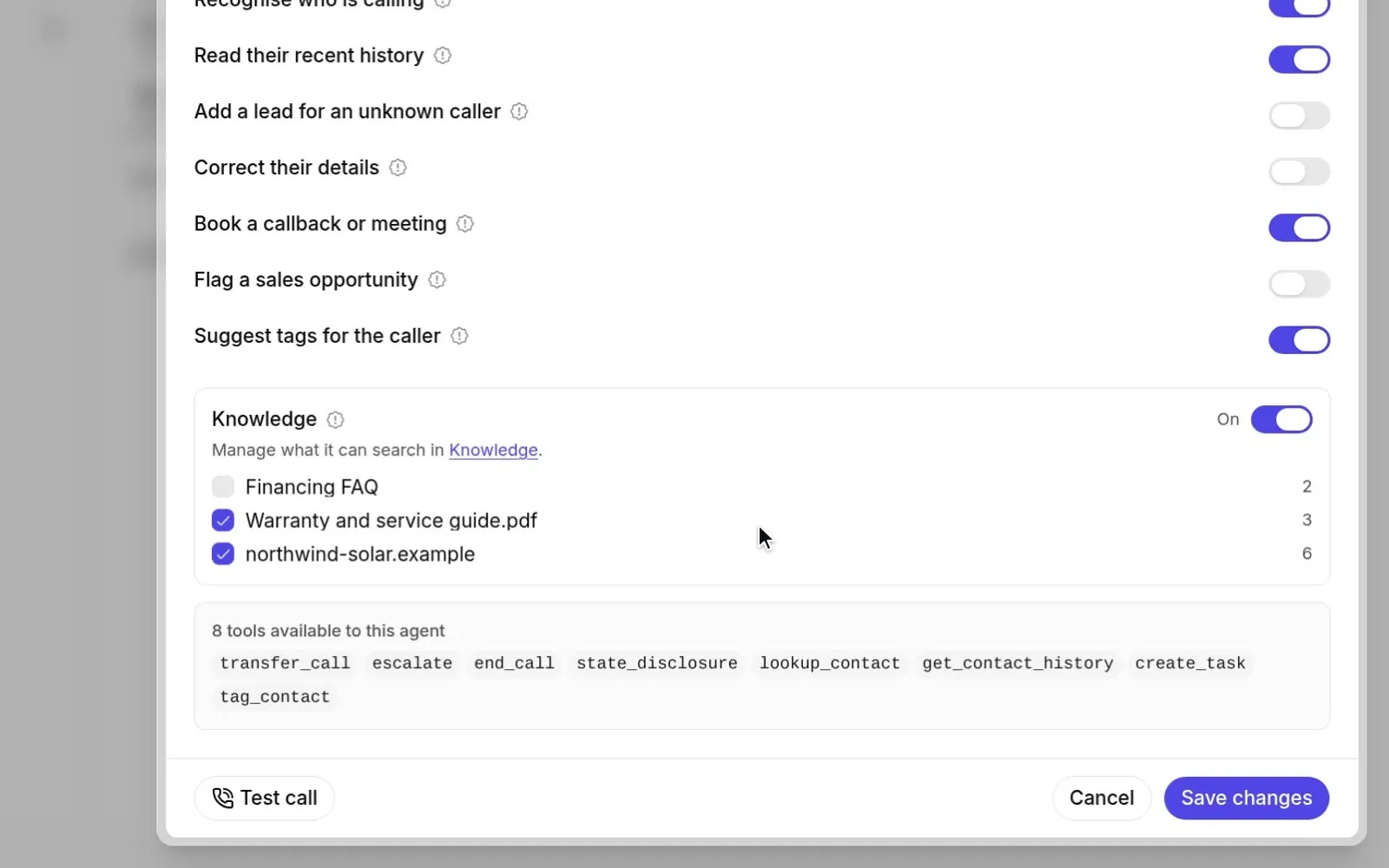
- Choose Agents and open the agent.
- Go to the Tools tab.
- In the Knowledge box, make sure the switch is on.
- Tick each source this agent may search. Your choice is saved as you tick.
Each search returns the four most relevant passages, so a large source doesn't slow calls down. Short rules the agent needs on every call belong in House rules on the agent's Prompt tab instead.
Test what an agent would find
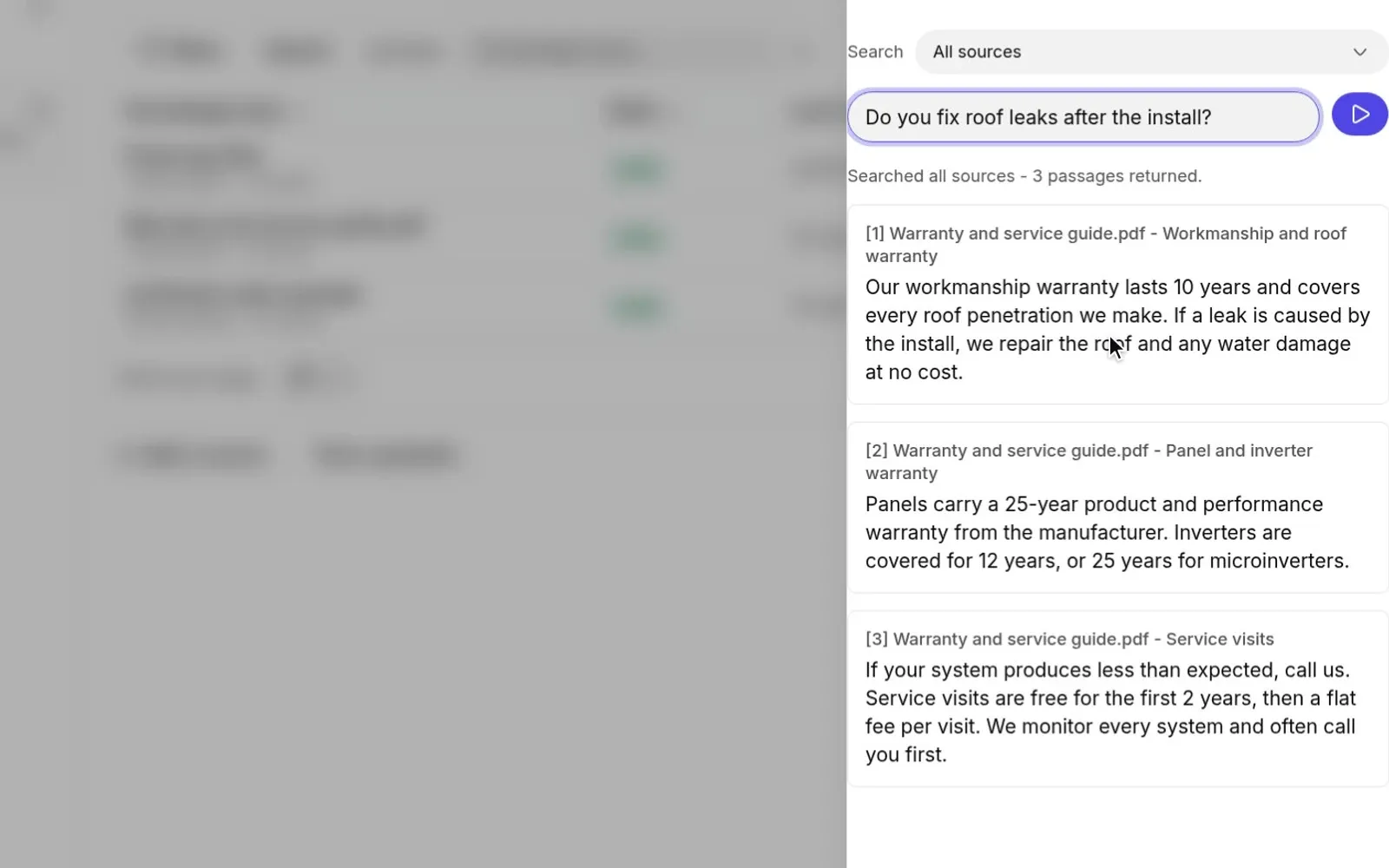
- In Knowledge, press Test a question.
- Next to Search, keep All sources or pick one source.
- Type a question a caller might ask and press Enter.
- Read the passages that come back. If the answer isn't in them, the agent can't know it, so add content that answers it.
Fix or remove a source
- In Knowledge, click the source. Its Status, page and passage counts show, with any error.
- For a website, press Re-crawl now to read it again.
- To remove the source, press Delete, then Delete again to confirm. Agents stop finding its content right away.
A status of Could not read this site or Failed won't clear on its own. Try a different address, or add the content as a file or as text.