
You connect Zapier from inside Zapier: choose the Adoptiv app, sign in to Adoptiv and allow the connection. Connect your Google or Outlook calendar from Planner → Calendar, and Calendly, Zoom, Google Meet or Microsoft Teams from Settings → Integrations.
Before you start
- Zapier: workspace owners and admins, and roles with Manage Integration. Manage Settings alone isn't enough. Your workspace must also be approved.
- Your own calendar: anyone.
- A company calendar and Calendly: owners and admins, and roles with Manage Integration or Manage Settings.
- Settings → Integrations shows to owners and admins, and to roles with Manage Settings, Manage Team or Manage Roles.
Connect Zapier
- In Zapier, pick the Adoptiv app for your Zap and connect a new account.
- Sign in to Adoptiv if you're asked.
- On the Connect Zapier screen, choose the Workspace. Only workspaces where you can connect apps are listed.
- Press Allow. You're sent back to Zapier.
Zapier can then find, create and update the leads you can work with. If your role has Telephony & AI, it can also list your call flows and start calls with them. Zapier acts as you: it can only see and change what your role lets you see and change. If you're removed from the workspace, the connection stops working.
Connect your Google or Outlook calendar
- Open Planner and choose the Calendar view.
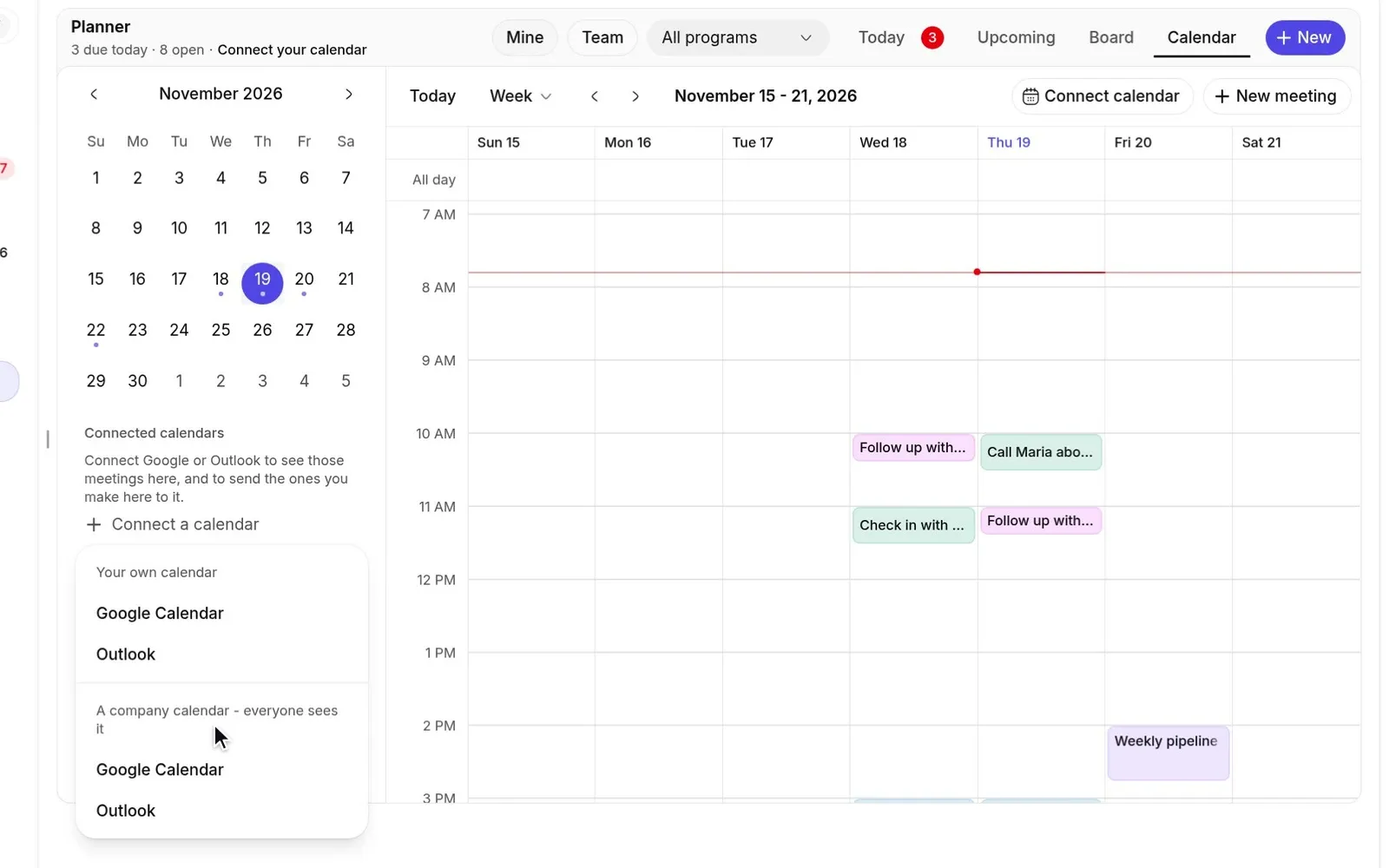
- Under Connected calendars, press Connect a calendar.
- Under Your own calendar, choose Google Calendar or Outlook.
- Sign in to that account and approve access. You come back to the Planner.
Meetings from that calendar show in the Planner, and meetings you make there are sent to it. Open a connected calendar's ⋯ menu to Sync now, Choose calendars…, Reconnect or Disconnect.
Add a company calendar
If you may manage integrations, the same menu also offers A company calendar - everyone sees it. Everyone in the workspace sees its events. Removing it reads Disconnect for everyone.
Connect Calendly or a meeting app
- Open Settings → Integrations and stay on the Connected apps tab.
- Find the app: Calendly is under Calendars; Zoom, Google Meet and Microsoft Teams are under Meetings.
- Press Connect and approve access on the app's own site. You come back to Settings.
Calendly shares your scheduling link and pulls bookings back in. Its card also has a Setup guide. Zoom, Google Meet and Microsoft Teams put a joinable link on tasks, deals and calendar invites. Meeting-app connections are personal: each person connects their own account, but only people who can open Settings → Integrations can do it (see Before you start).
Each card shows whether the app is connected and when it last synced. If one stops working, the Failing count goes up: press Manage on its card to reconnect.