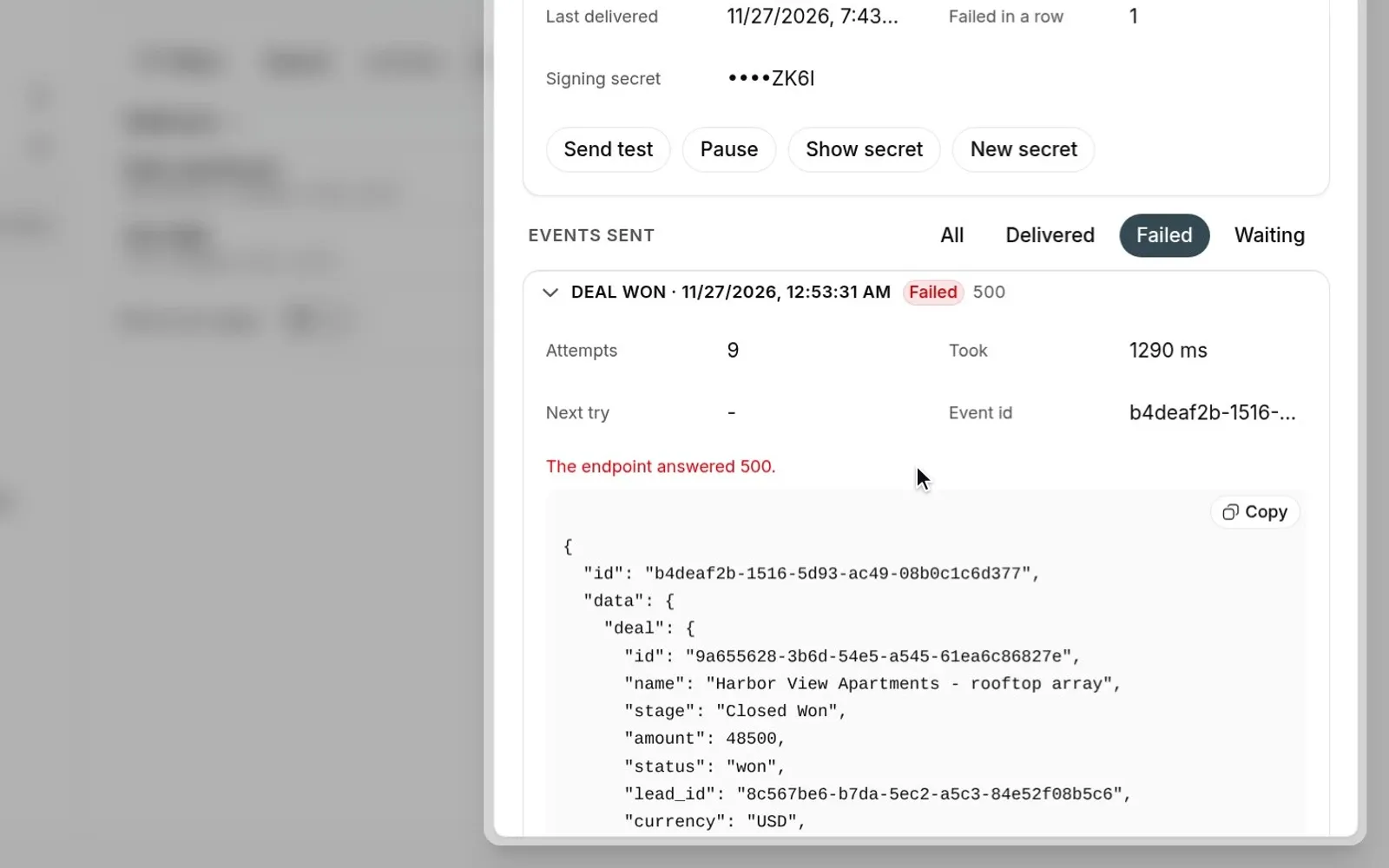
An outgoing webhook tells another system when something happens in Adoptiv. Open Settings → Outgoing webhooks, press New outgoing webhook, enter the address and choose the events. Adoptiv then posts a signed JSON event to that address each time one happens.
Before you start
- Outgoing webhooks are managed by workspace owners and admins, and by roles with Manage Settings.
- You need an address on the other system that accepts a
POST. It must be a publichttps://address. - A workspace can have up to 25 outgoing webhooks.
- To send data into Adoptiv instead, see Send leads in with incoming webhooks.
Create the webhook
- Open Settings → Outgoing webhooks and press New outgoing webhook.
- Enter a Name, such as Our data warehouse.
- Paste the Address (HTTPS). It's stored encrypted.
- Under Events to send, tick at least one event.
- Press Create.
- The signing secret opens in its own dialog. Press Copy and give it to whoever runs the receiving system. It isn't shown in full again, but you can show it later with your password.
- Press Done.
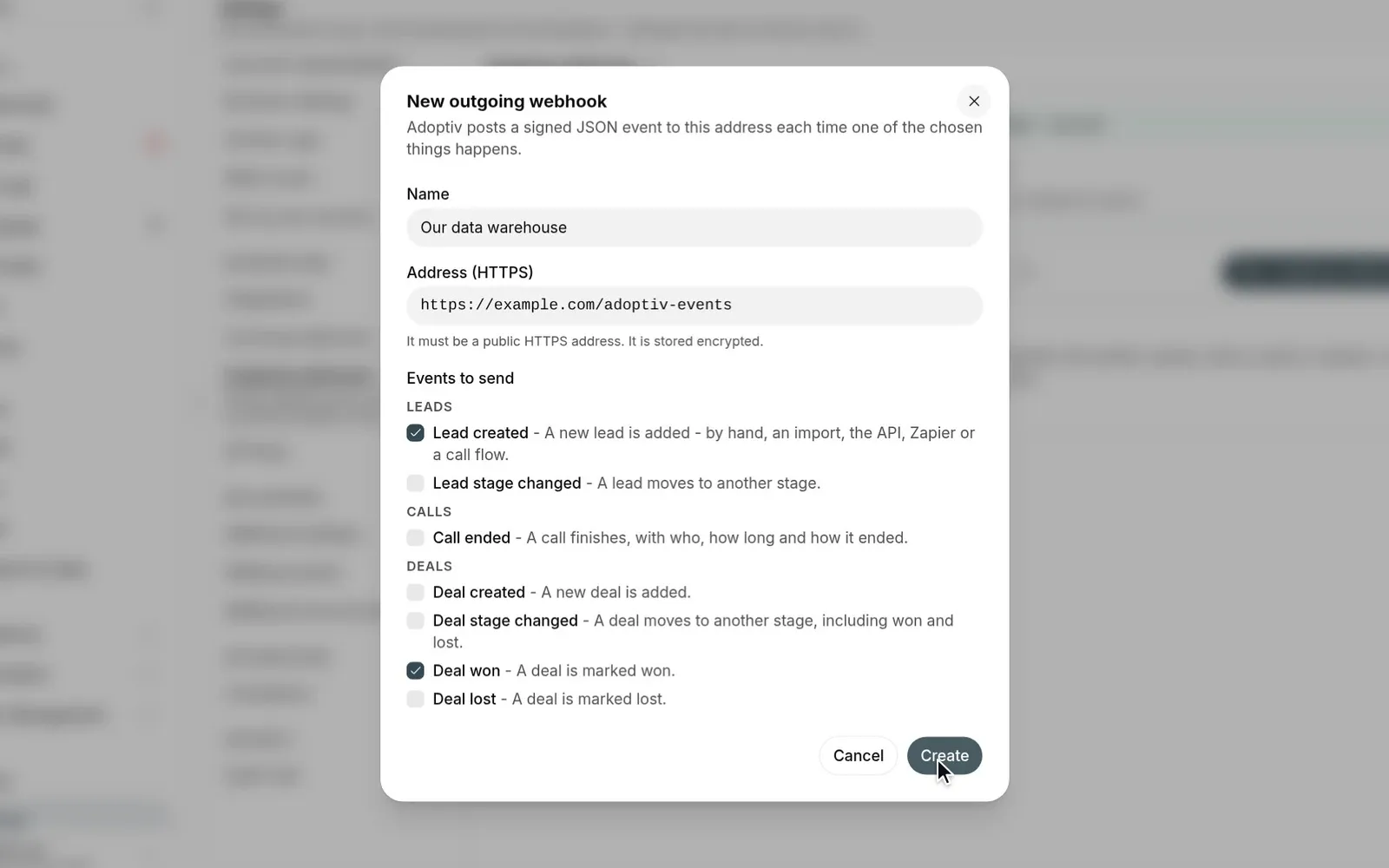
The events
| Event | Type | Sent when |
|---|---|---|
| Lead created | lead.created | A new lead is added: by hand, an import, Zapier or a call flow. |
| Lead stage changed | lead.stage_changed | A lead moves to another stage. Also carries previous_stage. |
| Call ended | call.ended | A call finishes. |
| Deal created | deal.created | A new deal is added. |
| Deal stage changed | deal.stage_changed | A deal moves to another stage, including won and lost. Also carries previous_stage_id. |
| Deal won | deal.won | A deal is marked won. |
| Deal lost | deal.lost | A deal is marked lost. |
Send test posts a webhook.ping event, so you can check the endpoint before real events arrive.
What an event looks like
Each event is a POST with a JSON body like this:
{"id": "…", "type": "lead.created", "version": 1, "created": "2026-11-27T15:04:05.000Z", "workspace_id": "…", "data": {"lead": {…}}}
data holds a lead, deal or call with snake_case fields: for a lead, for example, first_name, phone, stage and owner_id; for a call, direction, from, to, duration_seconds and has_recording. A call's disposition is often empty when the call ends, because the agent picks it at wrap-up.
Three headers come with it:
X-Adoptiv-Event: the event type.X-Adoptiv-Delivery: the event's id. It's the same on every retry, so skip an event you've already handled.X-Adoptiv-Signature:t=<seconds>,v1=<hex>.
Check the signature
- Read
tandv1fromX-Adoptiv-Signature. - Work out the HMAC-SHA256 of
<t>.<raw body>with your signing secret, as hex. Use the body exactly as it arrived, before you parse it. - Accept the event only if your result matches
v1andtis within five minutes of now.
The signing secret dialog shows a short Node.js example of this check.
Answers and retries
- Answer with any
2xxstatus within 10 seconds. The event is then Delivered. - A timeout, a
408,425or429, or any5xxis tried again: first after about a minute, then waiting twice as long each time, up to 9 tries in all. - Any other status, such as another
4xx, isn't tried again. Nor is an address that isn't a publichttps://one. - After five events in a row can't be delivered, the webhook pauses itself and shows Paused - failing with the reason. Fix the endpoint, then press Resume. Events that happen while a webhook is paused aren't sent later.
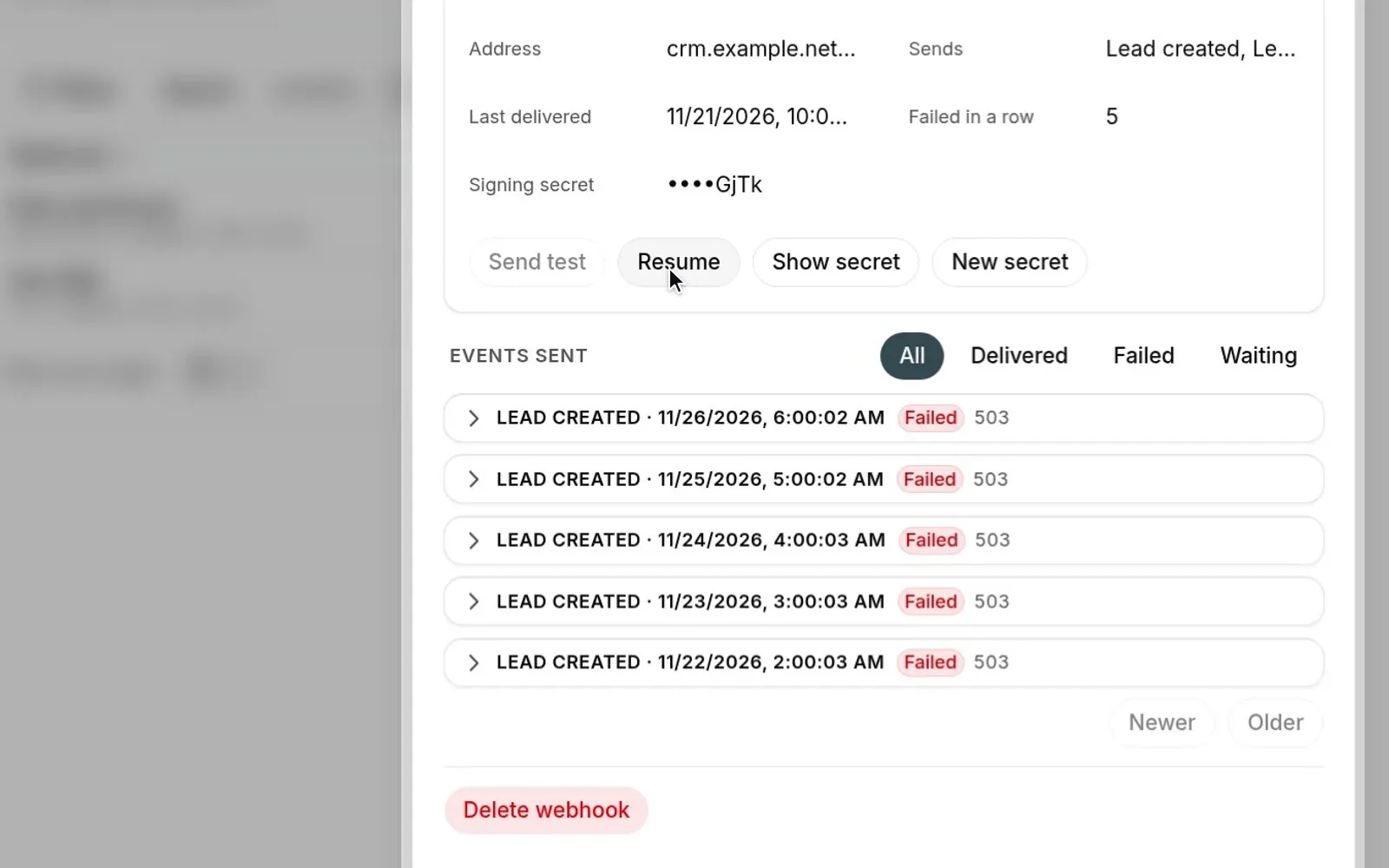
See what was sent
- In Settings → Outgoing webhooks, click the webhook's row.
- Under Events sent, choose All, Delivered, Failed or Waiting.
- Open an event to see its Attempts, how long it Took, the Next try, the Event id, any error and the payload.
- Press Resend on a delivered or failed event to send it again with the same id.
The same panel has Send test, Pause, Show secret (asks for your password and is recorded in the audit log) and New secret, which stops the old secret at once. To change the address or the events, press Edit. Delete webhook asks you to type its name and deletes its log.