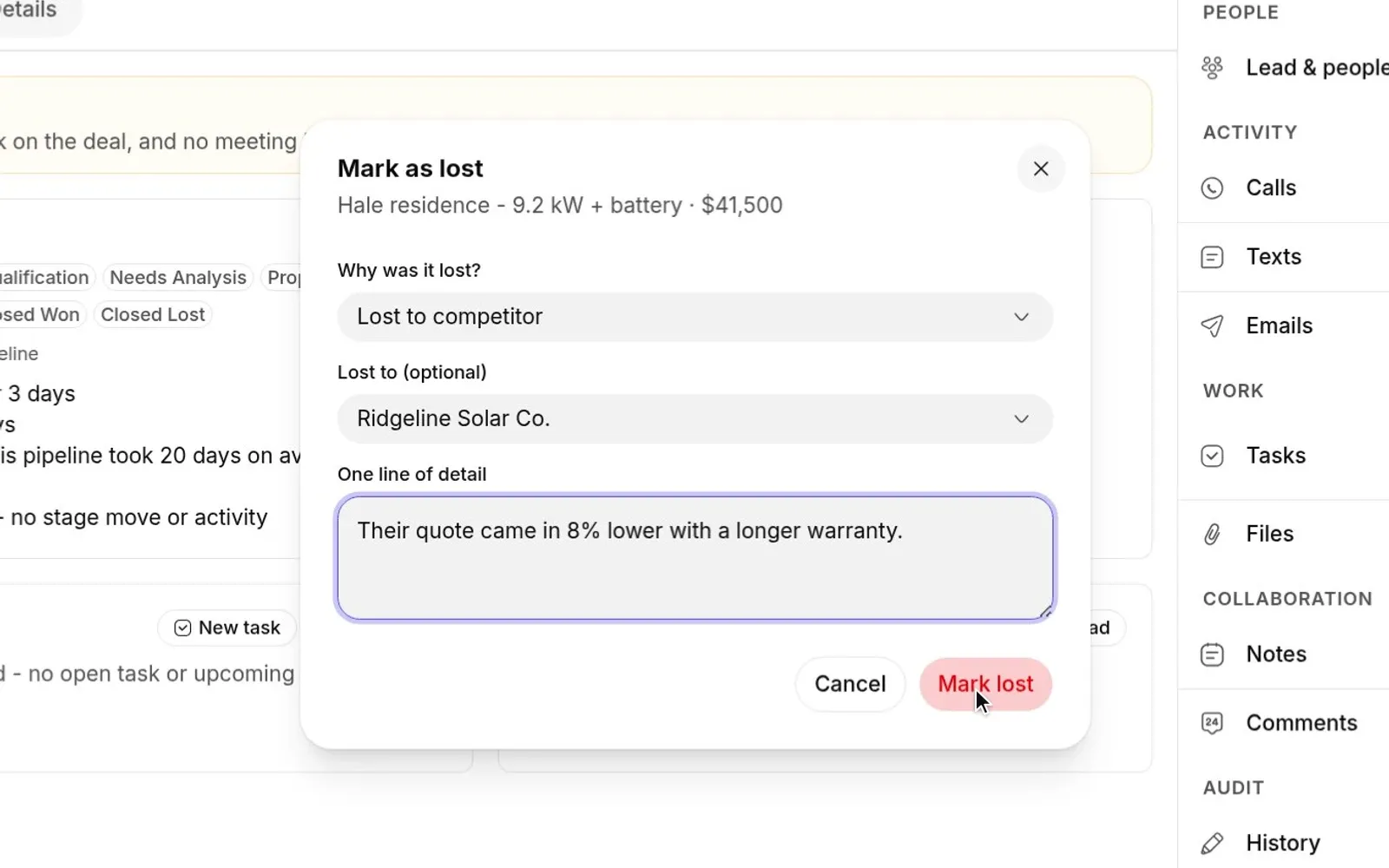
To close a deal, open it and press Mark won or Mark lost, pick a reason and confirm. On the board you can also drag the card onto the pipeline's won or lost column.
Before you start
- You need to be able to change the deal: Edit or Full access on the Deal row in Roles & Permissions, on a deal your role can edit. A deal you can only read shows View only and has no close buttons.
- The deal's pipeline needs a won stage and a lost stage. See Set up pipelines and stages.
Close a deal
- Open the deal from the board, the grid or the lead's Deals.
- Press Mark won or Mark lost. Picking a won or lost stage from the deal's stage menu does the same.
- Under Why did we win? or Why was it lost?, pick a reason.
- For a loss, you can choose who you lost to under Lost to (optional). This only appears when your workspace has a competitor list.
- Add One line of detail if you want. If you picked Other, a line saying why is required.
- Press Mark won or Mark lost.
On the board, you can also press ⋯ on a card and choose Mark won or Mark lost, or drag the card into a won or lost column. The same reason dialog opens.
What happens when a deal closes
- The deal is marked Won or Lost, and the day it closed is recorded.
- It leaves the open board. Use the Won and Lost tabs on Deals to find it.
- A won deal counts in Closed won on the forecast strip for the quarter it was won. Closed deals are never in Commit, Best case or Weighted.
- The deal's Overview says when it was won or lost, and why.
Reopen a deal
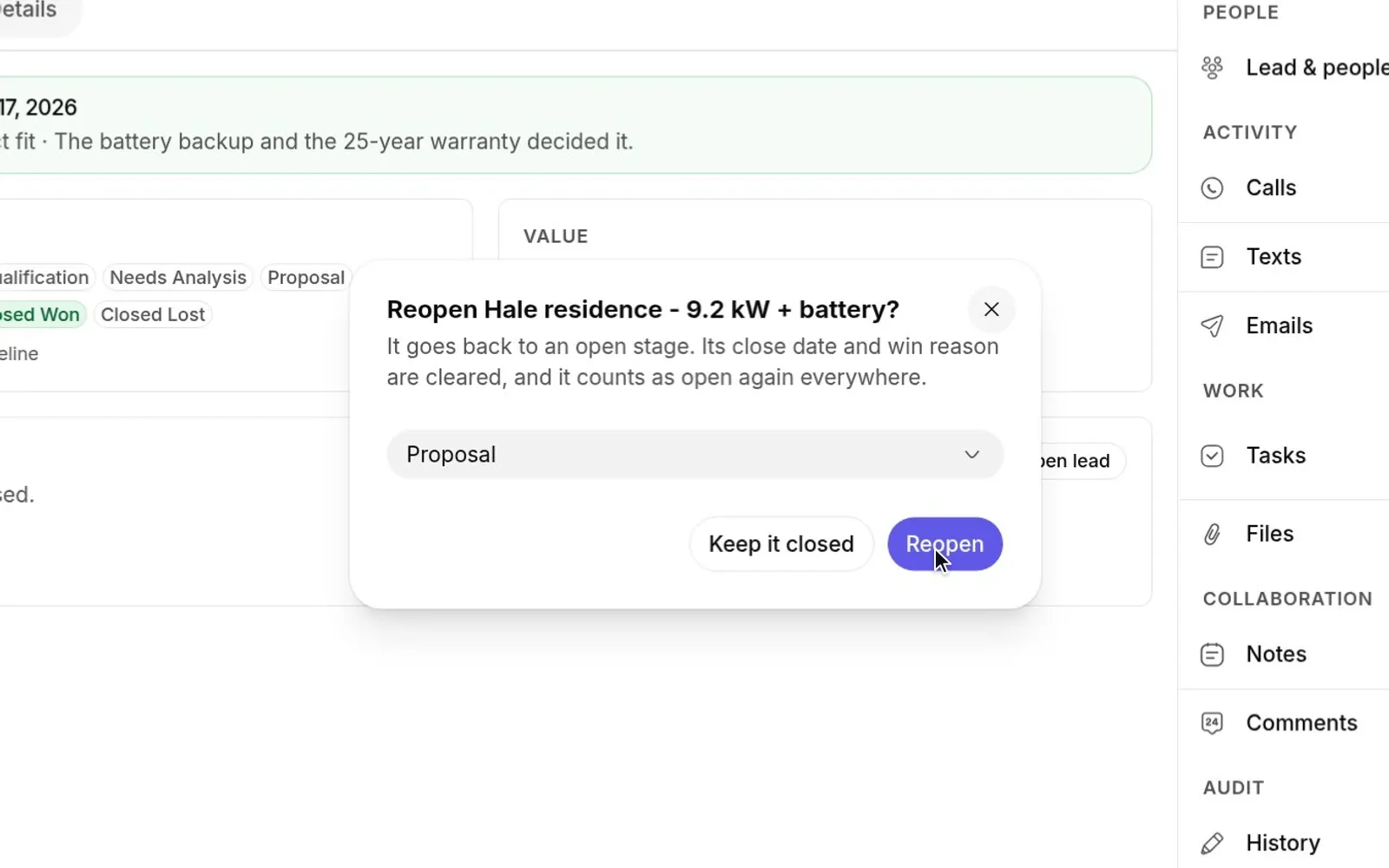
- Open the closed deal.
- Press Reopen.
- Pick the open stage it goes back to.
- Press Reopen to confirm.
Its close date and its win or loss reason are cleared, and it counts as open again everywhere.
Set up your reasons
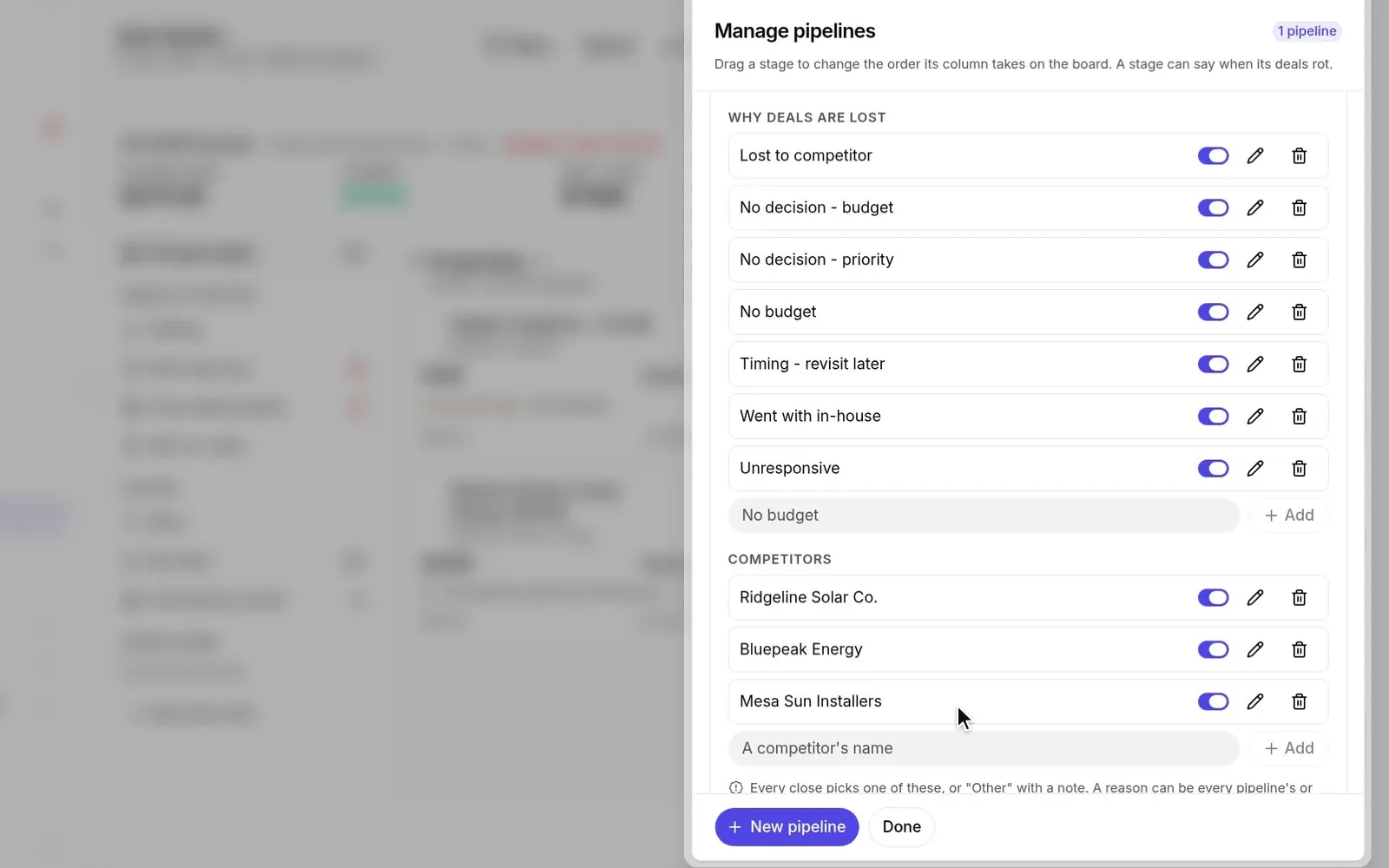
Reasons are pick lists, so your reports can count them. A new workspace starts with these:
- Won: Product fit, Price, Timing, Existing relationship, Displaced a competitor.
- Lost: Lost to competitor, No decision - budget, No decision - priority, No budget, Timing - revisit later, Went with in-house, Unresponsive.
Other is always offered and asks for a note. The competitor list starts empty. To change the lists you need the Manage Settings permission.
- On Deals, open the pipeline menu at the top and choose Manage pipelines.
- Open Close reasons.
- Under Why deals are won, Why deals are lost or Competitors, type a name.
- If you have more than one pipeline, choose Every pipeline or a single pipeline.
- Press Add.
Next to each reason, the switch stops offering it (or offers it again), the pencil renames it and the bin deletes it.